
Artist pages
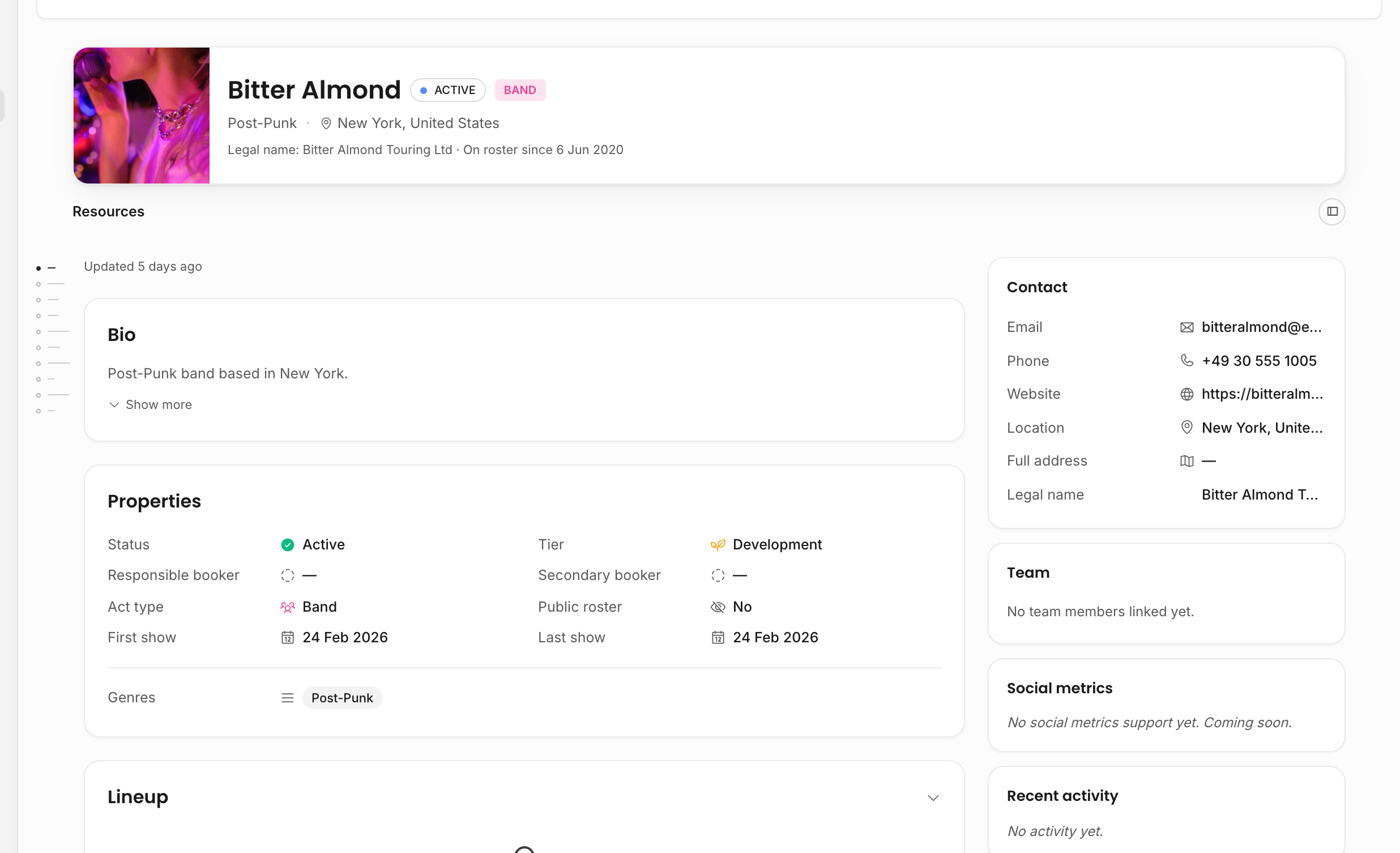
An artist page is the operational workspace for one artist or act. It is where the team keeps roster identity, booking context, linked people, resources, artist-level documents, activity, and permission-aware financial data together.
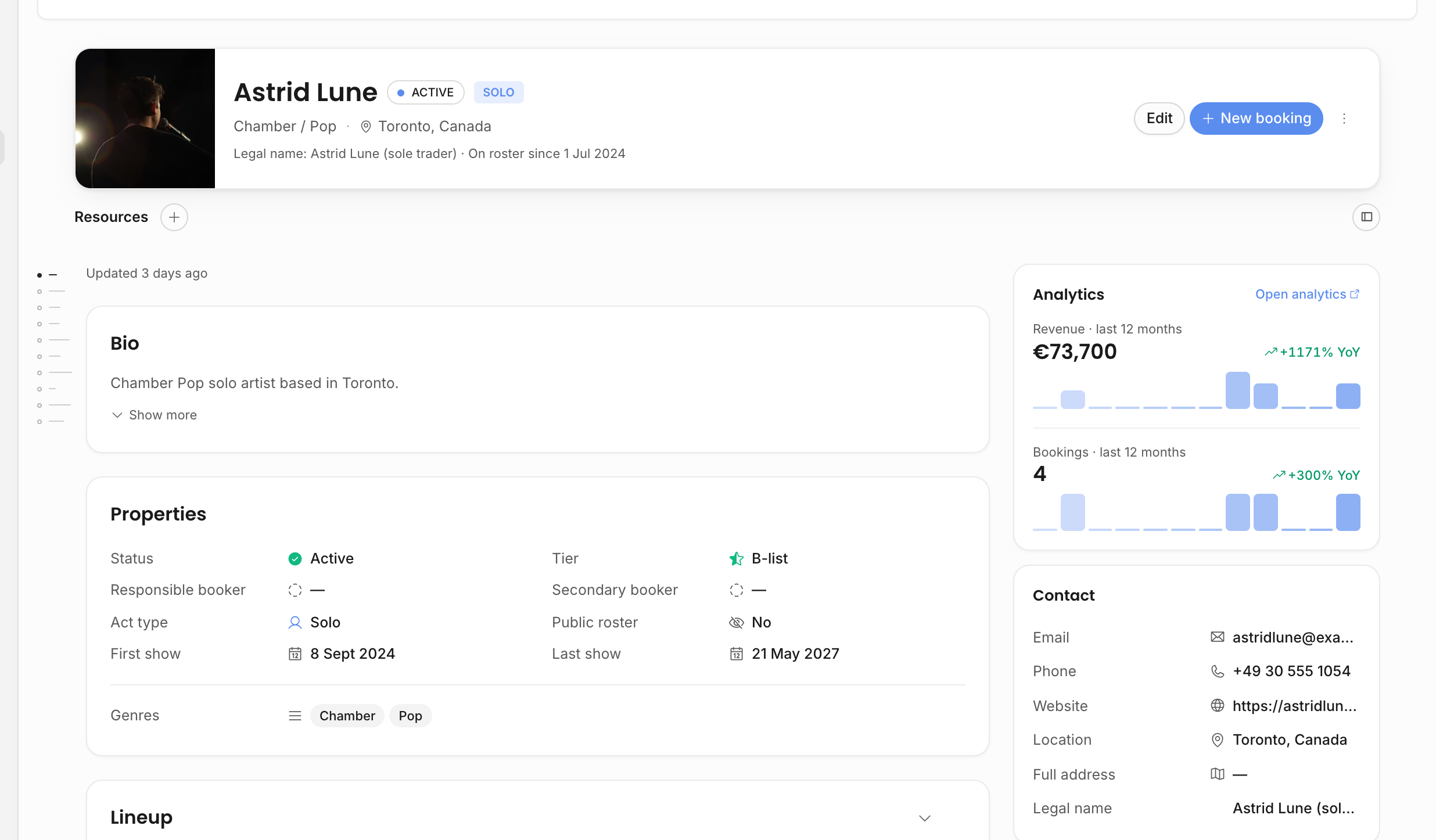
What the page shows
| Section | What belongs there |
|---|---|
| Header | Artist photo, name, status, act type, genre, location, and New booking when the viewer can create events. |
| Resources row | Artist-level documents, contracts, invoices, free-form links, rider and press-kit links, social links, and uploaded files. |
| Bio | Short and long artist copy. This is the best place for reusable profile text that can later be pulled into documents. |
| Properties | Status, tier, responsible booker, secondary booker, act type, public-roster flag, first show, last show, and genres. |
| Contact | Main email, phone, website, location, full address, and legal name. |
| Team | Linked people such as managers, agents, day-to-day contacts, or other people connected to the artist. |
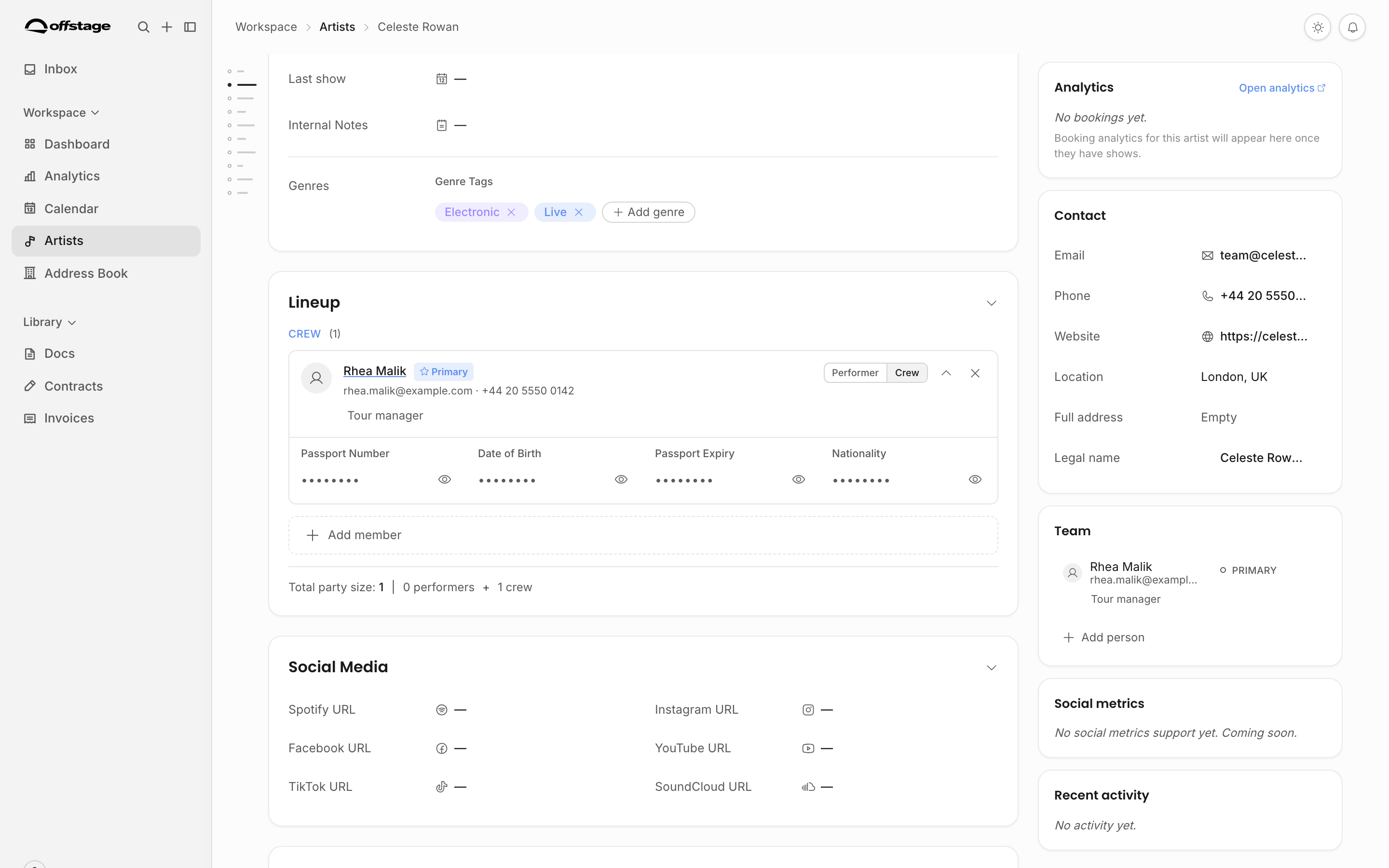
| Lineup | Performers, touring crew, and people who travel with the act. Sensitive person details require sensitive-data permission and are revealed deliberately. |
| Social | Spotify, Instagram, Facebook, YouTube, TikTok, SoundCloud, website, rider, and press-kit URLs. |
| Performance | Set length, capacity range, party size, technical requirements, hospitality requirements, preferred deal type, radius clause, merch handling, blacklist, and target markets. |
| Travel | Flight class, hotel preference, per diem, ground transport notes, visa notes, tax residency, withholding tax, and tax ID context. |
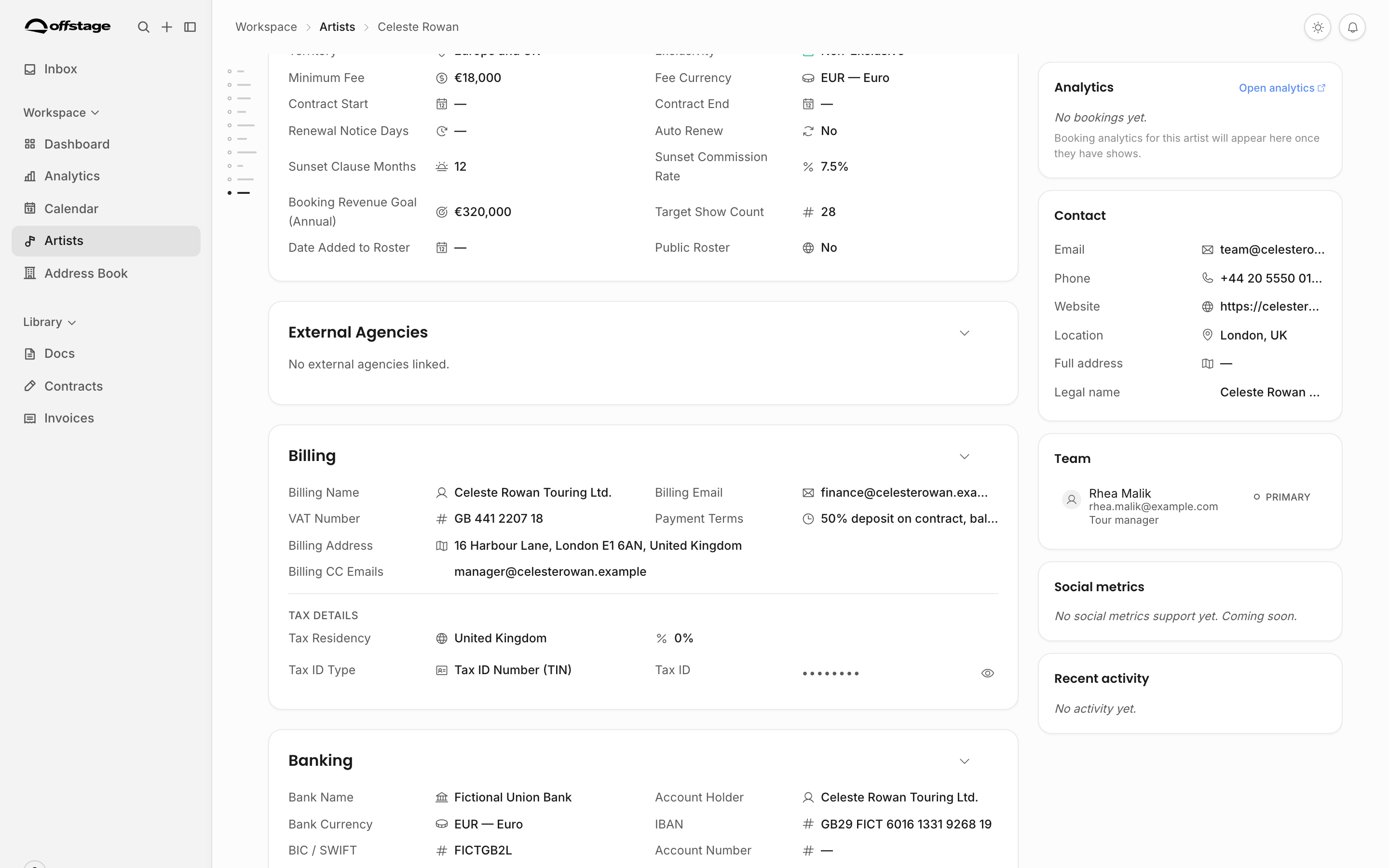
| Booking terms | Commission model, territory, exclusivity, agreement dates, renewal notice, minimum fee, sunset terms, booking targets, date added to roster, and public-roster setting. |
| External agencies | Agency relationships, territory, commission direction and basis, exclusivity, agreement status, approval requirement, minimum fee, and payment terms. |
| Billing | Billing name, address, email, CC recipients, VAT number, and payment terms. |
| Banking | Bank name, account holder, IBAN/BIC or local account details, currency, and bank notes. |
| Activity | Latest update and recent artist activity, including linked-person and resource changes. |
Editing and autosave
If you can edit artists, editable values are available directly on the page. Text changes save when you leave the field or press Enter. Pickers and toggles save when you choose a value. Lineup, linked-person, and external-agency changes are saved as you make them, so there is no page-wide edit mode or final Save button.
Each changed row briefly confirms when it is saved. If a request fails, the page keeps your value and shows Not saved · Retry beside that field. If a teammate changed the same field first, you can keep your value or use theirs. Changes to other fields do not block your work.
Creating a new artist starts in the quick-create modal. Enter the required name, optionally add a photo and starting properties, then choose Create artist. Once the artist exists, the saved detail page uses autosave for later changes.
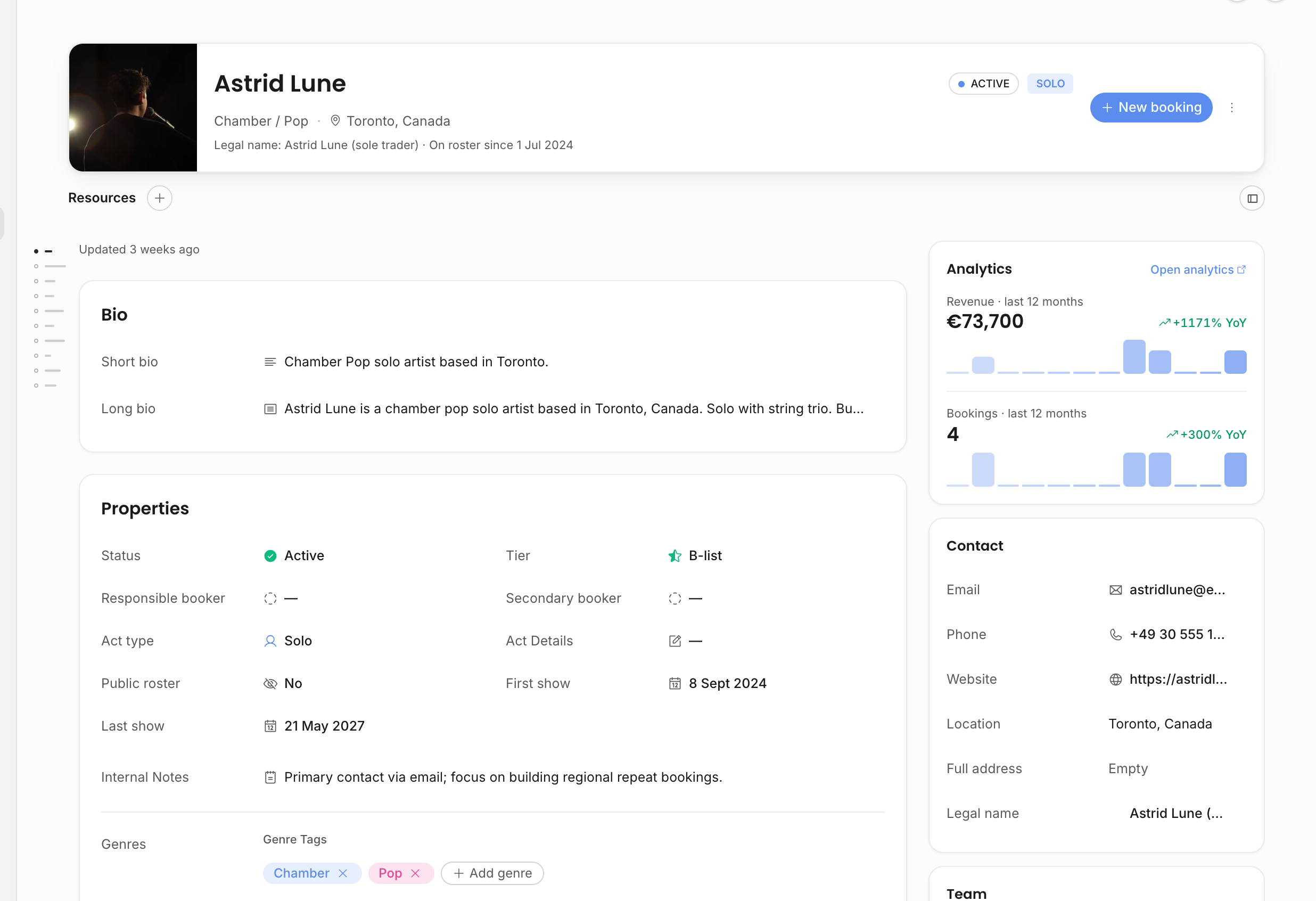
When to use artist-level resources
Use artist resources for documents, links, and files that belong to the artist generally, not to one specific show. Examples include biographies, press material, technical riders, generic hospitality notes, banking documents, and reference files.
Use show resources when the file belongs to one booking, such as a show contract, show invoice, itinerary, settlement note, or event-specific rider. Artist pages can show artist-parented contracts and invoices, but the contract or invoice detail page remains the source of truth for that document's lifecycle.
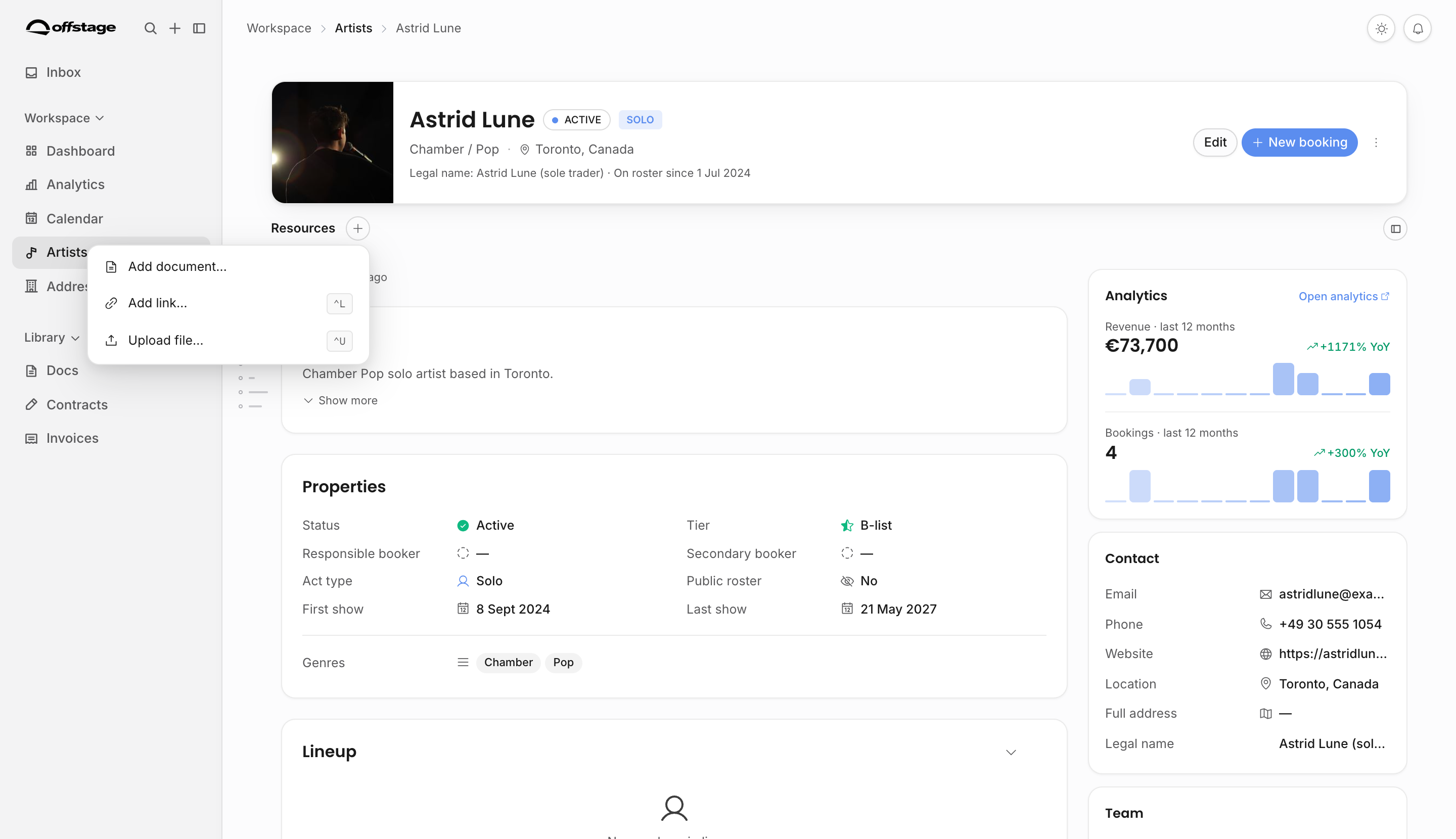
New bookings
The artist page can start a new booking for that artist. This opens the standard event creation modal with the artist preselected. Use this path when the team starts from the roster and already knows which act the booking belongs to.
Calendar creation is better when the starting point is a date, tour route, or calendar gap.
Analytics on artist pages
When the viewer has Analytics access and financial access, the side panel can show artist-level revenue and booking signals for the last 12 months, including year-over-year context. The card follows the same analytics scope rules as the Analytics area:
| Access situation | What the artist page can show |
|---|---|
| Full analytics scope | Revenue and booking signals for the artist. |
| Artist-scoped analytics | Signals only for artists inside the viewer's artist scope. |
| Booker-scoped analytics | Signals only for events booked by that user, with a note that the numbers are their bookings only. |
| No analytics or no financial access | The analytics card is hidden. |
First-show and last-show properties are still useful roster facts and can appear even when the analytics card itself is hidden.
Permissions and sensitive fields
Artist pages follow the same role and artist-scope model as the rest of the app.
| Permission area | Effect on artist pages |
|---|---|
| Create/edit contacts | Create artists, edit artist fields, add resources, change linked people, update lineup, and manage external-agency links. |
| Delete contacts | Delete artists that have no associated shows. Artists with existing shows cannot be deleted. |
| Financial data | View billing, banking, and financial booking-term fields such as commission, minimum fee, per diem, withholding tax, and bank details. |
| Sensitive data | Reveal sensitive artist or person fields deliberately. Reveals are logged and values are not sent with the normal page load. |
| Artist scope | Limits which artists the user can open and follows the artist into connected shows, documents, contracts, invoices, and analytics. |
Artist scope
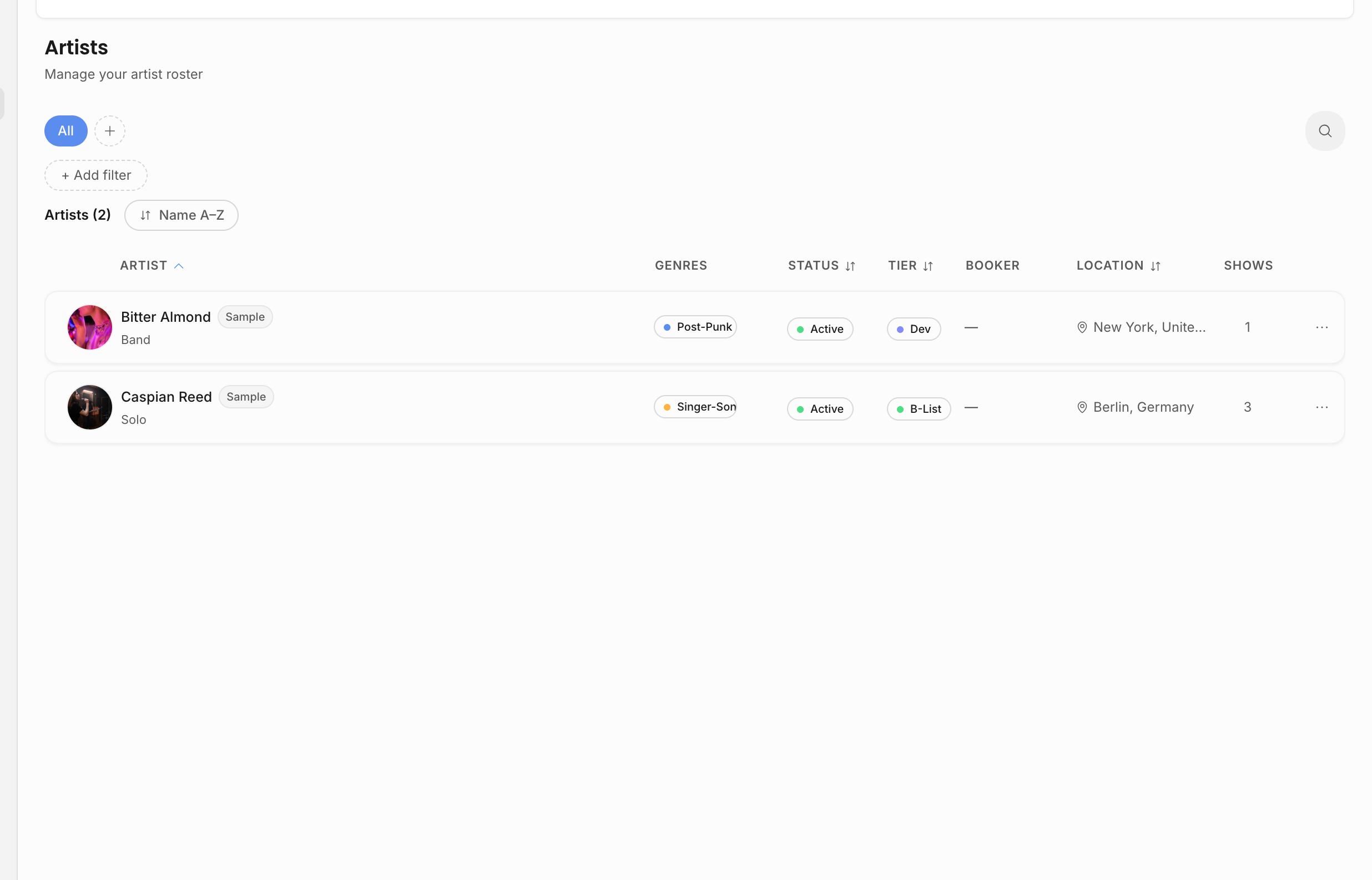
Team members can be scoped to specific artists. Artist scope is not only a roster filter; it follows the artist into connected work throughout the app. A scoped user should only see the artists and artist-connected work that their role permits.
Related: Add an artist, Roles and artist scope, Documents overview.