
Invoice and get paid
An invoice in Offstage is a document on a show that bills the organizer and tracks its own payments. This guide covers raising one, sending it, and recording what comes in.
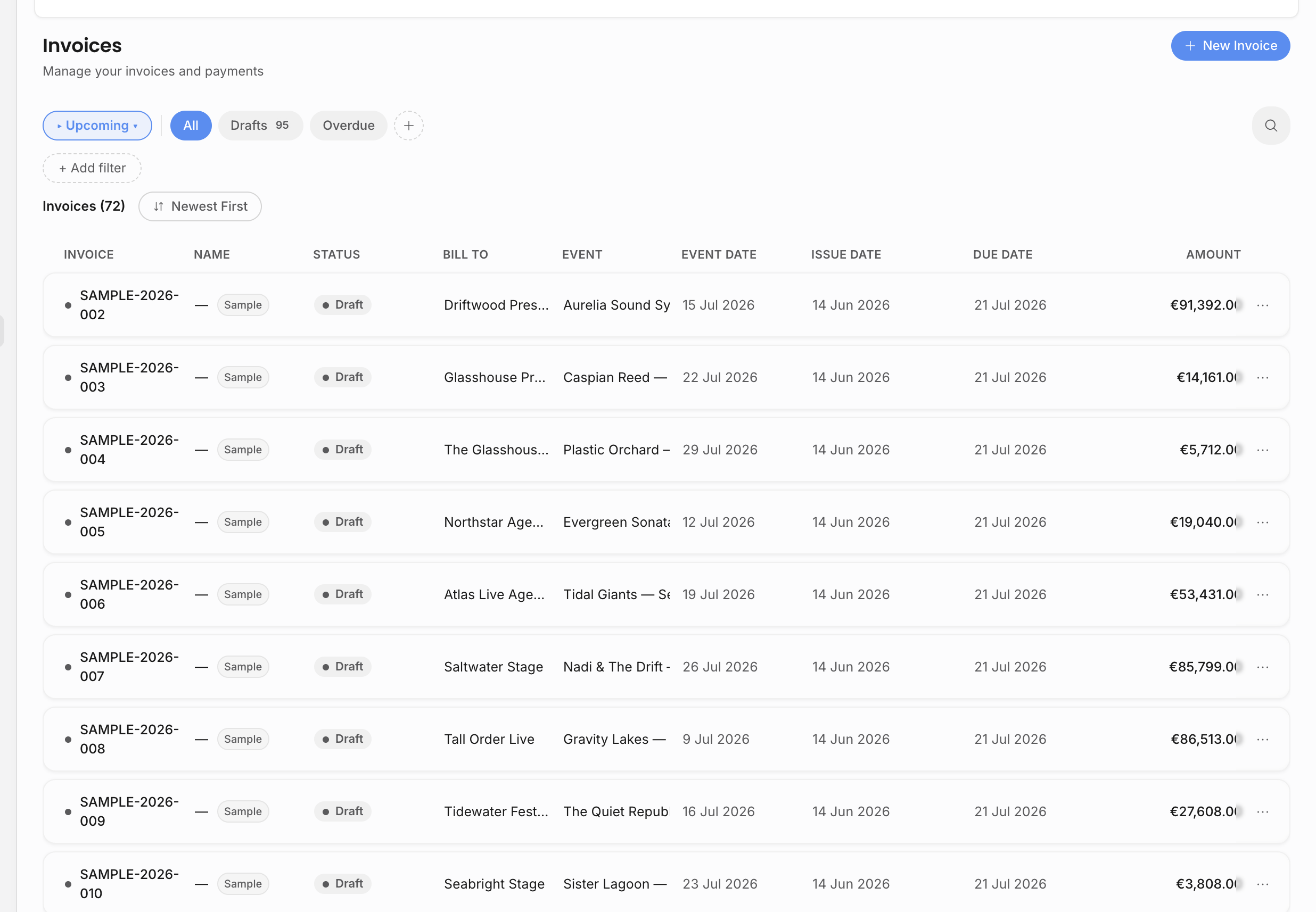
Raise the invoice
Start with the show's money: the amounts an invoice bills come from the revenue lines on the show's Revenues and expenses card, so add those lines first (from the workspace catalog or as custom lines; see Revenues and expenses on the show page). With the lines in place, the create dialog can offer them for billing right away.
Open the show and add an invoice from its resources, or start from Invoices if you need a manual invoice. Offstage previews the next invoice number and assigns the final number when the invoice is created, so the list stays in sequence even when several people are working quickly. For a show invoice, choose which event revenue lines the invoice bills, then create it from a template, copied content, or a blank invoice document.
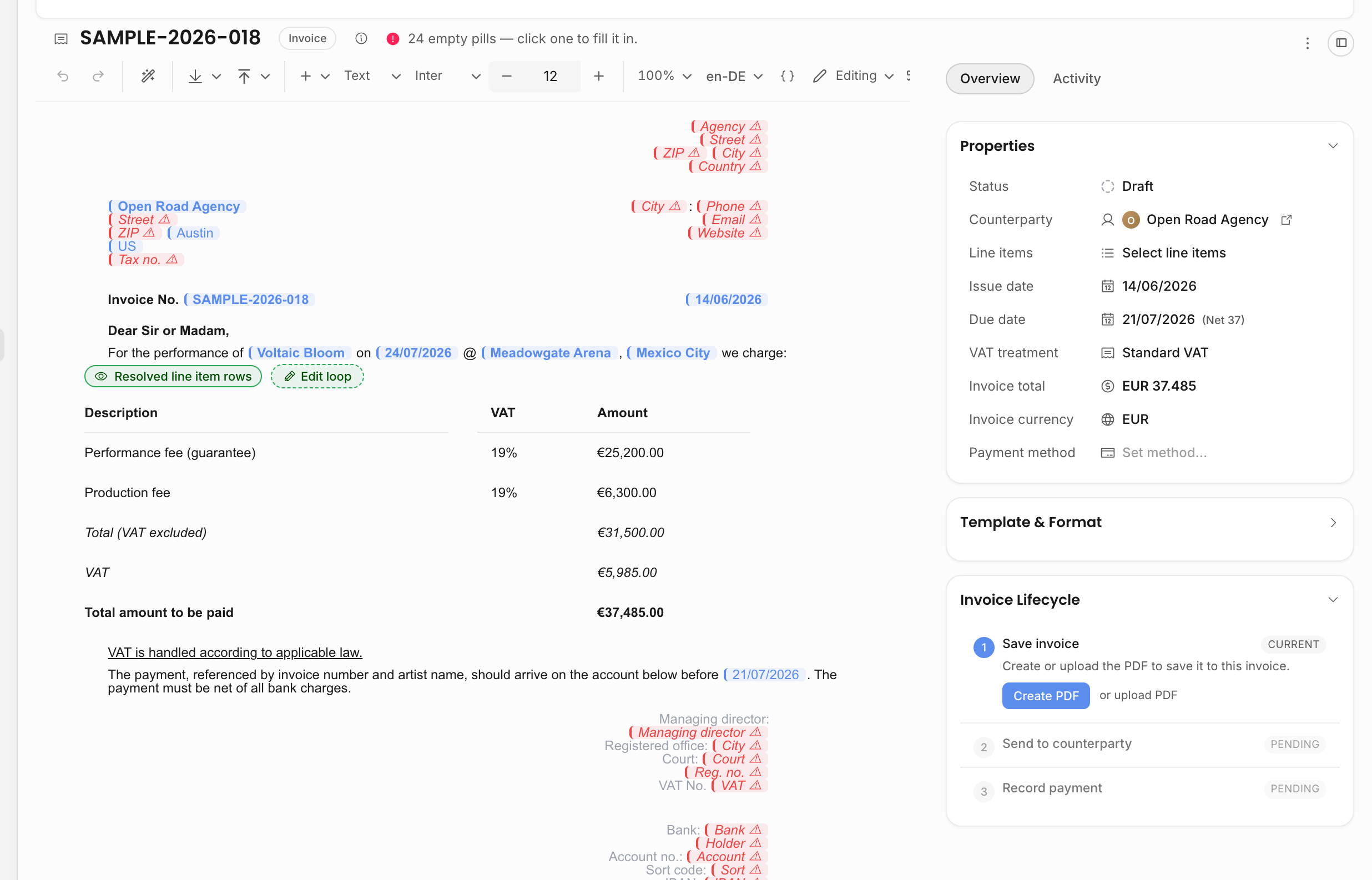
The invoice is not only a PDF. It has a document body, an invoice record, a counterparty, dates, VAT treatment, currency, selected line items, payments, and lifecycle state. Live pills pull in show details, counterparty details, selected lines, totals, due dates, payment schedule rows, and agency details.
Invoice lines and source records
The invoice should point back to the event revenue lines it bills. That makes the invoice total explainable from the show instead of becoming an isolated PDF number. On an event-backed invoice, the Line items row opens a selector for the event's revenue lines. Selecting lines does not change the show total; it controls what this invoice bills and what the invoice's financial block resolves to.
If the billed scope changes while the invoice is still editable, update the selected lines rather than typing a disconnected total into the document. The invoice document can still include normal wording, payment instructions, and live pills, but commercial source values should live in the show, invoice properties, selected lines, and payment schedule so the list page, detail page, PDF, and analytics agree.
Send it by email
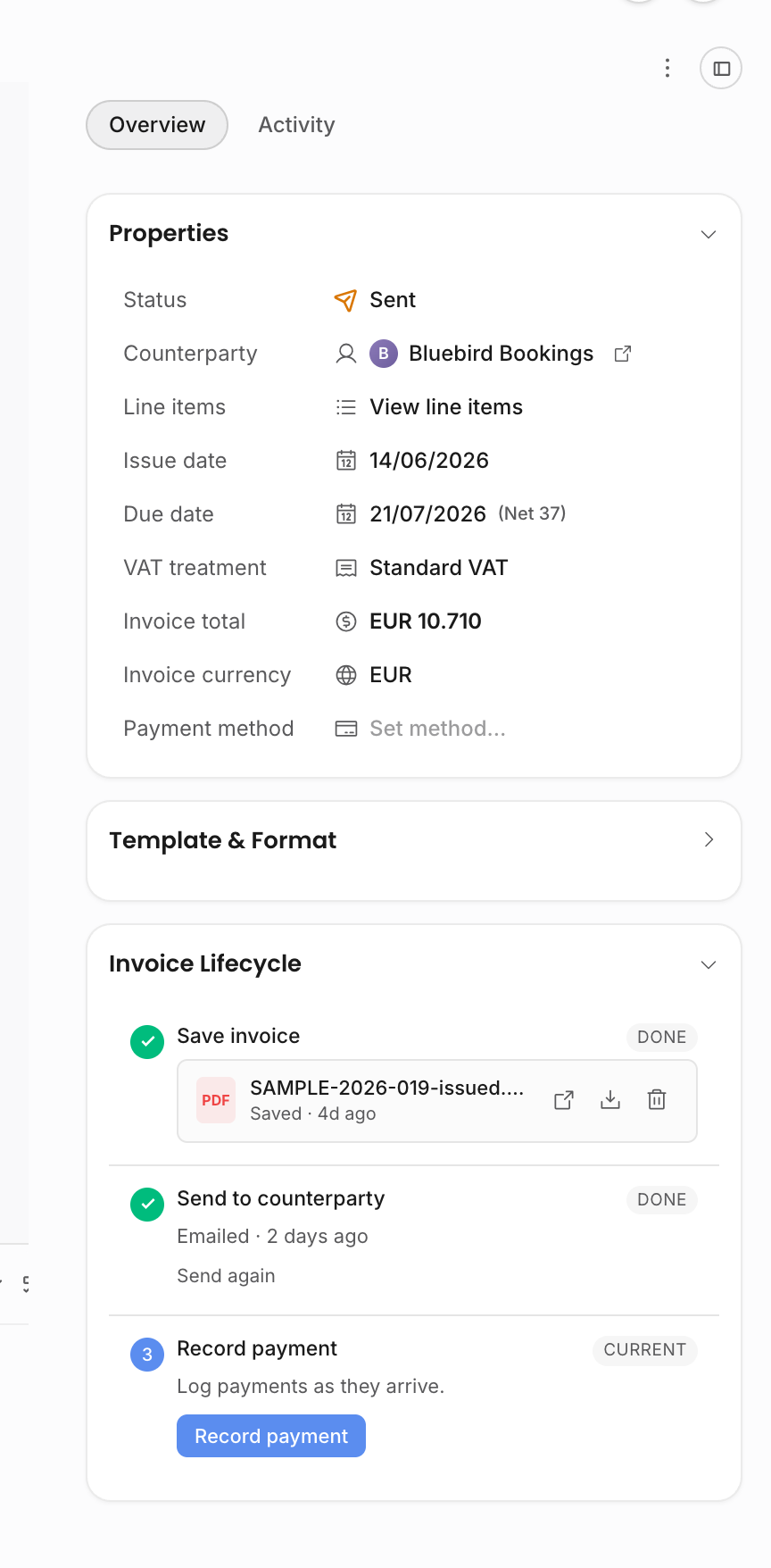
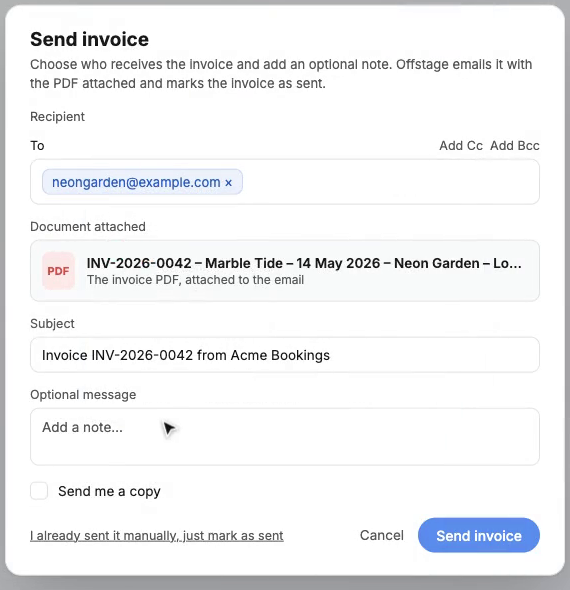
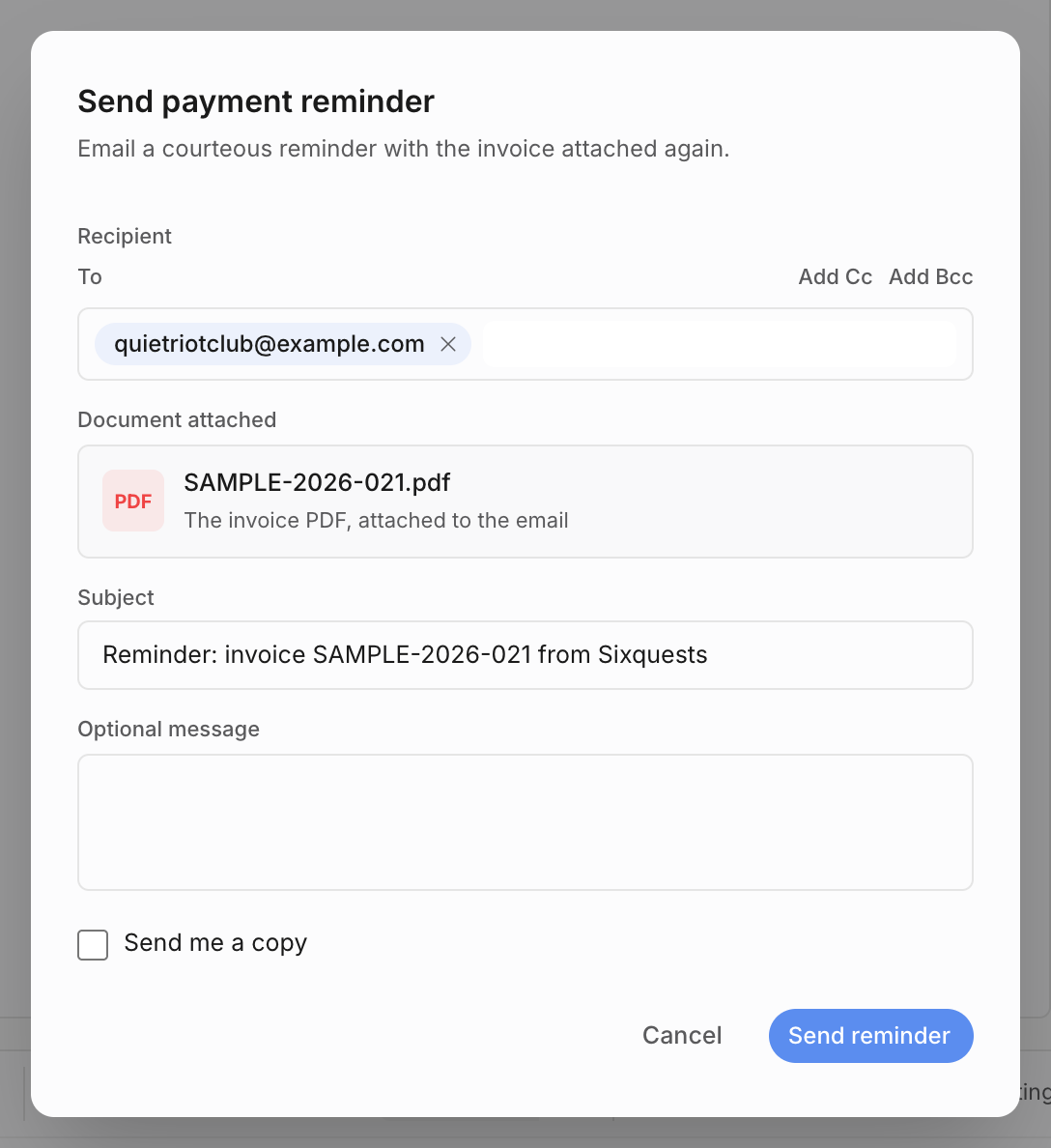
Open the invoice and work through the lifecycle rail. First create or upload the issued PDF. Then use Send invoice to email it to the counterparty. The send dialog uses the linked buyer email when one is available, supports To, Cc, Bcc, an optional message, and "send me a copy", and attaches the invoice PDF automatically.
Creating or uploading an issued PDF is separate from sending. The PDF step saves the file to the invoice; the send step emails it and marks the invoice as sent. You can also mark an invoice as sent when it was delivered outside Offstage.
Record payments as they land
When money arrives, record a payment against the invoice. Payments and refunds stay visible in the invoice history: a refund adds a refund entry instead of rewriting an earlier payment. The record-payment dialog supports payment or refund mode, amount or percent entry, payment date, method, reference, and an internal note.
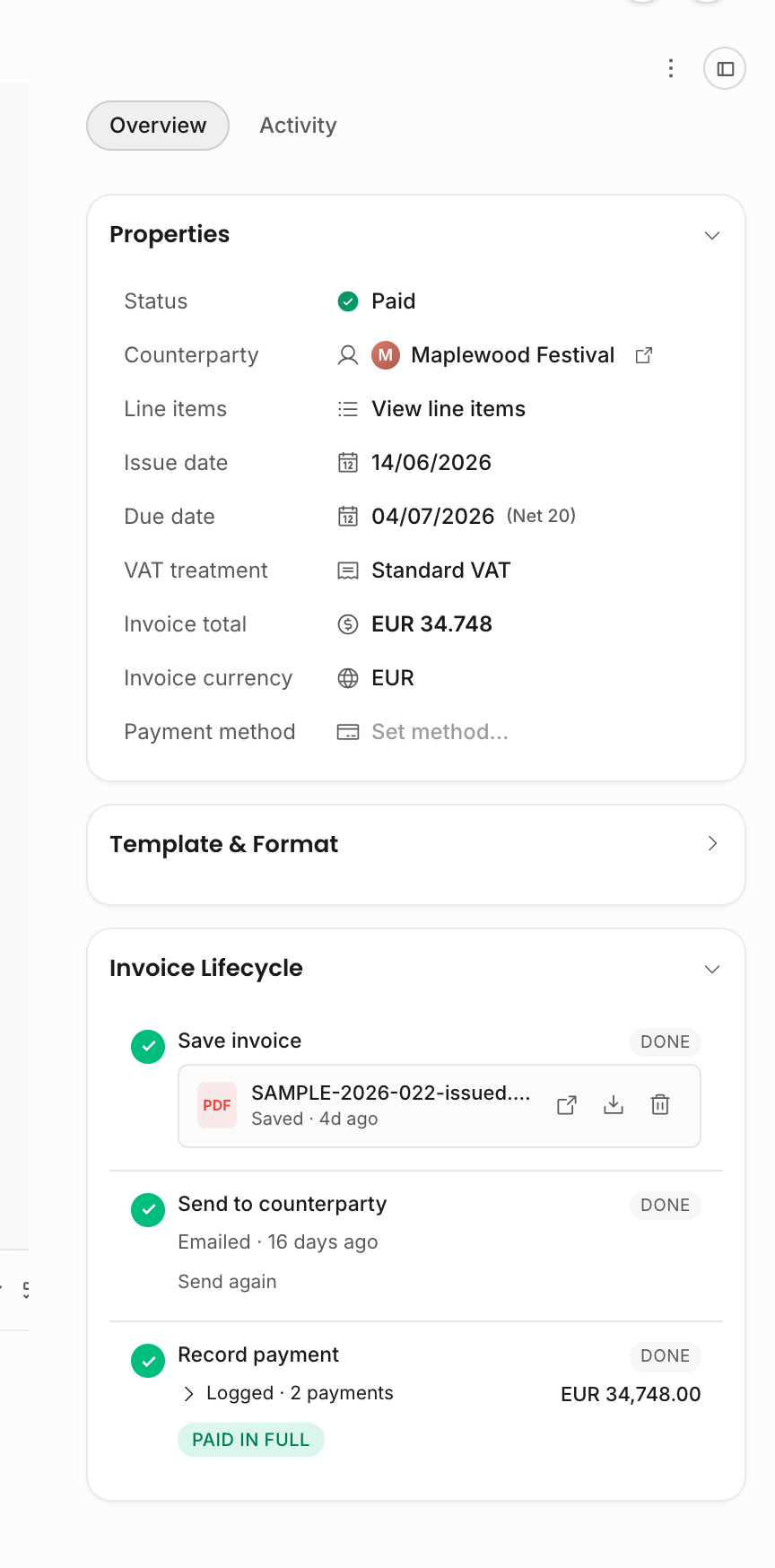
The invoice works out its own status from payments and due dates: as soon as it is paid in full it reads Paid, and if a due date passes while it is still short, it reads Overdue. Removing a payment causes the status to recompute from the remaining ledger rows.
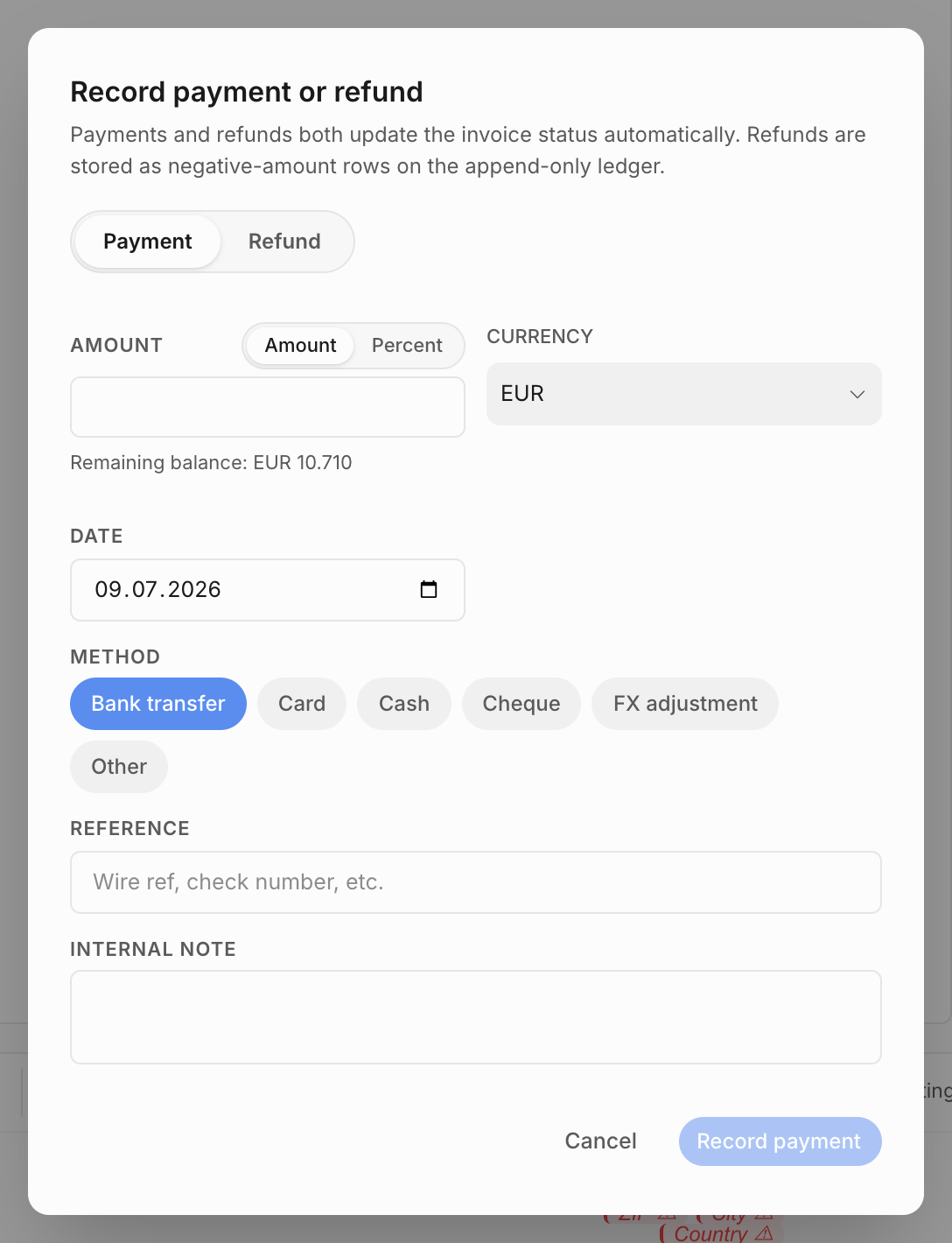
Recording payments is a cash ledger. If the invoice value changes, use a credit note instead of treating the correction as a payment.
Understand invoice status
Invoice status is derived from the record, not manually chosen as a label.
| Status | What makes it appear |
|---|---|
| Draft | The invoice has not been sent and is not void. |
| Sent | The invoice has been sent, with no payments recorded yet. |
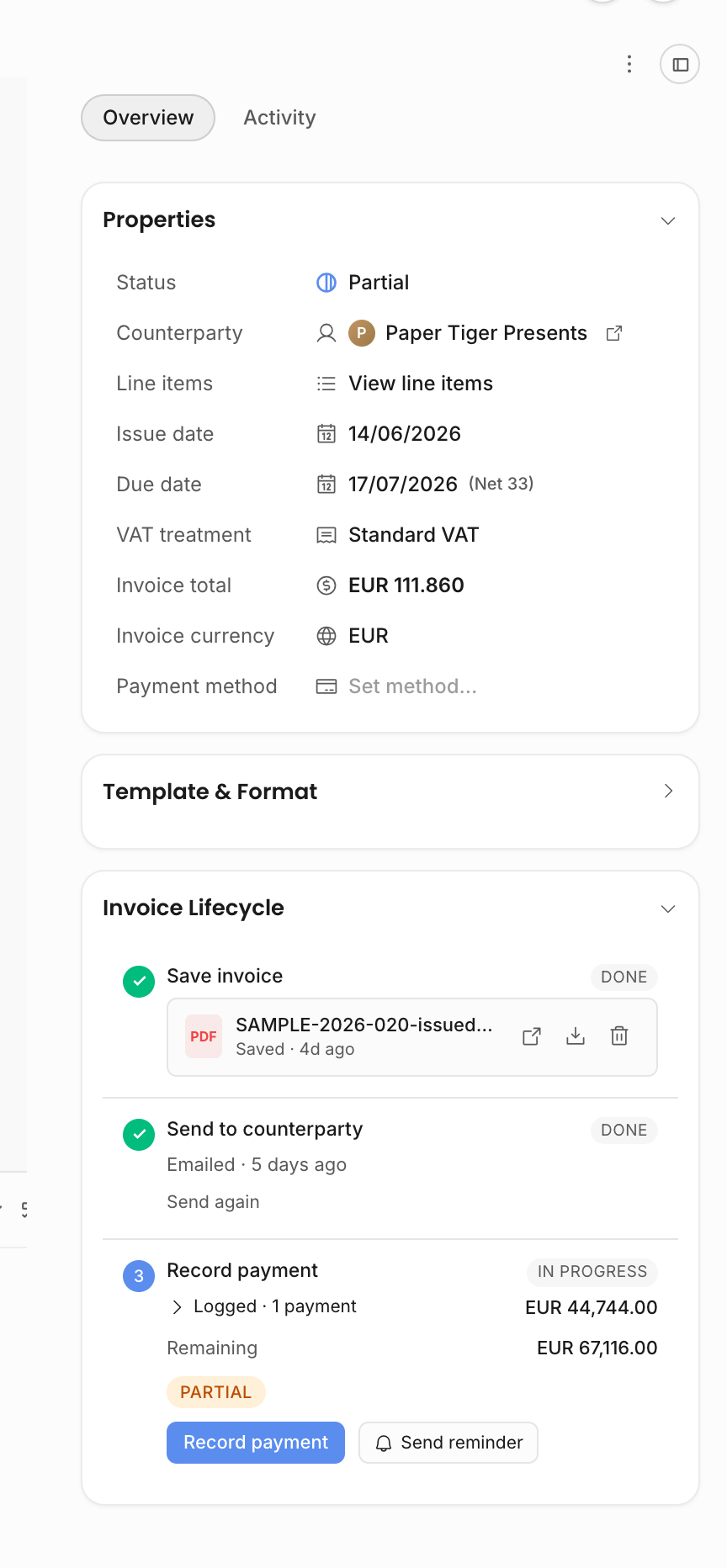
| Partial | At least one payment is recorded, but the total is not fully covered. |
| Paid | Recorded payments cover the invoice total. |
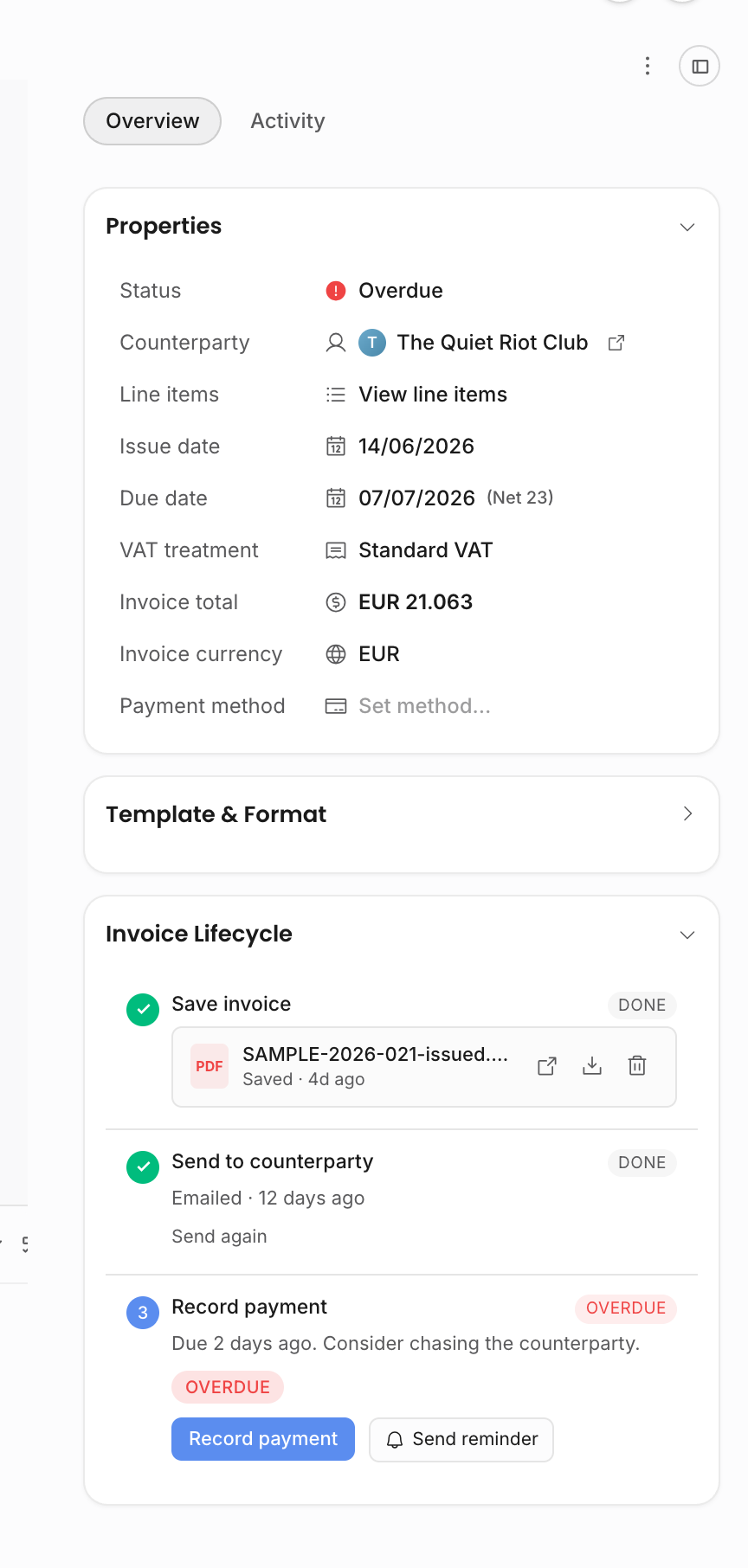
| Overdue | The due date, or an underpaid scheduled instalment, has passed. |
| Void | The invoice was voided and should no longer be collected. |
Overdue is evaluated against the agency timezone where available. With a payment schedule, the invoice can become overdue because an early deposit is unpaid, even if the final balance date is still in the future.
Void, revert, and resend
Voiding preserves the invoice as an audit record instead of deleting the financial history. Use it when an invoice should no longer be collected. Admins can restore a voided invoice; after restore, the status is derived again from the same sent, payment, due-date, and void markers.
If an invoice was sent by mistake and still needs editing, use the revert flow rather than creating a disconnected replacement. Reverting clears the sent timestamp so you can edit and re-issue the invoice, but it is blocked while payment rows exist because the payment ledger is append-only.
Use Send again or reminders when the invoice is still valid and the counterparty needs another copy or follow-up. Use a credit note when the amount owed has changed.
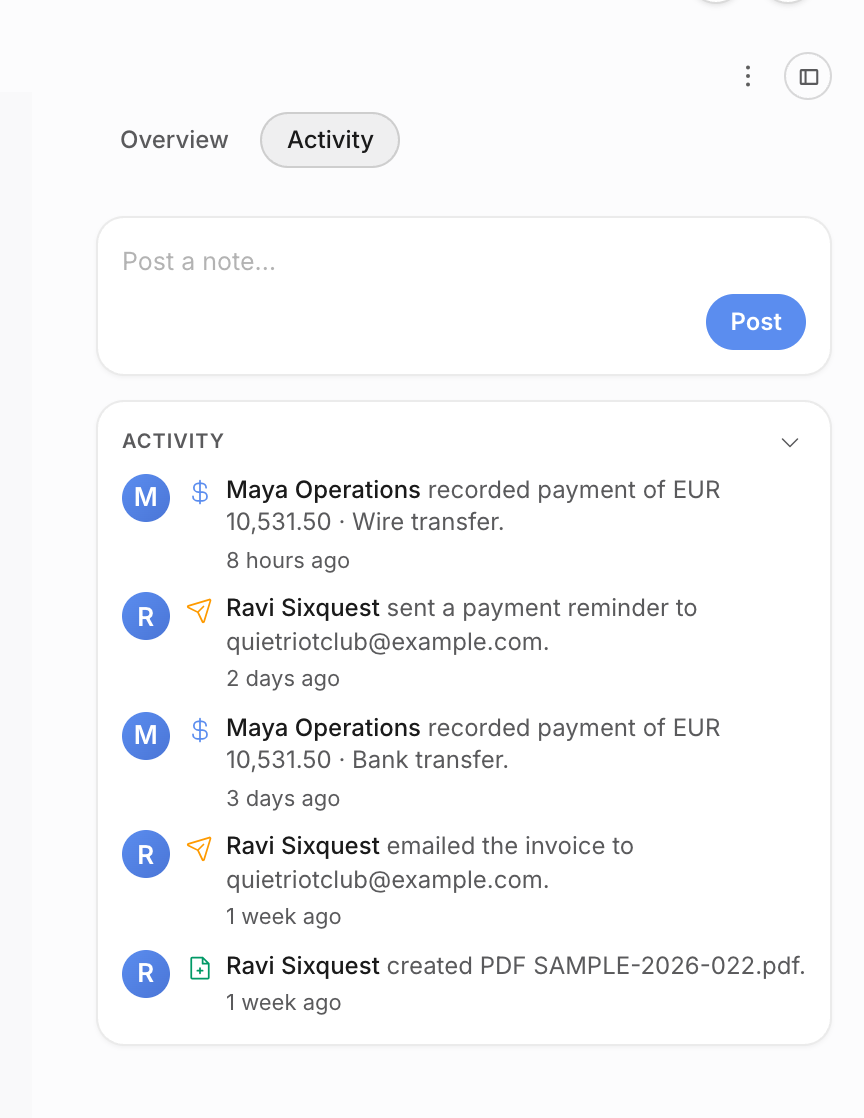
The Activity tab gives the chronological invoice history: PDF creation, emails, reminders, payments, refunds, and status actions. Use it alongside the lifecycle rail when you need to reconstruct what happened for a counterparty conversation or an internal finance handoff.
Split the bill across dates
Need a deposit now and a balance later? Give the invoice a payment schedule with several due dates.
Correct an invoice
If the amount owed changes after sending, create a credit note. Credit notes keep the correction tied to the invoice and can post the negative value back to the show.
Next steps
- Payment schedules: split one invoice into several due dates.
- Send a contract: the other half of closing a booking.