
Guided tutorials
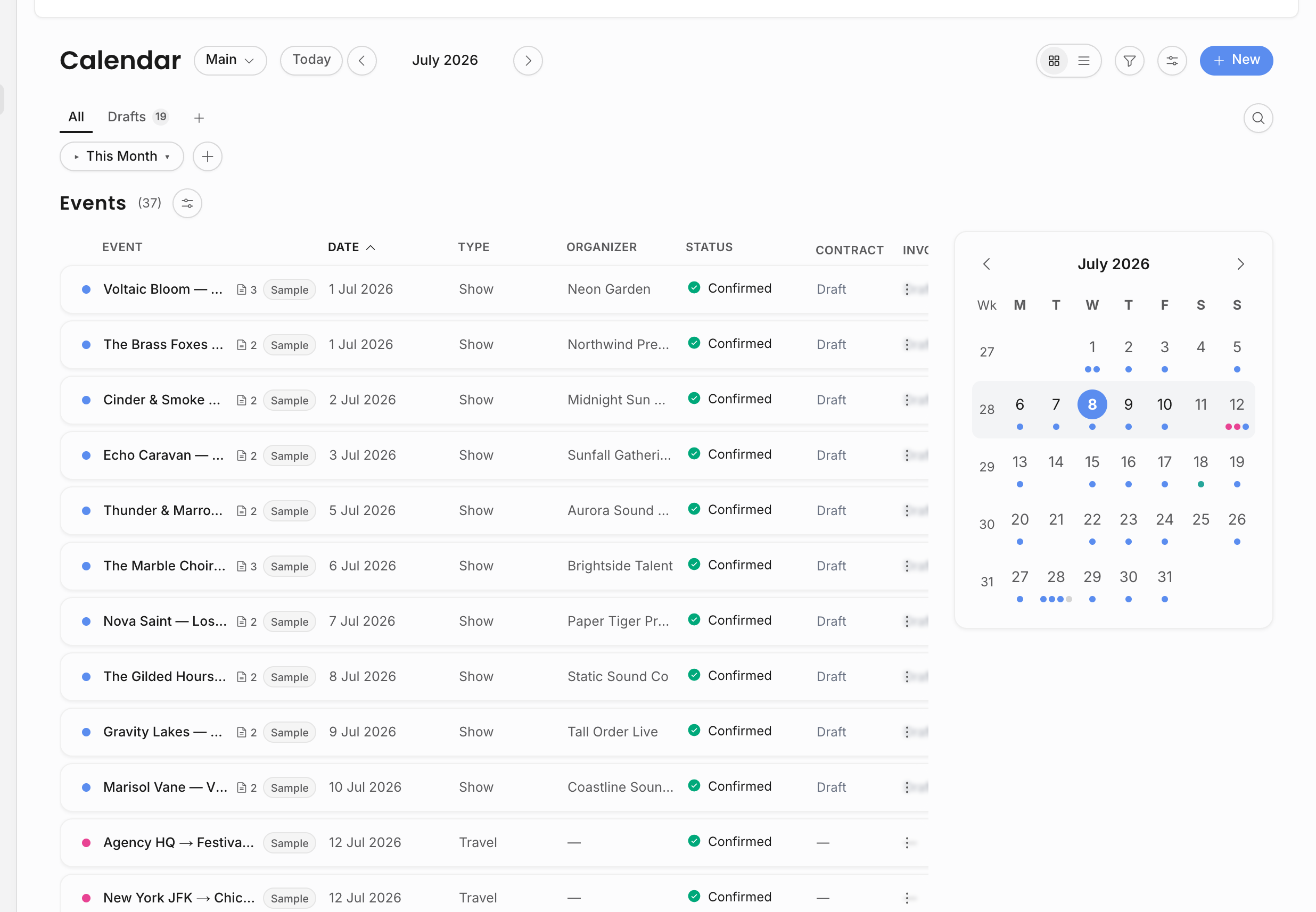
Offstage includes in-app tutorial quests for the workflows most teams need first. They open from the Getting started launcher in your workspace and guide you with one highlighted target at a time.
What the quests cover
| Quest | What you learn | Help Center guide |
|---|---|---|
| Get to know a sample show | Calendar controls, saved views, opening a show, overview cards, venue, revenue, tasks, resources, changing visibility (which saves as soon as you pick a value), and posting an update. If no sample show exists but a real show does, the tour can run as a read-only walkthrough on that real show. | Sample data, Work a show |
| Create your first show | New event flow, show type, artist, organizer, venue, date, booker, visibility, create action, and the event detail page you land on afterward. | Create a show |
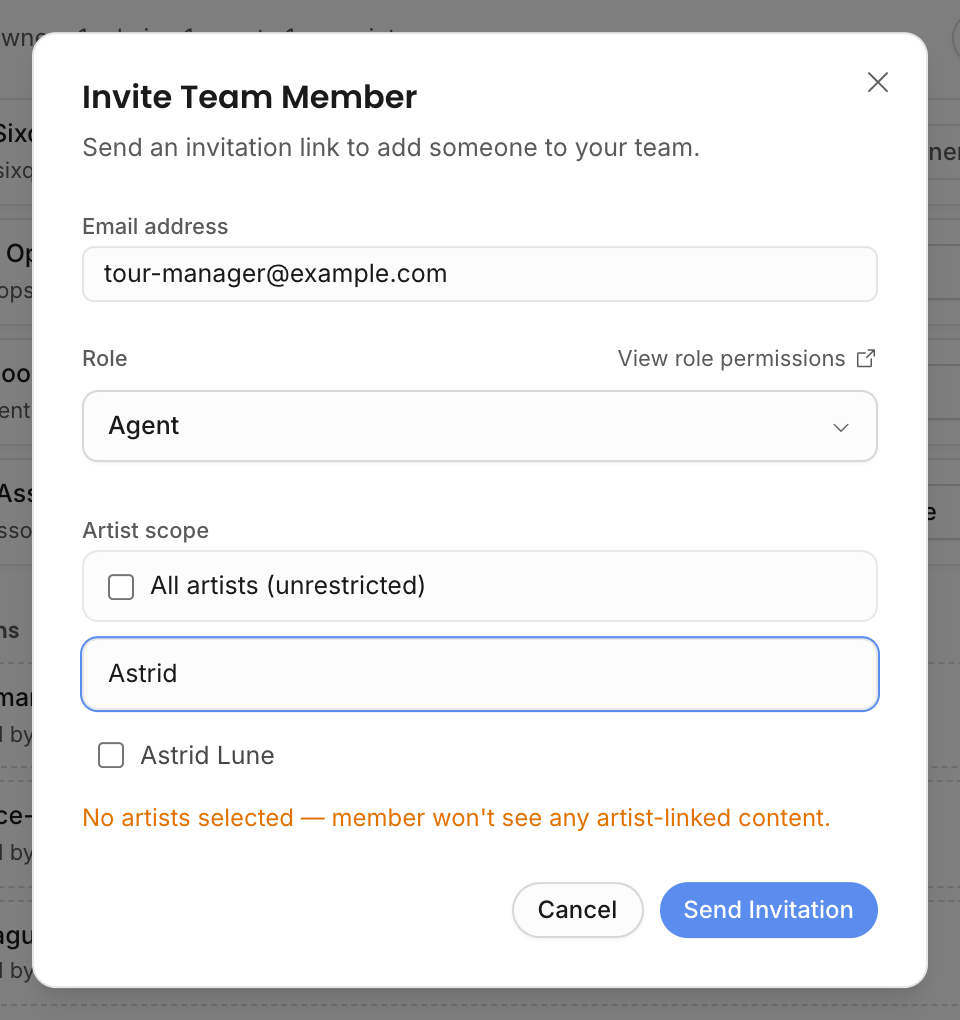
| Invite your team | Account menu, Settings navigation, mobile settings menu, Team members, role management, invitation email, role picker, artist scope, and sending the invitation. | Invite your team |
| Create a contract and invoice for a show | Contract creation, template choice, selected revenue lines, document editor, live-pill context, lifecycle rail, returning to the show, invoice creation, invoice line selection, and invoice lifecycle. | Create a contract, Invoice and get paid |
| Add your first artist | Quick creation, artist name, optional starting details, resources, bio, properties, lineup, social links, contact details, and team links on the autosaving artist page. | Add an artist |
| Explore Analytics | Navigation to Analytics, overview KPIs, revenue chart, split charts, booker and venue tables, compare page, booker performance, artist rankings, artist drill-down, top lists, and show-level analytics. | Explore analytics |
Quests are contextual. A low-permission teammate may see fewer quests. The team-invite tutorial only appears when it still makes sense for the agency, and Analytics copy changes when access is scoped to shows where the user is the booker.
Use them on desktop or mobile
On desktop, the launcher sits near the bottom of the workspace. On mobile, it opens as a bottom sheet so the highlighted target and the instructions can stay visible above the tab bar. Some beats ask you to open a menu or tab first when mobile hides a sidebar or lifecycle rail behind an extra control.
Finish or hide the guide
When you complete every available quest, the guide shows a completion screen. From there you can hide the guide or clear sample data if you have permission to manage workspace settings.
If you hide the launcher, you can reopen the guide from the Help menu. Hiding the guide only hides the tutorial surface; it does not delete shows, artists, contracts, invoices, or other workspace records.