
Roles and artist scope
Workspace roles combine a base role with permission settings and optional artist scope.
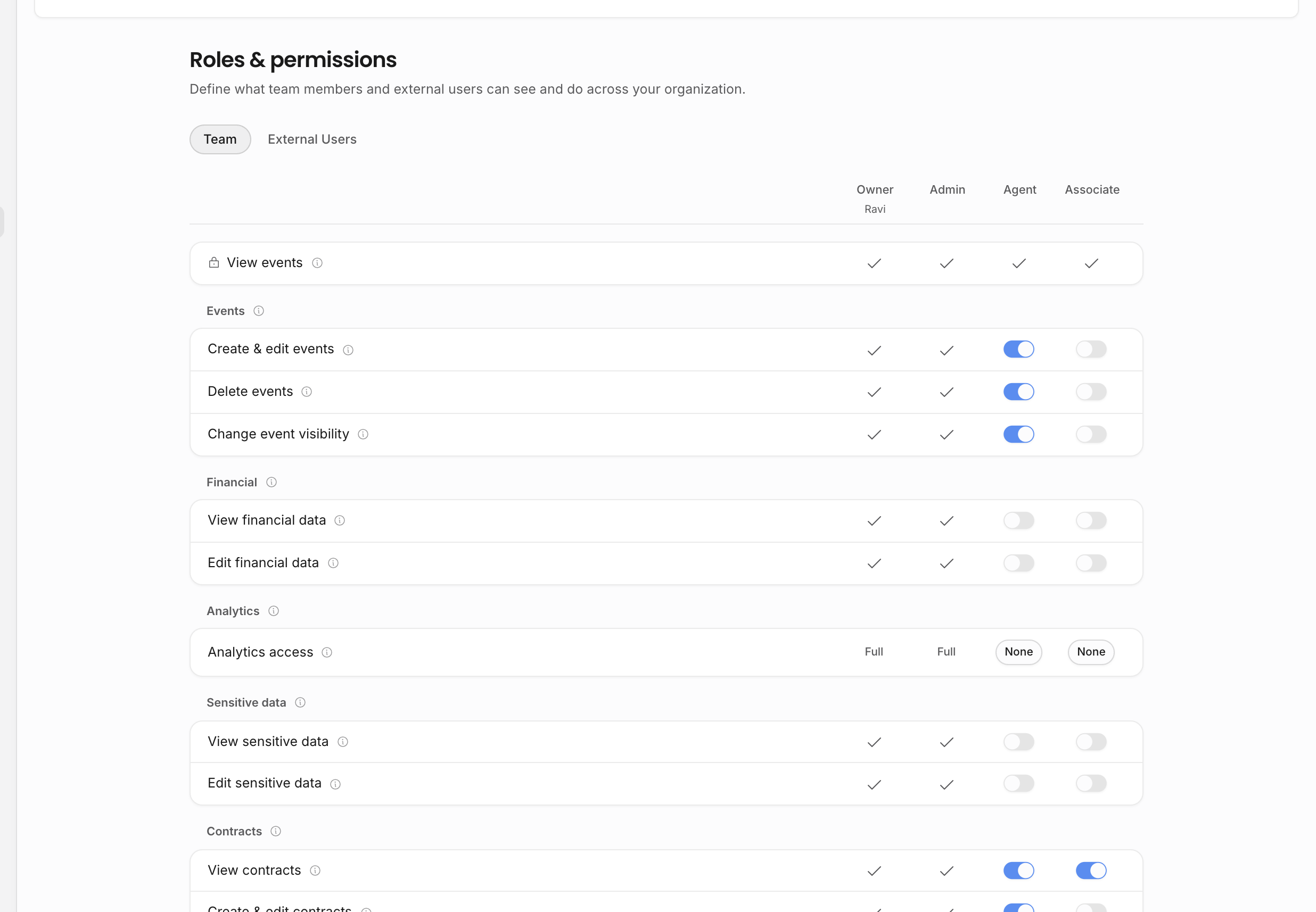
Role model
There are four team role columns. The Roles settings page shows them side by side so owners and admins can compare what each role can do.
| Role | How it works |
|---|---|
| Owner | Full access plus owner-only actions such as billing and deleting the agency. |
| Admin | Full access to normal workspace permissions, including team and role management, but not owner-only billing/deletion actions. |
| Agent | Configurable per agency. Starts with operational defaults, but the toggles are the source of truth. |
| Associate | Configurable per agency. Starts with more limited defaults, but the toggles are the source of truth. |
Only Agent and Associate are configurable. Owner and Admin are intentionally locked for normal permissions so an agency always has roles that can administer the workspace.
Because Agent and Associate names are only labels, the permission matrix is the real source of truth. If the workspace changes Agent permissions, the actual access follows the toggles, not assumptions about the role name.
The defaults are only a starting point for a new workspace. Agent starts with broad operational permissions for events, contracts, contacts, shared calendars, document sharing, and team-workspace documents, but not financial data, invoices, analytics, sensitive data, team management, role management, organization settings, templates, or exports. Associate starts with a much narrower default, including contract viewing but not event editing, contact editing, invoices, sharing, analytics, or administration. Once your agency changes the toggles, the changed matrix becomes the source of truth.
The Team members page can show member first names under each role column in the Roles settings page. Use that as a sanity check before changing a role: if several people share the same configurable role, every one of them receives the changed access.
How permissions appear in the app
Role settings change what people can open. A broad role sees the full workspace navigation for the surfaces their agency uses. A narrower Associate role only sees allowed surfaces; Analytics and Invoices are absent when the role does not have the required analytics, financial, or invoice permissions.
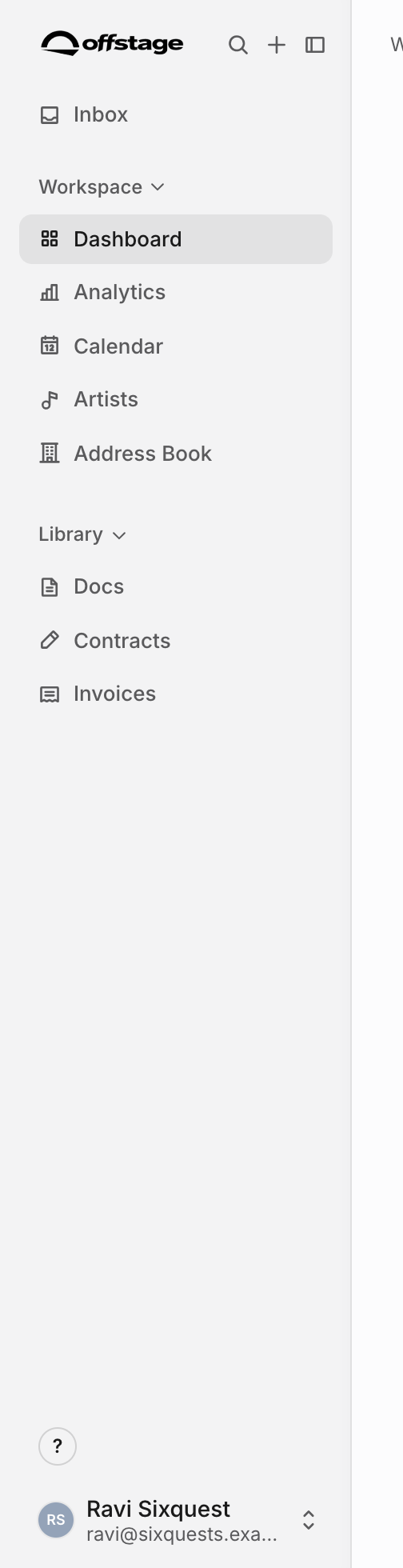
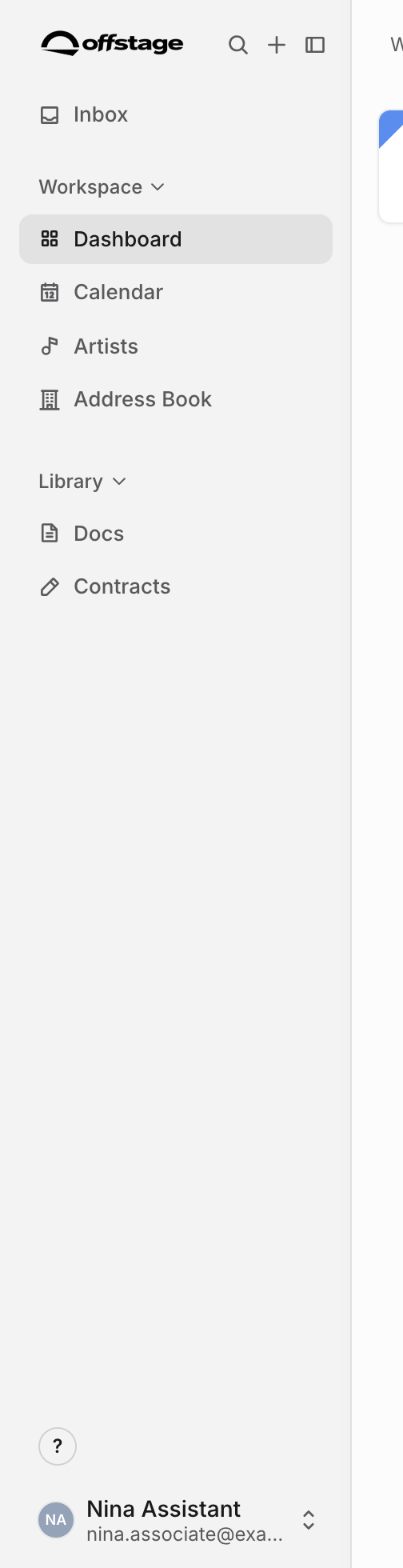
If someone says a page is missing, check both the role matrix and any artist scope. Navigation is the first clue, but direct URLs are protected too: a hidden top-level surface should not be treated as available just because a teammate knows the route.
Reserved actions
Some actions are shown as reserved instead of configurable toggles:
| Reserved action | Who can do it |
|---|---|
| Manage team and external users | Owner and Admin. This includes inviting, removing, assigning roles, and changing artist scope. |
| Manage roles and permissions | Owner and Admin. This prevents Agent or Associate users from escalating their own role. |
| Billing and subscription | Owner only. |
| Delete organization | Owner only. |
Only owners can invite or assign admins. Owner roles cannot be changed like normal member roles; ownership needs a separate ownership-transfer flow.
Permission groups
Permissions are grouped by the surfaces agencies use:
- Events: create/edit events, delete events, change event visibility.
- Financial: view and edit revenues, expenses, and payment details.
- Analytics: choose no access, artist-scoped access, booker-scoped access, or full access.
- Sensitive data: passport numbers, dates of birth, and tax IDs.
- Contracts and invoices: view, create/edit, and delete each document type.
- Address book: create/edit and delete contacts and artists.
- Tour calendars: create and publish tour calendars.
- Documents: create/edit team workspace documents and create document invites or share links.
- Administration: templates, organization settings, and exports.
Every member has baseline access to events they are allowed to see. Private events stay restricted to their creator. A member can also change visibility on their own events even if the broader visibility permission is off.
Some permissions cascade into document behavior. For example, event edit rights can grant direct-edit rights on documents attached to events, and contact edit rights can grant direct-edit rights on artist-parented documents. Financial and sensitive permissions also affect whether a user can share documents that contain restricted live pills.
Contracts and invoices use "view or create/edit" access at the surface level. A user who can create or edit invoices can reach the invoice surface even if the pure view toggle is off, because editing requires reading the record. The same principle applies to contracts.
Document permissions are intentionally narrower than general document access. Team members can read documents through parent visibility, membership, artist scope, and parent-entity access. The document-specific Create doc invites and share links permission controls whether they can share documents externally. Sharing can still be blocked when the document contains restricted live pills the sharer is not allowed to reveal.
Team-workspace document editing is controlled separately from event and artist documents. Event documents follow event edit rights; artist-parented documents follow contact edit rights; organization/team documents follow the team-workspace document permission.
Artist scope
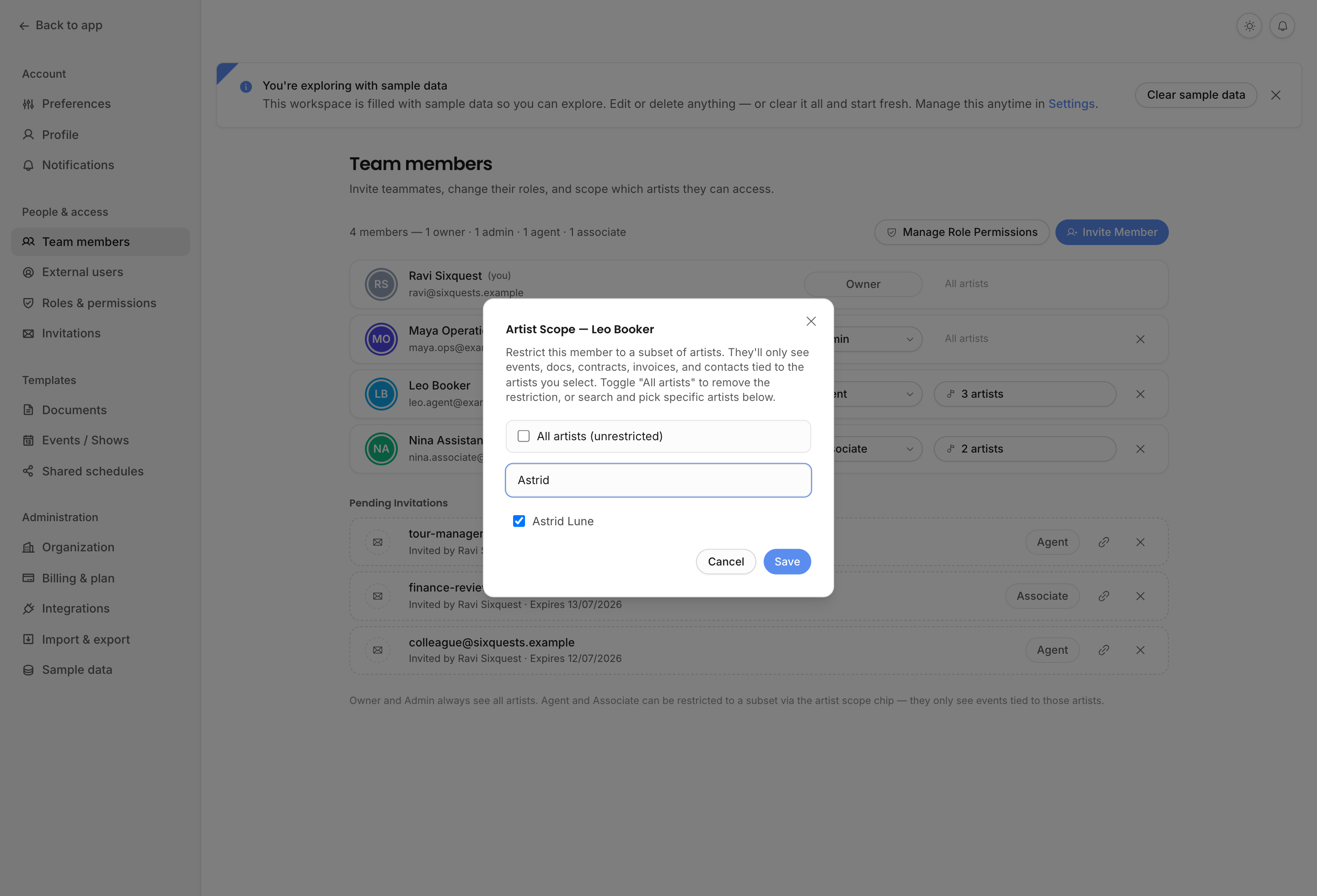
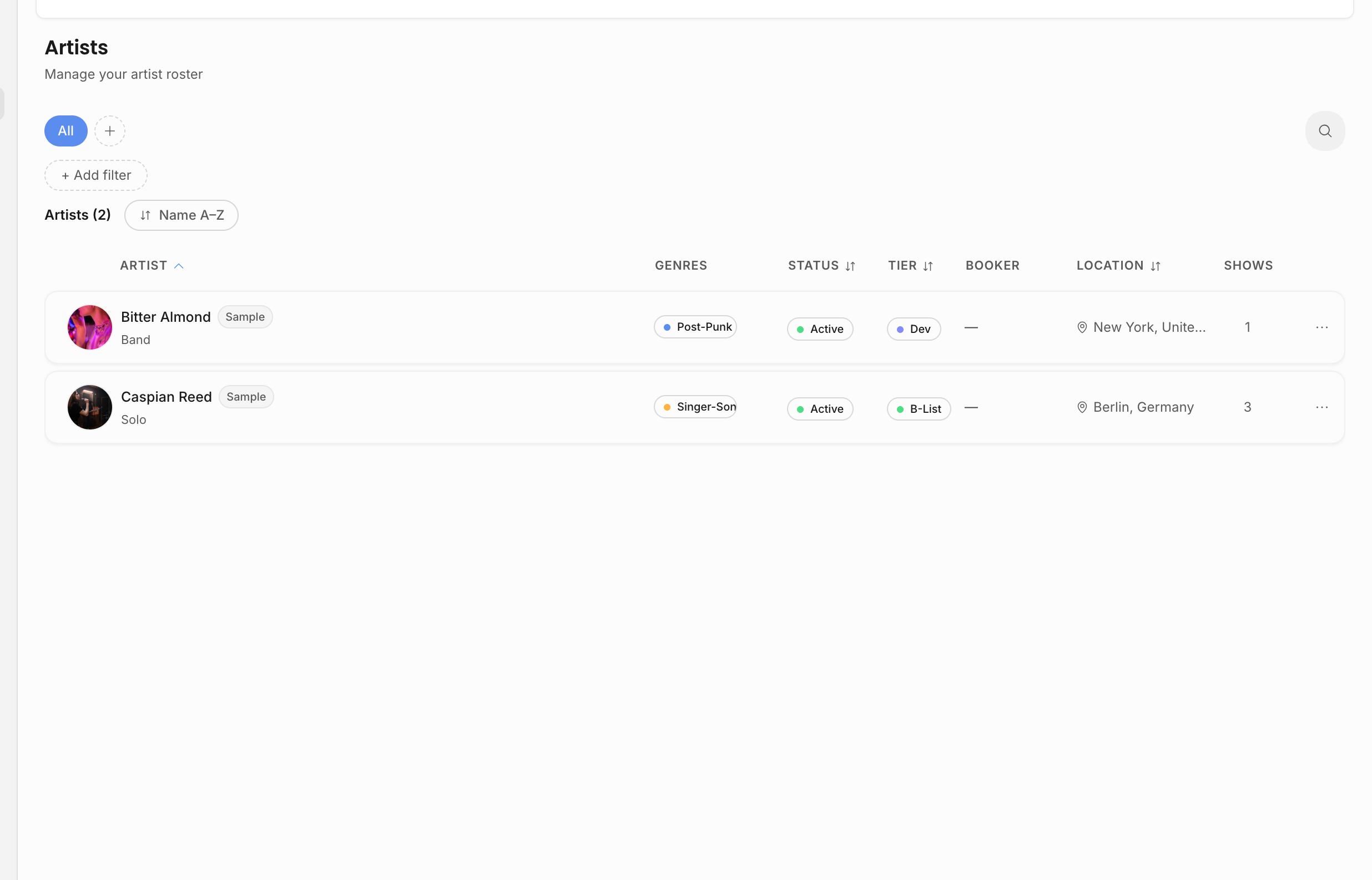
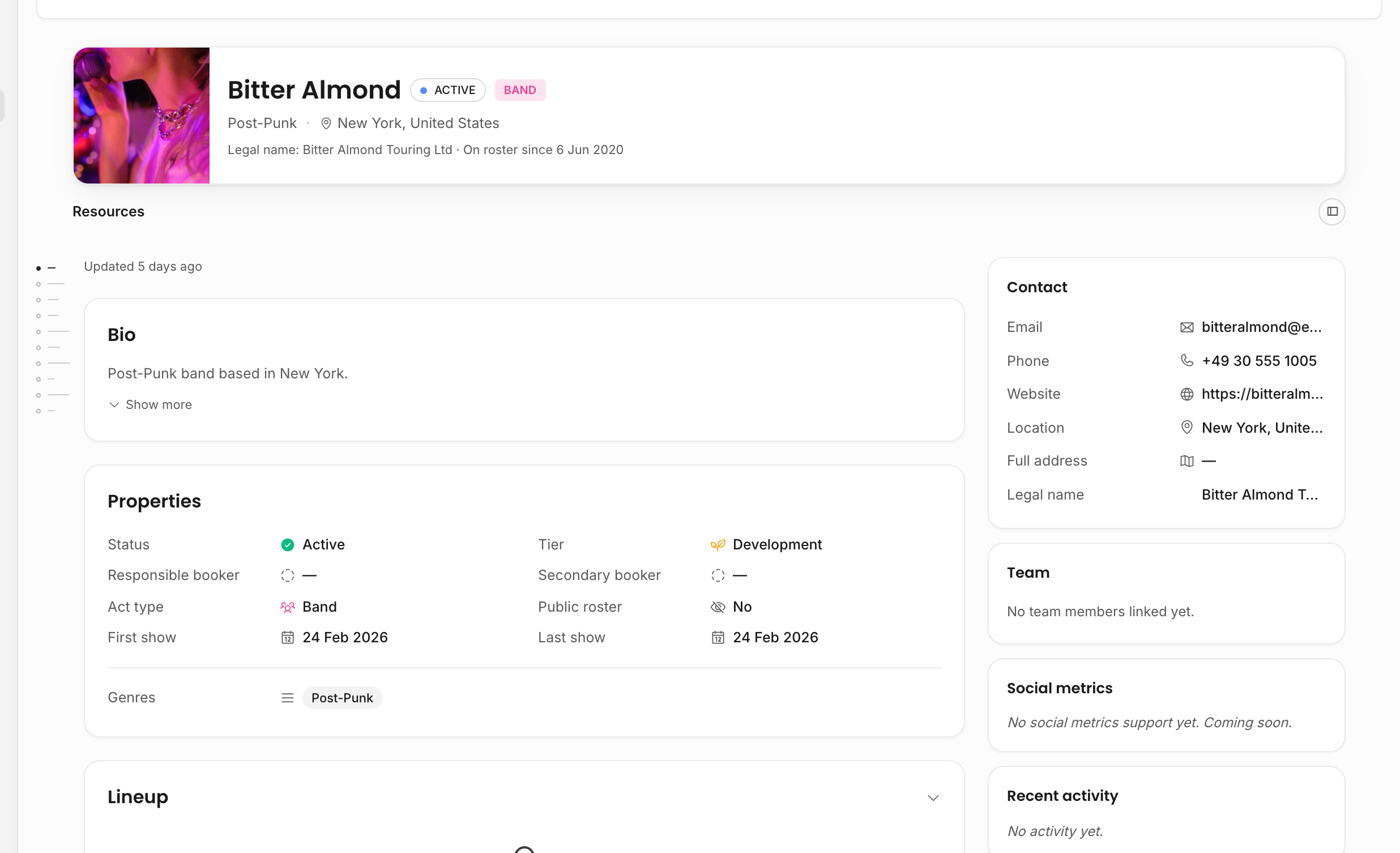
Artist scope limits a member to selected artists and the records connected to those artists. It can affect artists, events, documents, contracts, invoices, notifications, and analytics. Empty artist scope means unrestricted access for that role's allowed surfaces.
Artist scope can only be set on Agent and Associate members. Owners and admins always bypass artist scope, and promoting a scoped member to admin clears stale artist scope because it no longer applies.
When you invite a teammate with artist scope, the scope is stored on the invitation and copied to the member when they accept it.
Artist scope does not grant permissions by itself. It narrows the records a person can reach after their role permissions say the surface is allowed. For example, a scoped Associate with no invoice access still cannot open invoices; a scoped Agent with invoice access sees only invoices tied to artists in scope.
Use All artists when the teammate should operate across the agency. Use selected artists when the teammate is assigned to a roster subset, territory, project, or artist-specific collaboration.
Analytics access
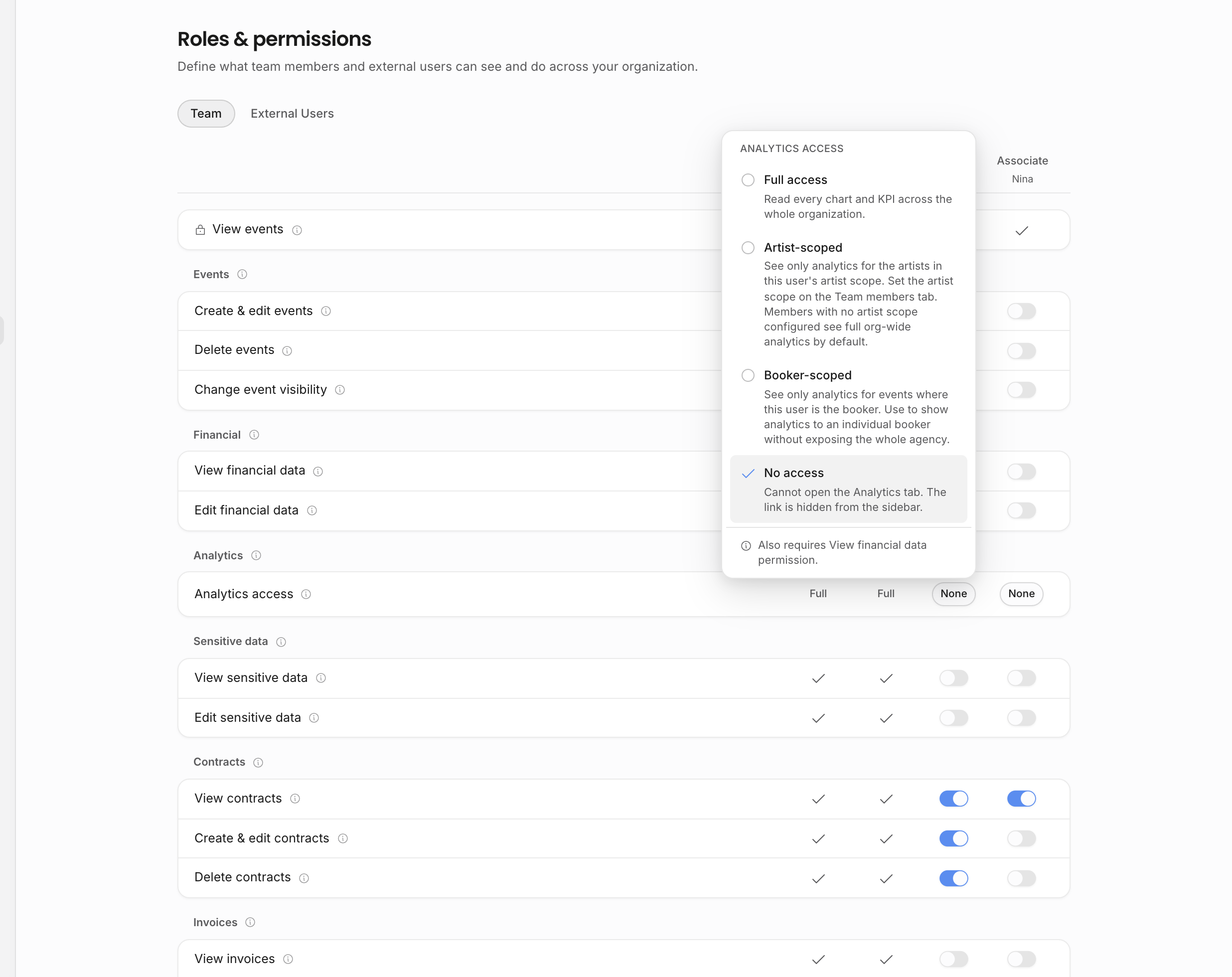
Analytics uses a selector instead of separate raw toggles:
| Analytics access | What it does |
|---|---|
| Full | Read every chart and KPI across the organization. |
| Artist | Read analytics for the member's artist scope. If no artist scope is configured, this behaves like org-wide analytics. |
| Booker | Read analytics only for events where the member is the booker. |
| None | Hide Analytics and block the Analytics page. |
Money-heavy analytics also requires View financial data. If Analytics looks empty or incomplete, check both the Analytics access level and the financial permission.
The analytics selector controls whether the role can open Analytics, whether it can see agency-wide analytics, and whether it is limited to events where the user is the booker. Full gives agency-wide analytics. Artist follows artist scope. Booker follows the booker on the event. None turns analytics off.
Booker-scoped analytics is useful when someone should understand their own booked shows but not compare the entire agency. It takes precedence over artist scope unless Full is selected.
Custom fields and permission bundles
Event custom field sections inherit from permission bundles. A section assigned to Financial follows Financial access; a section assigned to Contracts follows Contract access; a section assigned to Invoices follows Invoice access; and an Events section is visible to anyone who can see the event. This is why role settings matter beyond the main pages: they also control which custom fields and document pills a user can read.
This also affects document templates. If a template contains a live pill for restricted financial, sensitive, contract, or invoice data, the viewer's permissions determine whether the pill resolves or appears as restricted. Before sharing a document externally, make sure the person creating the share is allowed to reveal every restricted pill the recipient should see.
Related: Invite your team, Analytics access and scopes, Roles and permissions.