
External users
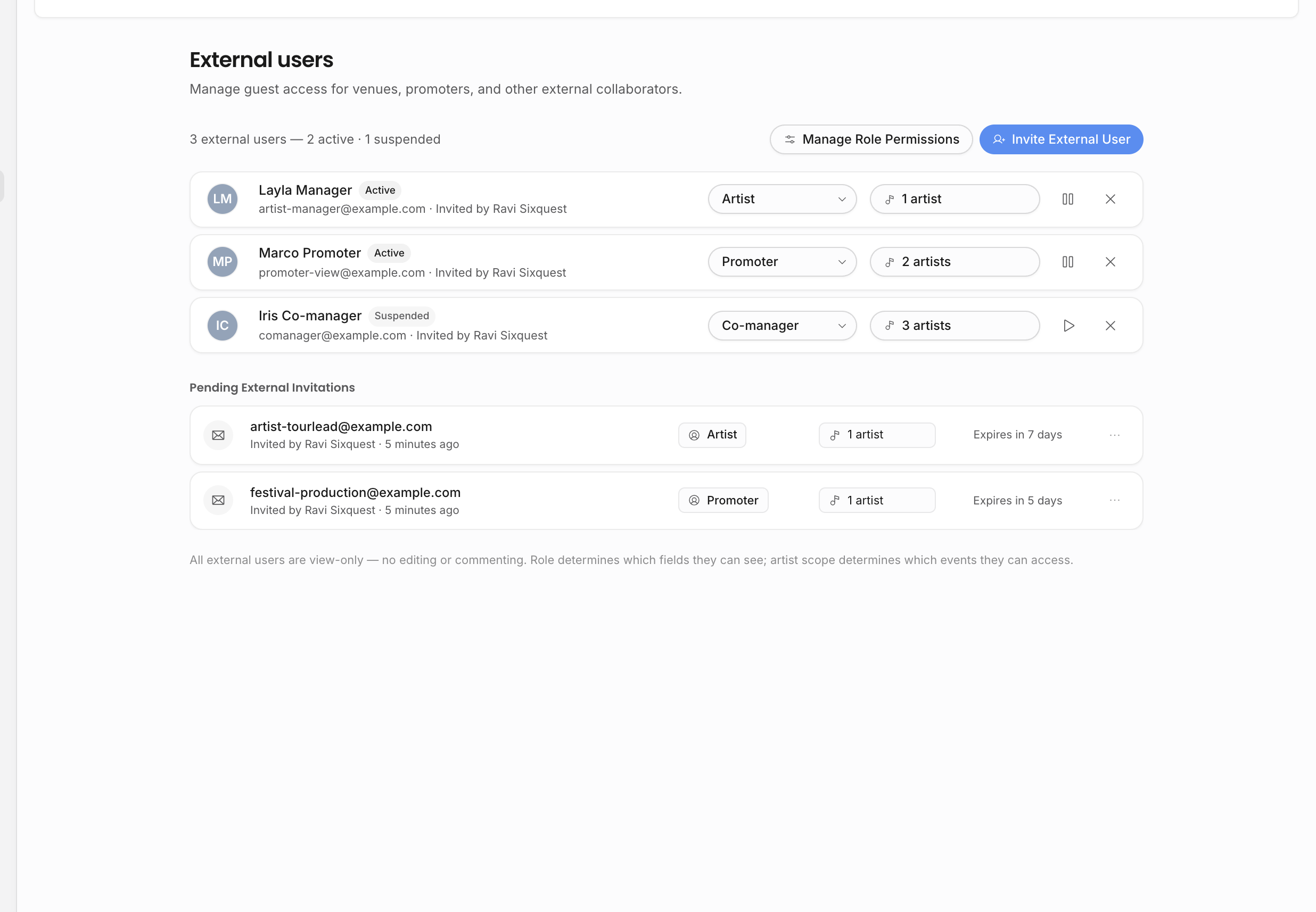
External users are people outside your team who need a limited view into your agency's work without becoming internal workspace members.
When to use external access
Use external access for counterparties, artists, managers, accountants, reviewers, or collaborators who should not become workspace members.
Use a team invitation when the person should work inside your agency workspace. Use external access when they only need a shared calendar, selected event information, or a document review surface. The difference matters: a team member receives workspace navigation according to role and artist scope; an external user receives a limited portal or invite target.
Two external access models
There are two external access models in Offstage:
| Model | What it is for | Where it is managed |
|---|---|---|
| External users | Named outside users who can sign in to an external portal for selected artists. | Settings → External users |
| Document invites | People invited to a specific document, contract, invoice, or itinerary with view, comment, or edit capability. | The document share menu |
The External users settings page is about the first model: event visibility in the external portal. Document invites are related, but they are intentionally separate because a document reviewer may only need one draft and should not receive a reusable external portal.
What external users can see
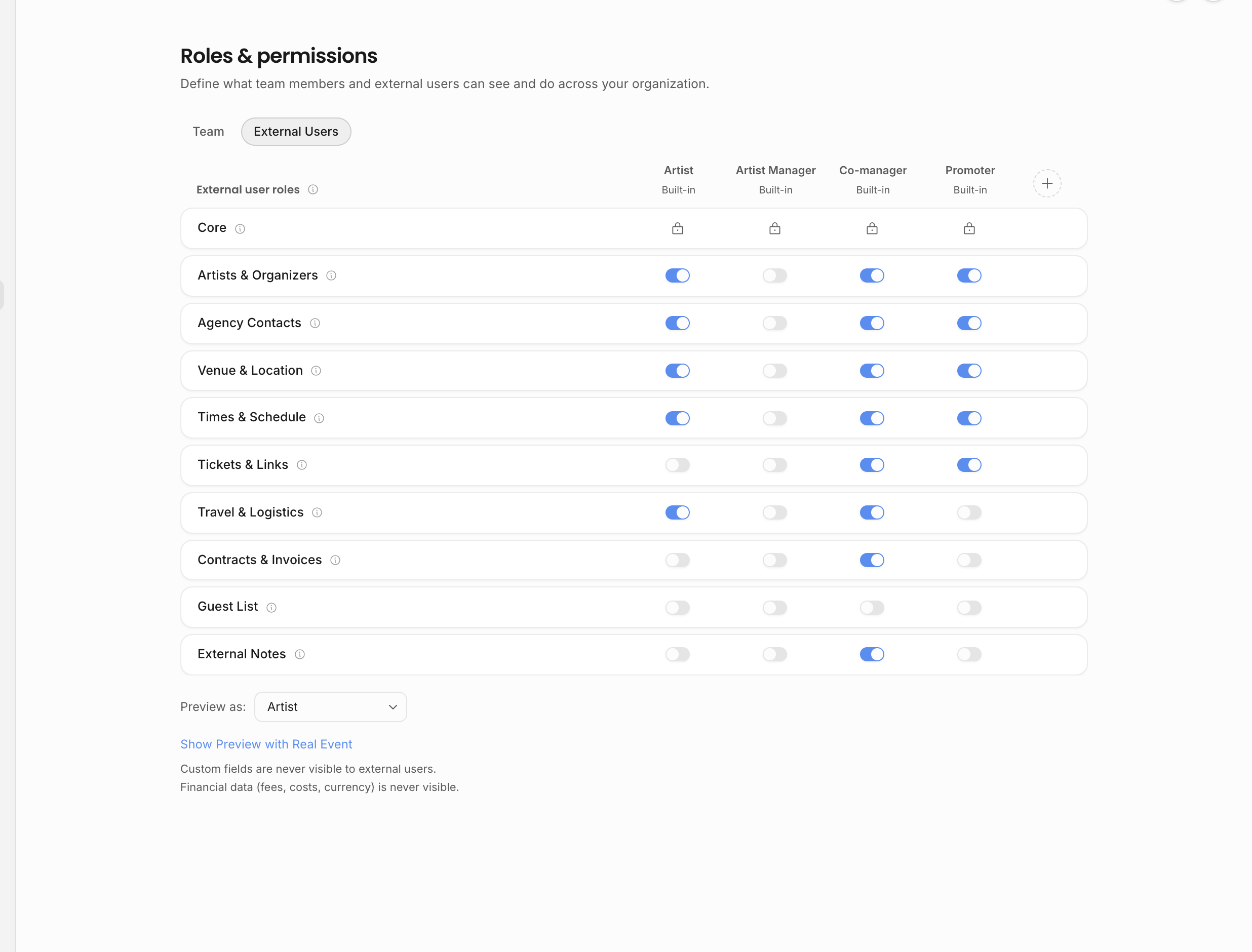
External access is controlled by external-user roles. A role describes which event field groups are visible to that outside audience. For example, one role can be appropriate for an artist or manager, while another can be stricter for a promoter, production contact, or co-manager.
Built-in roles are available automatically:
| Built-in role | Typical audience | Default emphasis |
|---|---|---|
| Artist | Artist, manager, or artist-side travel contact. | Core event details, artist/organizer context, agency contacts, venue/location, times, and travel logistics. |
| Promoter | Venue buyer or promoter. | Core event details, artist/organizer context, agency contacts, venue/location, times, tickets, and links. |
| Co-manager | Trusted outside manager or partner. | Broadest default set, including tickets, travel, external notes, and contract/invoice status. |
Manage external-user roles from Settings → Roles & permissions → External Users. Each column is an outside-facing role, and each row is a field group that can be shown or hidden for that role. The Core group is always included; it contains title, date, event type, status, category, and performance type. Internal notes, private notes, and internal attribution are never exposed. Deal terms, revenue and expense line items, and custom-field sections have their own rows in the matrix and appear only for roles where you switch them on. Every one of those toggles starts off.
The external portal can include a web calendar and a calendar feed. They are read-only for outside recipients: no editing, no commenting, and no internal workspace navigation.
Invite an an external user
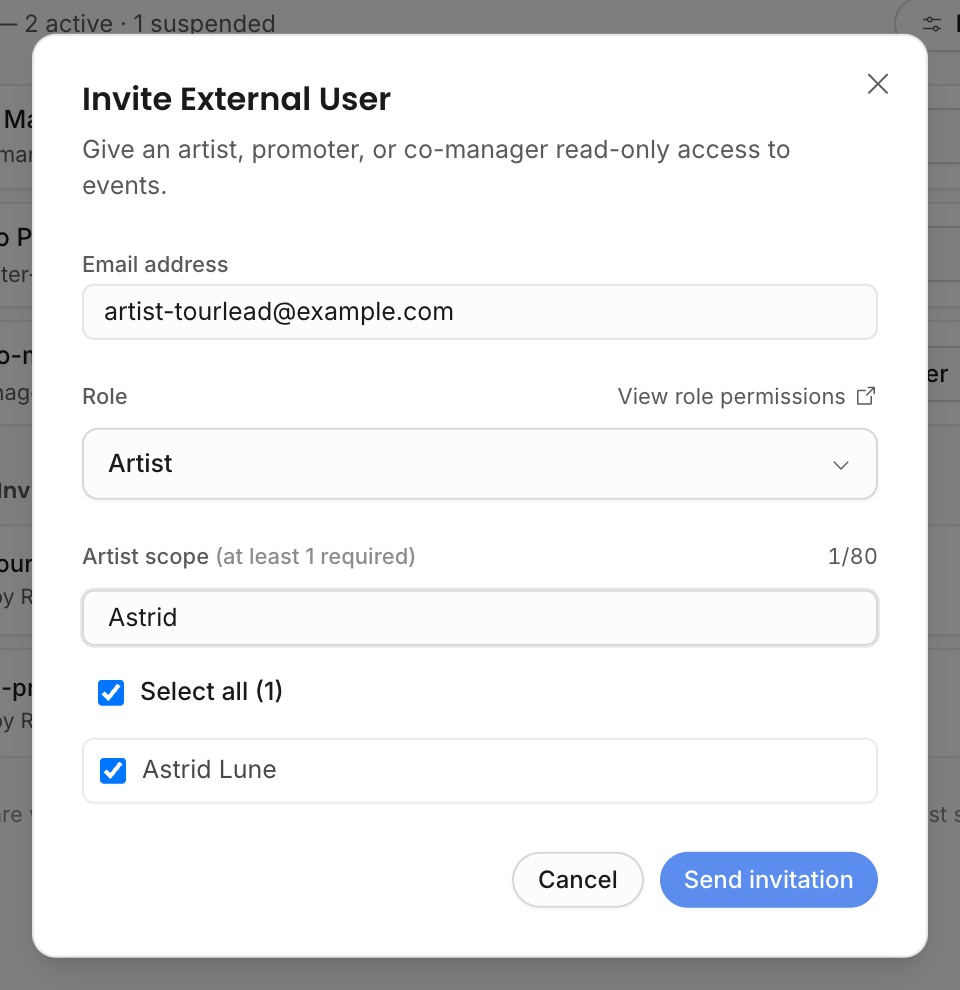
External-user invitations require:
| Required input | Why it matters |
|---|---|
| The invitation must be accepted by the same email address. | |
| Role | Determines which event field groups the outside user can see. |
| Artist scope | Determines which artists' externally visible events the outside user can access. At least one artist is required. |
Unlike internal teammates, external users do not have an All artists option. They must be scoped to one or more artists. This avoids accidentally giving a broad outside portal to the full roster.
When an invitation is sent, Offstage creates a pending invitation and attempts to email the accept link. If email delivery fails, the invitation still exists and the manager can copy the link manually. Resending keeps the same accept link but extends the expiration window and sends the email again.
Invitation and sign-in flow
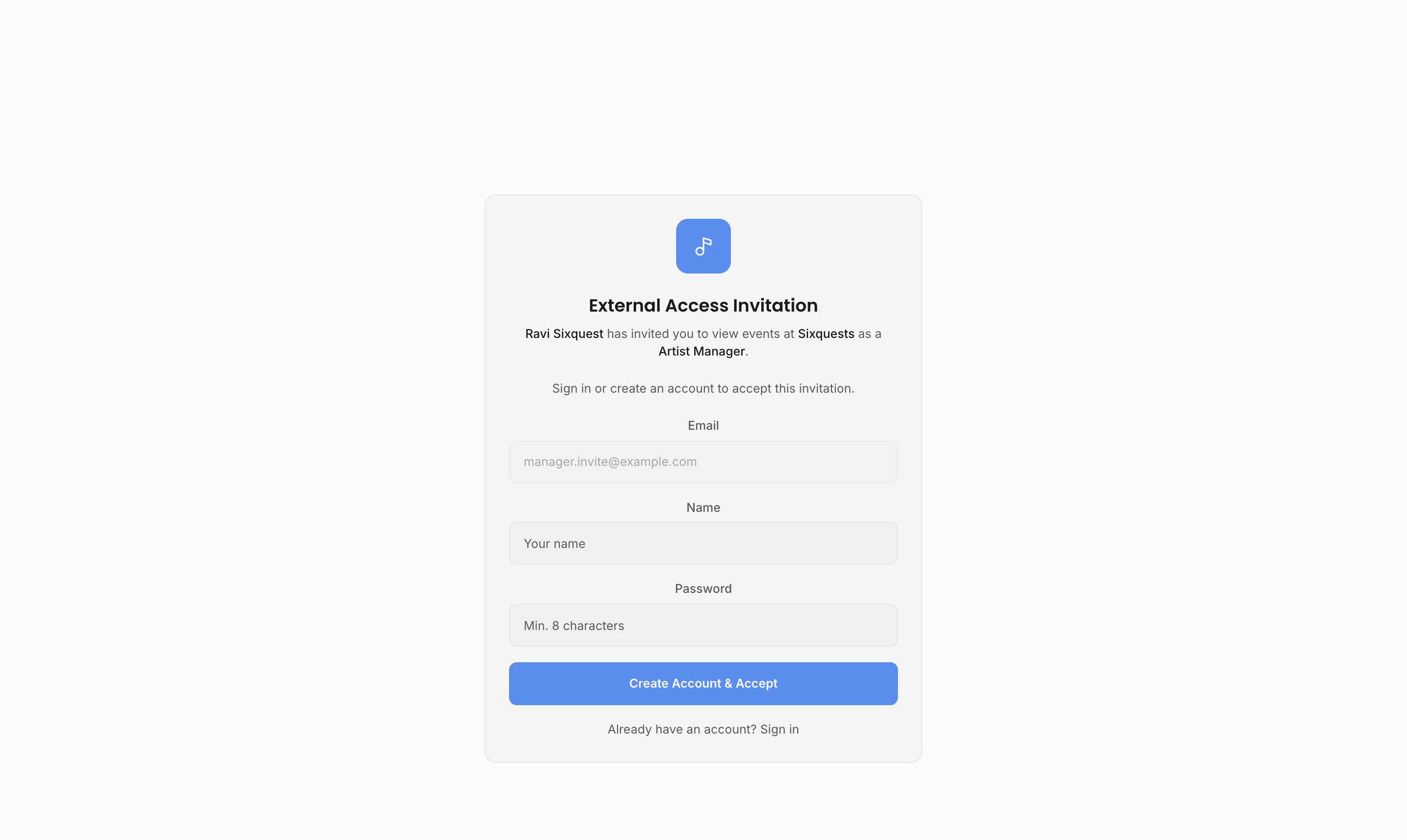
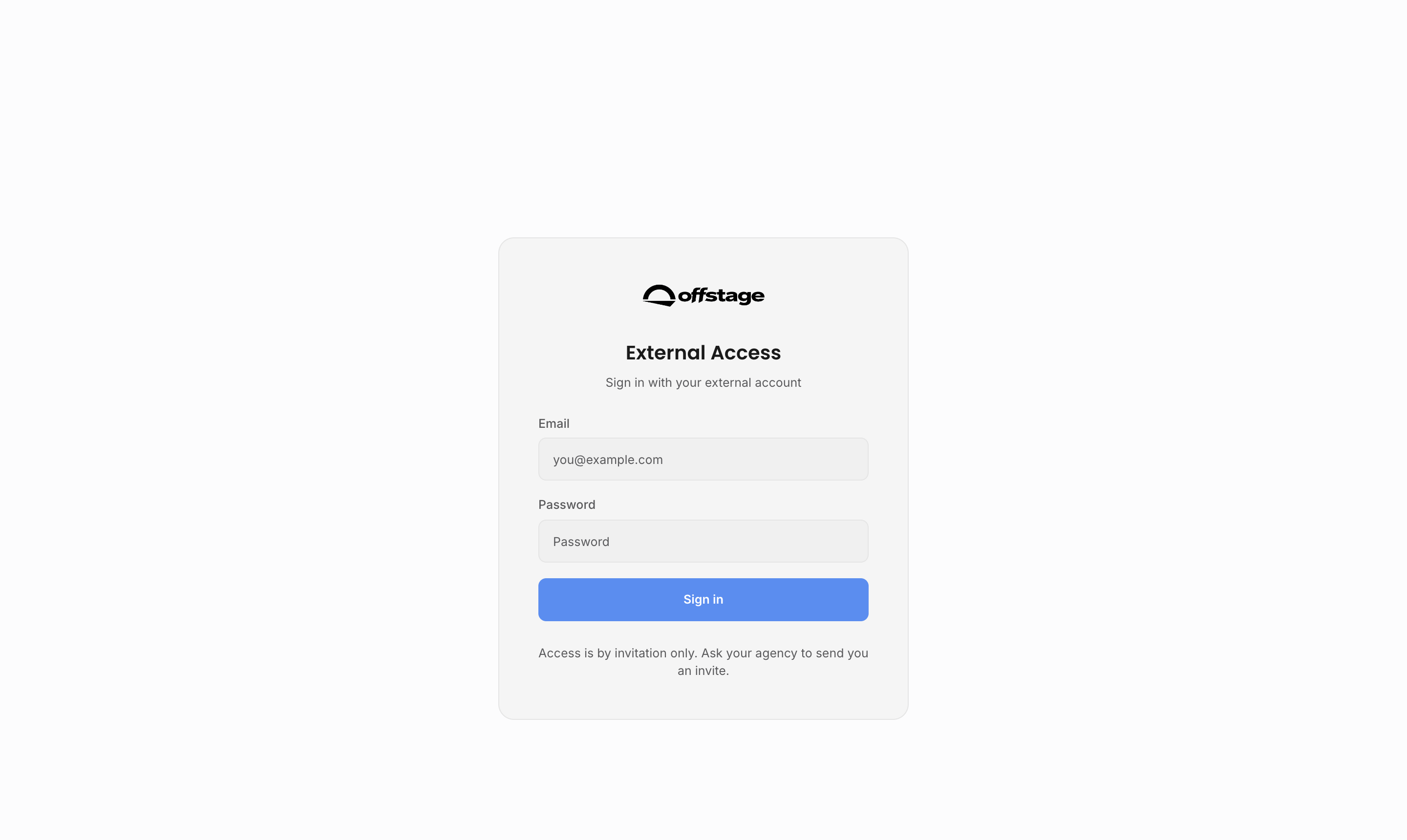
External invitations are accepted outside the internal workspace. The invite page checks the invitation status, expiration, and signed-in account before granting access:
| State | What happens |
|---|---|
| New external contact | They create an account with the invited email address and accept the invitation in the same flow. |
| Existing external contact | They sign in with the invited email address, then accept the invitation. |
| Already signed in with the right email | They can accept the invitation directly. |
| Signed in with the wrong email | Offstage asks them to sign out and try again with the invited address. |
| Expired or invalid invitation | The invite is rejected and the user is sent back toward sign-in. |
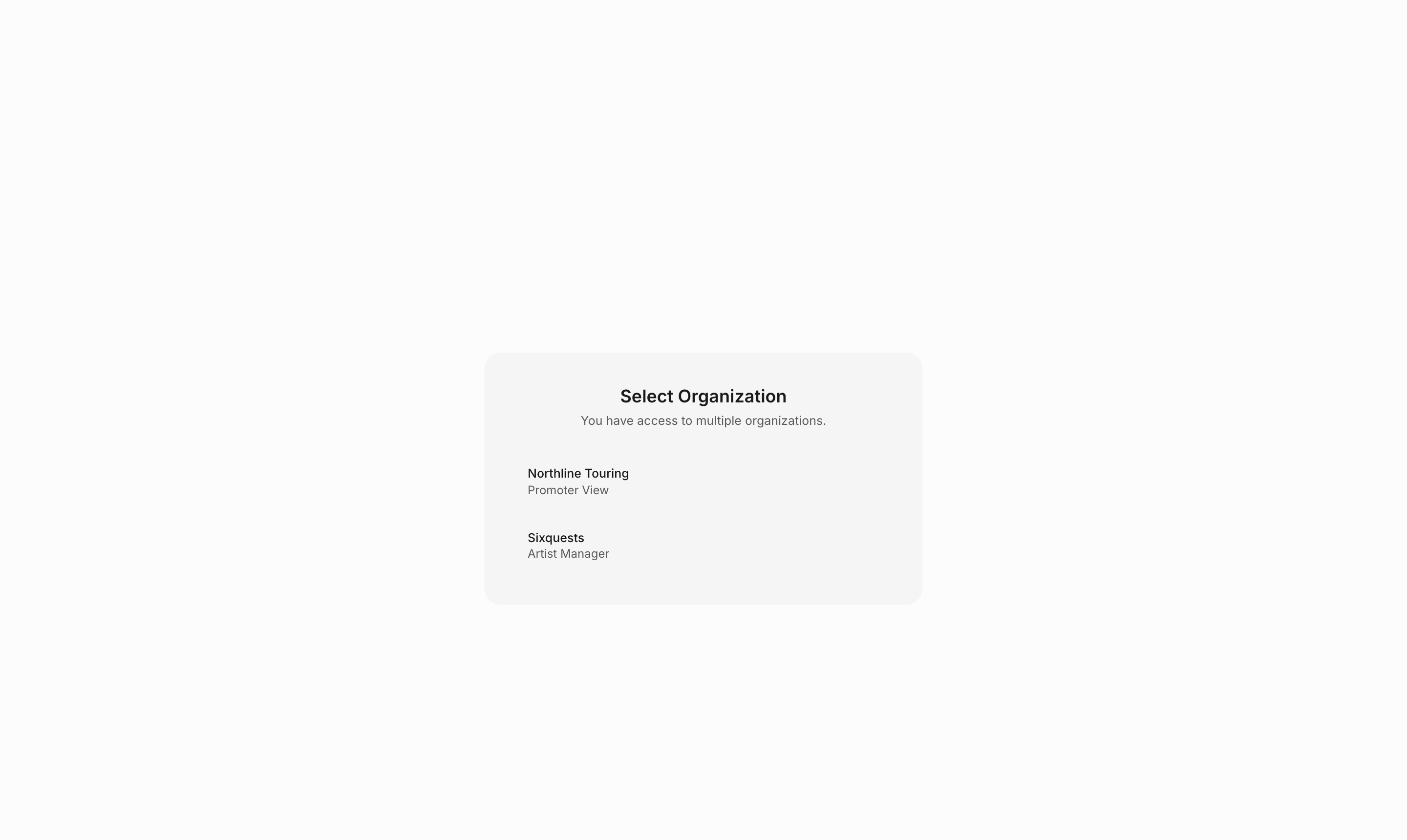
After acceptance, a recipient with one external membership opens that agency's external calendar directly. A recipient with access to several agencies sees an organization picker. A person who only has internal team membership is sent to the normal team dashboard instead of the external portal.
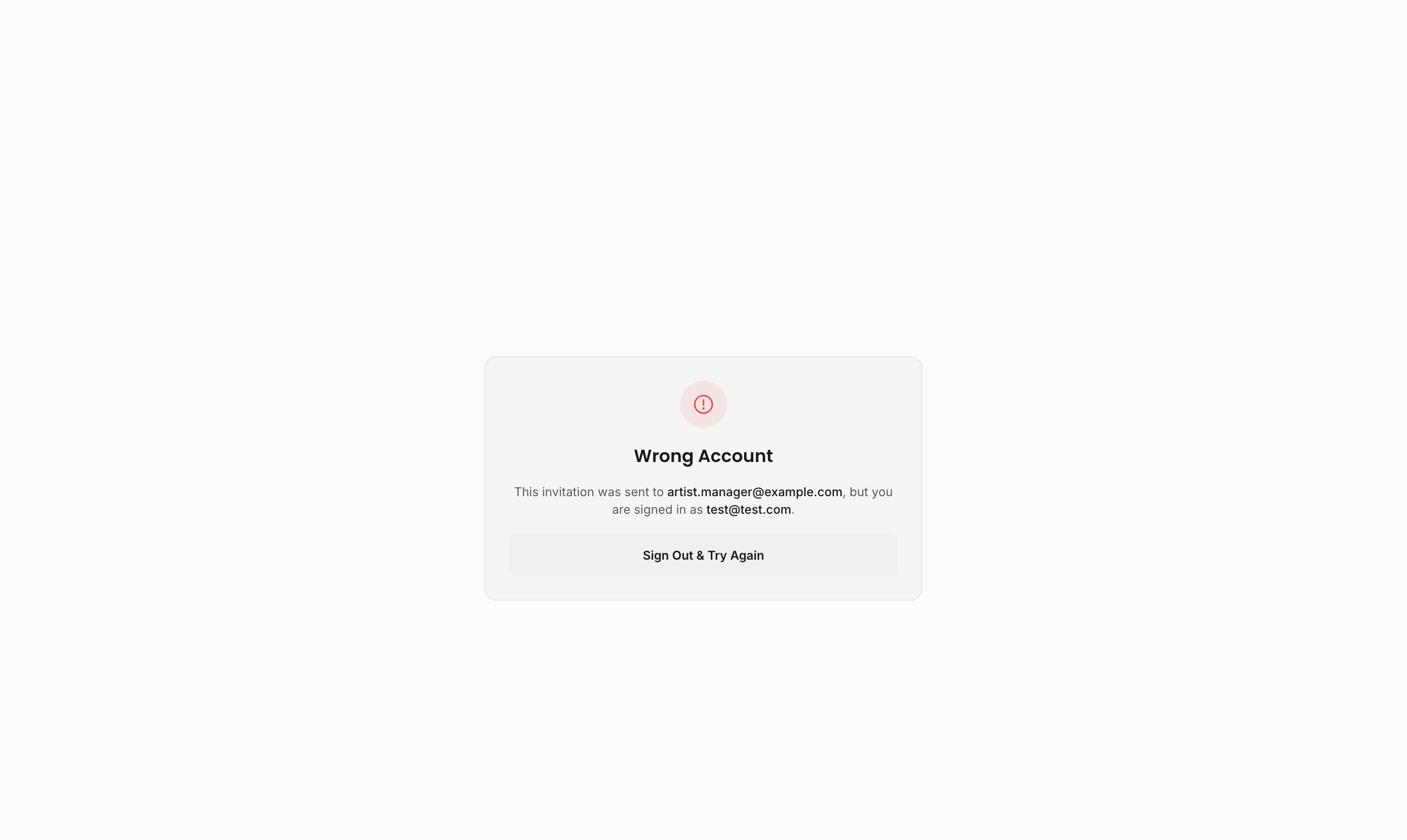
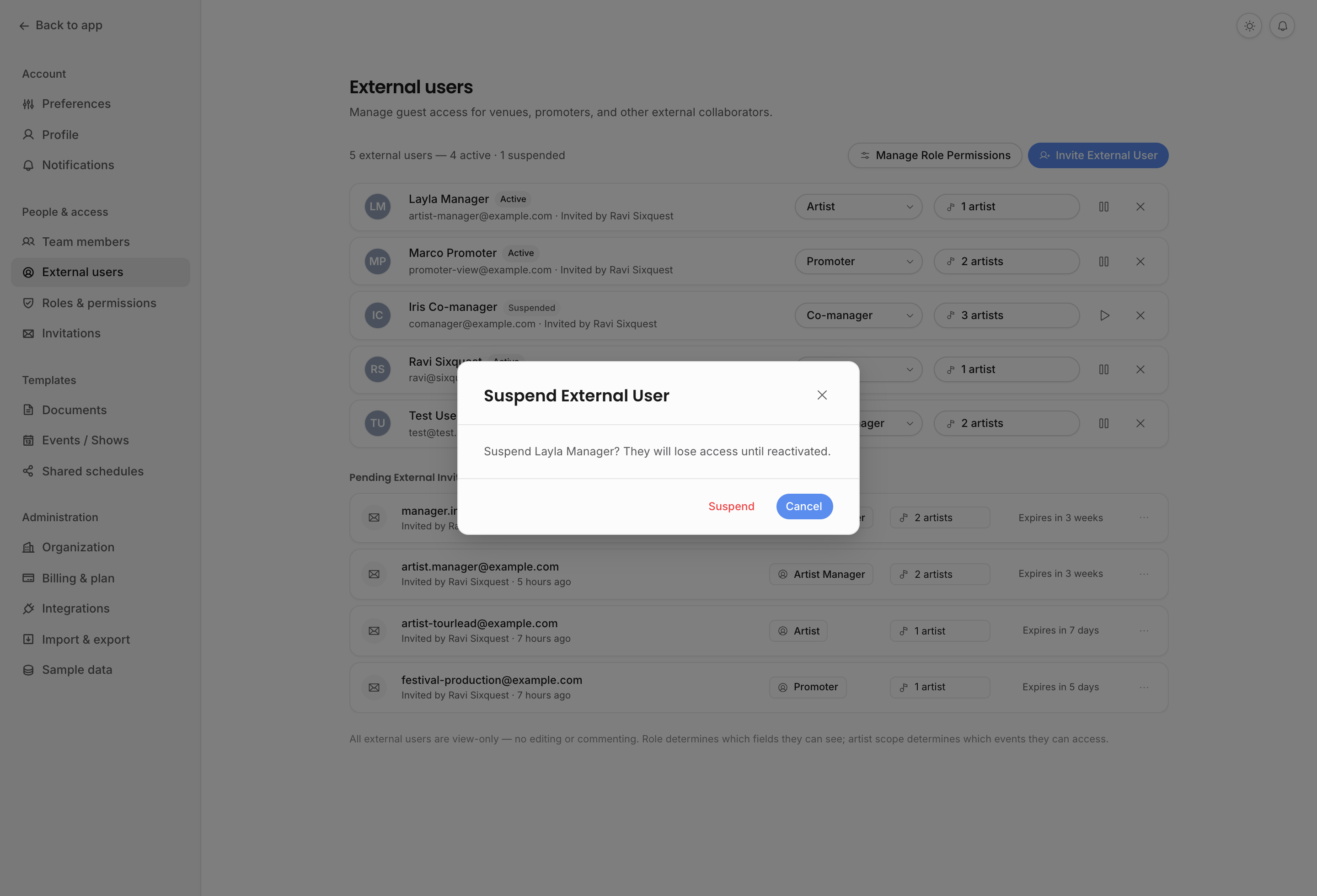
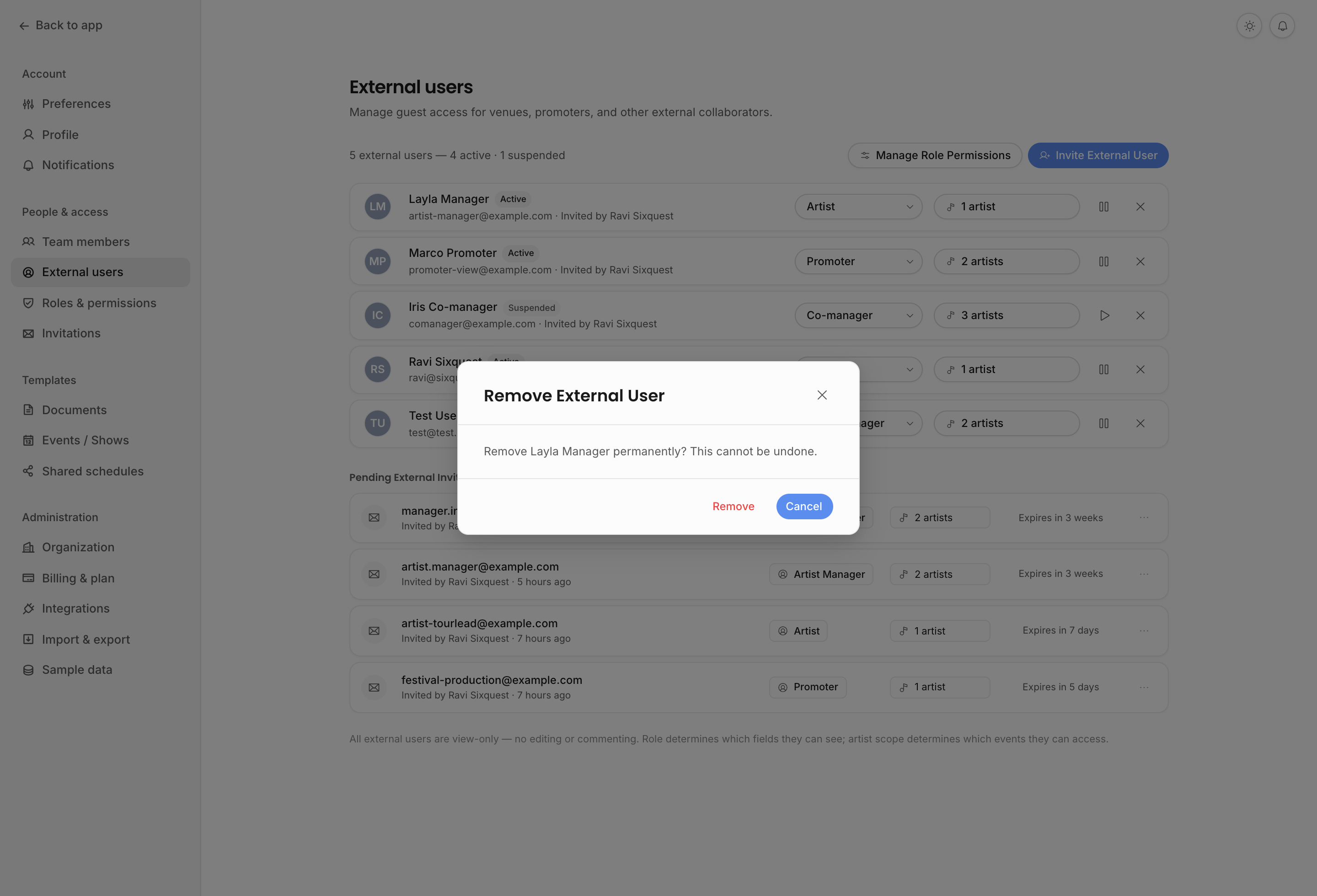
Accepted external users become external members with a status. Managers can suspend, reactivate, remove, change their role, or change their artist scope. Suspended users are blocked from the external portal until reactivated. Removed users lose the external membership entirely.
External portal
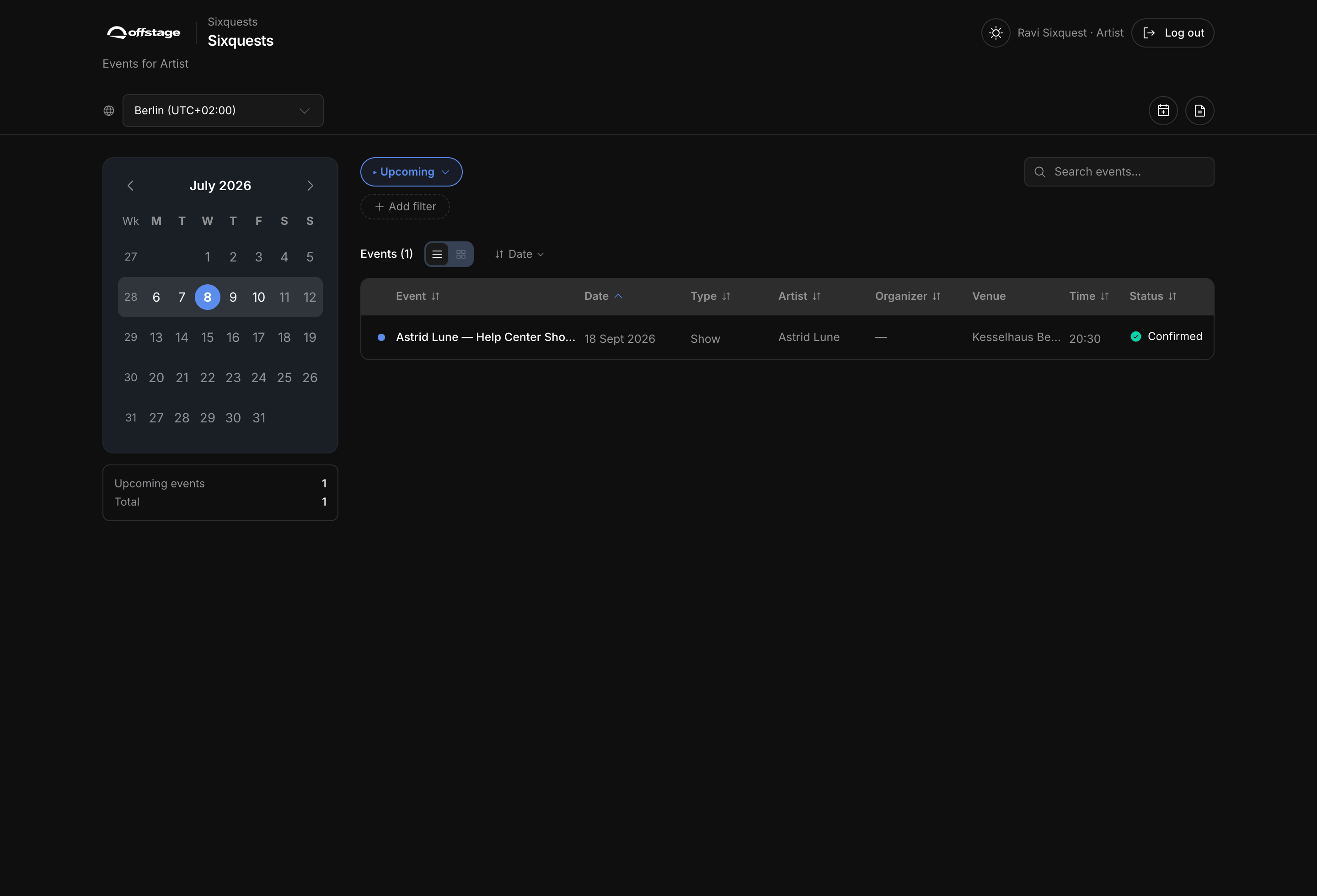
Named external users open a tour calendar portal for the agency that invited them. The portal shows non-draft events that are marked for external visibility and match the external user's artist scope. Fields outside the assigned role stay hidden.
Inside the portal, recipients can browse events with the same calendar tools as public tour calendars: compact or expanded event rows, table-style details, month context, map context when location data is visible, search, time-range filtering, extra filters, a language switcher, and calendar subscription/download controls. Opening an event shows the fields the role allows, such as venue, times, ticket links, travel, accommodation, return travel, guest list, external notes, contract status, or invoice status.
The portal is still not the internal show page. It does not expose tasks, private updates, internal notes, documents, or unrelated records. Contract and invoice status can appear, but never the documents themselves. Deal terms and financial line items appear only when the role template grants them.
Only events with Internal + External visibility can appear. Draft events are excluded. If an outside user says an event is missing, check all three layers: the event visibility, the event's artist, and the external user's role.
Documents, comments, and suggestions
External document access is designed for review, not portal membership. Depending on the document invite, an outside person may be able to view, comment on, or edit that one document. They do not get internal workspace navigation or unrelated records.
Document locks still matter. When a document is being edited through an external session, Offstage uses the same lock model to avoid conflicting edits and to make the current editing state visible.
External document pages show the agency name, document title, recipient email when available, the access capability, and a PDF download button when a PDF is available. Comment-capable reviewers receive a reduced document toolbar focused on comments and the comments panel, not the full internal authoring surface.
Use document invites for draft review or counterparty feedback. Use external users when the person needs ongoing event visibility for selected artists.
Artist scope
External access must be scoped to artists. Artist scope keeps an outside collaborator from seeing unrelated artist records or events. This is separate from internal team artist scope, but the principle is the same: a person should only see the portion of the agency workspace that is relevant to their role.
Changing an external user's artist scope changes which externally visible events they can see immediately. If the scope becomes empty, that person no longer has valid external access until the scope is fixed.
Manage access
Settings includes external-user and shared-link management surfaces. Review them periodically so old access does not stay open longer than needed.
When reviewing external access, check pending invitations, active external users, suspended users, the role assigned to each person, artist scope, and whether old links or feeds still make sense. If a role is too broad for one recipient, either narrow the role's visible field groups or move that person to a stricter role.
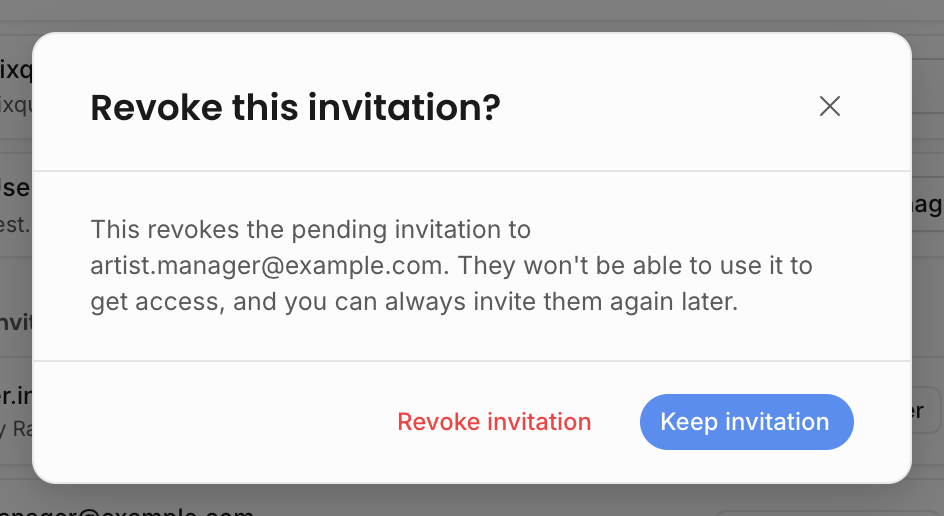
Suspending is the reversible pause. Removing an accepted external user is permanent for that access record. Revoking a pending invitation only cancels that unused invitation link; you can invite the same person again later.
For agencies, the practical review question is simple: does this outside person still need this exact view? If not, revoke or adjust access rather than leaving a broad calendar feed or document permission open indefinitely.
Related: Share, review, and comment, Tour calendars, Visibility and sharing.