
Create and edit documents
Use the canonical document create flow when you need a new resource. The modal lets you choose the document type, where to save it, which template to use, and whether to start from an existing document when that is available.
Creation choices
| Choice | Why it matters |
|---|---|
| Document type | Determines the default behavior and which parent records are allowed. Itineraries are event-only; blank documents can be event, artist, organization, or personal resources. |
| Save location | Controls whether the document belongs to an event, artist, organization, or user, and which live data the document can resolve. |
| Template | Sets the starting structure, default copy, variables, and PDF layout. A created document is independent after creation. |
| Copy from document | Clones another visible document of the same type into a fresh document. The body, locale, and display settings carry over; comments, suggestions, locks, and version history do not. |
| Counterparty | Helps contracts and invoices resolve the correct organizer, client, or billing party. |
You can also start from an existing document when the type matches. Copying creates a fresh document with its own title, parent, owner, and future edit history. It carries the body, locale, and document display settings, but not comments, suggestions, locks, or version history.
Templates are also copied at creation time. Editing the template later does not rewrite documents that were already created from it.
The create modal respects parent reachability and creation permissions. For example, an event document needs access to the event and event-edit permission; an artist document needs access to the artist and contact-edit permission; an organization document needs organization-document edit permission.
Editor chrome
The document page has three layers:
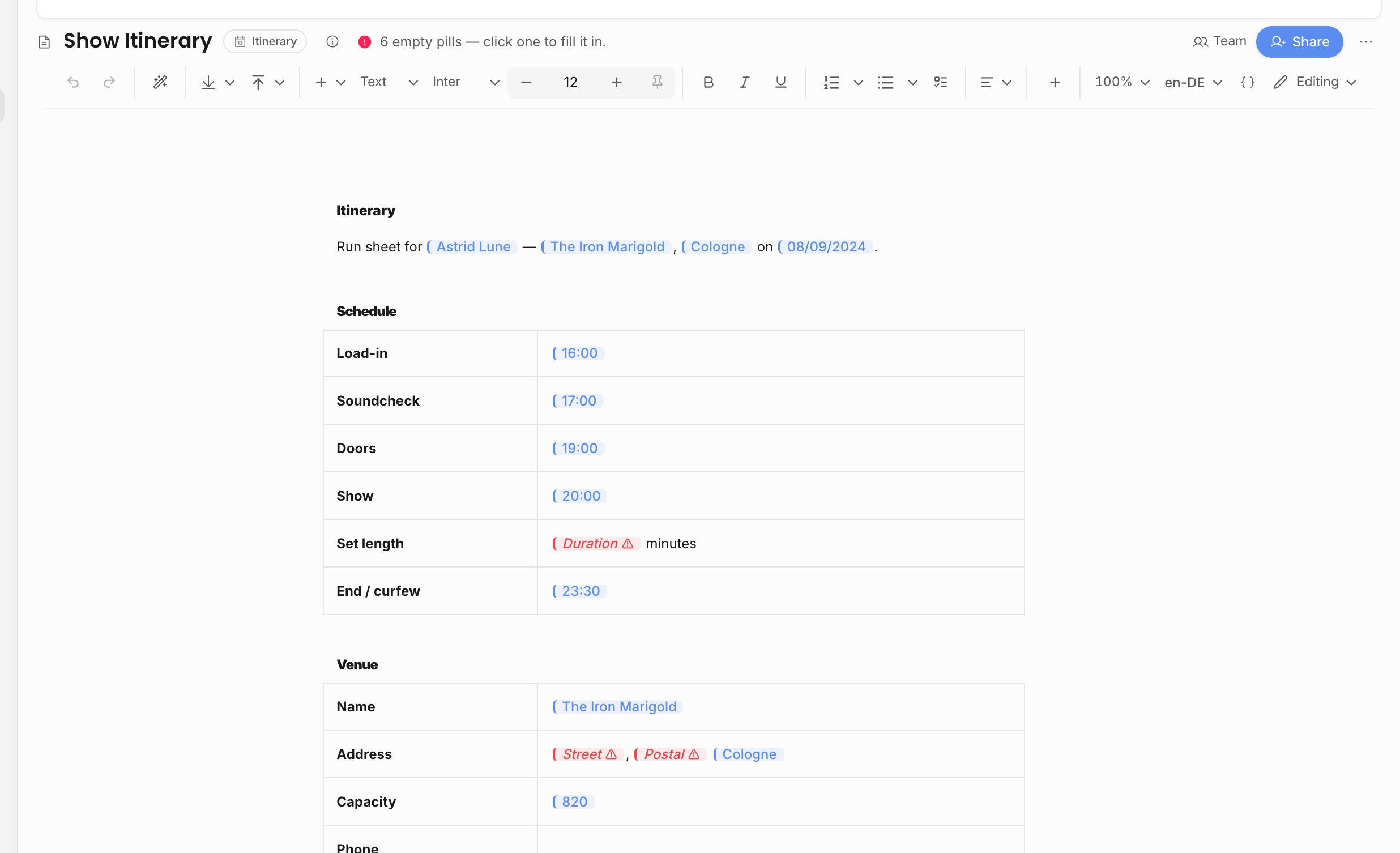
| Layer | What it is for |
|---|---|
| Breadcrumb and title area | Shows the parent context, document title, document type, creator, update time, share menu, and document actions. |
| Parent resource switcher | Lets you move between sibling documents attached to the same parent when that parent has more than one document. |
| Editor canvas | Holds the rich document body, sticky toolbar, comments panel, mode controls, export controls, and autosave state. |
Event documents use the richest chrome. The breadcrumb can show the event context and sibling documents, and the add-resource control can create another document, add a link, or upload a file against the same event-owned document area when the user has permission. Artist documents can switch between other documents on the same artist. Organization and personal documents usually open as standalone documents, so they do not show a sibling-resource row unless there is a natural parent context.
Autosave status is reported in the top chrome instead of inside the editor body. If the title, locale, default font, or content fails to persist, treat it as a save problem and retry before leaving the page.
Editing modes and tools
The editor supports rich text, tables, comments, suggestions, mentions, links, media, page breaks, locale selection, zoom, default font settings, live pills, loop tables, line-item blocks, contact blocks, and document-specific controls. Use live pills when a value should stay connected to workspace data instead of becoming static typed text.
The mode control changes how the document behaves:
| Mode | Use it when |
|---|---|
| Editing | You are allowed to make direct changes and want the document body to update immediately. |
| Viewing | You want to inspect the resolved output. Viewing mode shows rendered pills and page-break guidance closer to the export result. |
| Suggesting | You can comment or propose changes but should not rewrite the document directly. Users who can comment but cannot edit land in suggestion mode by default. |
Event documents have the richest data context because the editor can fill event, artist, organizer, venue, contract, invoice, line-item, travel, guest, task, and custom-field values from the show. Artist, organization, and personal documents use the same editor, but they only have event-specific values when they are attached to an event.
Empty pills are intentionally visible while editing. They mean the token exists but the source value is missing, unavailable in the current parent context, or blocked by permission. Fix the source record when the value belongs in the workspace; replace the pill with static text only when the value should no longer stay connected.
Locks and save safety
Title edits, content edits, comments, and suggestions are lock-aware. The editor acquires a lock when content changes, extends the lock while saving, and becomes read-only when another editor holds the lock.
When a remote lock clears, Offstage refetches the latest document content before allowing typing again. This prevents a stale browser tab from overwriting the changes saved by the previous editor.
The editor can also block edits when the session expires, the document is deleted, the document is archived while someone is editing it, or the lock is lost. If another person holds the editor lock, wait for the lock to clear or coordinate with them rather than duplicating the document just to make a parallel edit. Owners and admins can release another internal user's lock. Editors can release an external reviewer's lock when they have edit permission on the document, but Offstage still checks that the person releasing the lock has the right access.
Template and formatting changes
Contract and invoice document pages include a Template & Format rail card with the current template, formatting locale, PDF style, and document type. Plain event documents still use the same editor and can start from templates in the create flow, but they do not show this commercial-document rail card. The formatting locale controls how resolved dates and numbers are written inside the document; it does not translate your own wording.
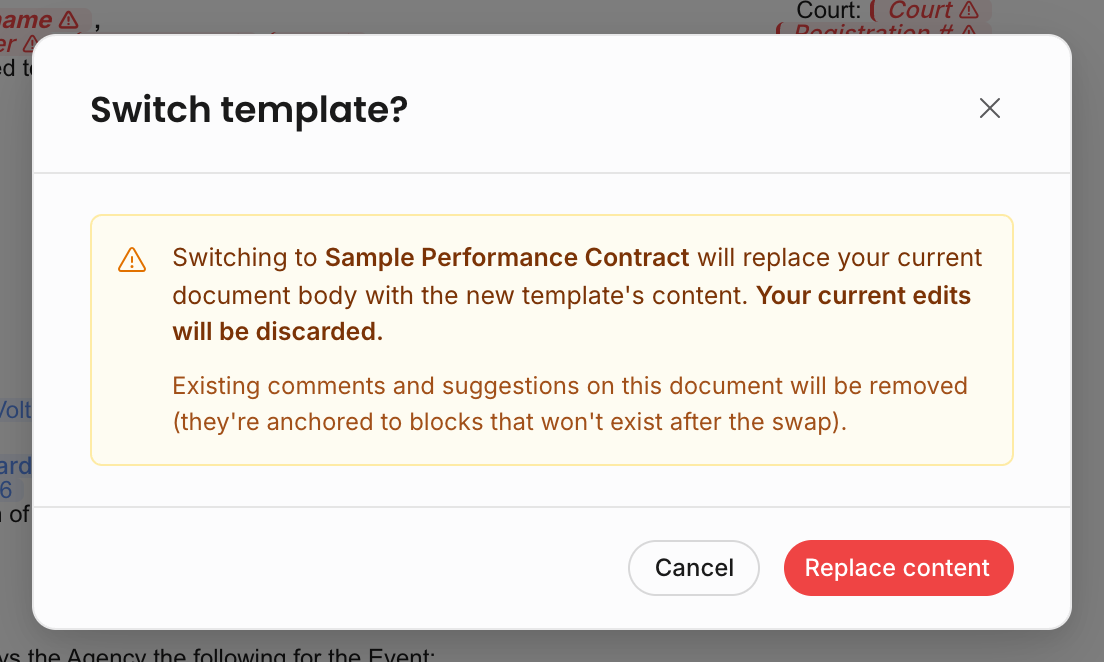
Switching templates is destructive. Offstage asks for confirmation because the current document body is replaced with the new template content, and existing comments or suggestions attached to the old text can be removed. Use switch-template when the wrong starting structure was chosen, not as a normal editing shortcut.
Use Save current as template when the current document has become a reusable pattern. Saving as a template does not rewrite older documents; it creates or updates the template future documents can start from.
Exporting
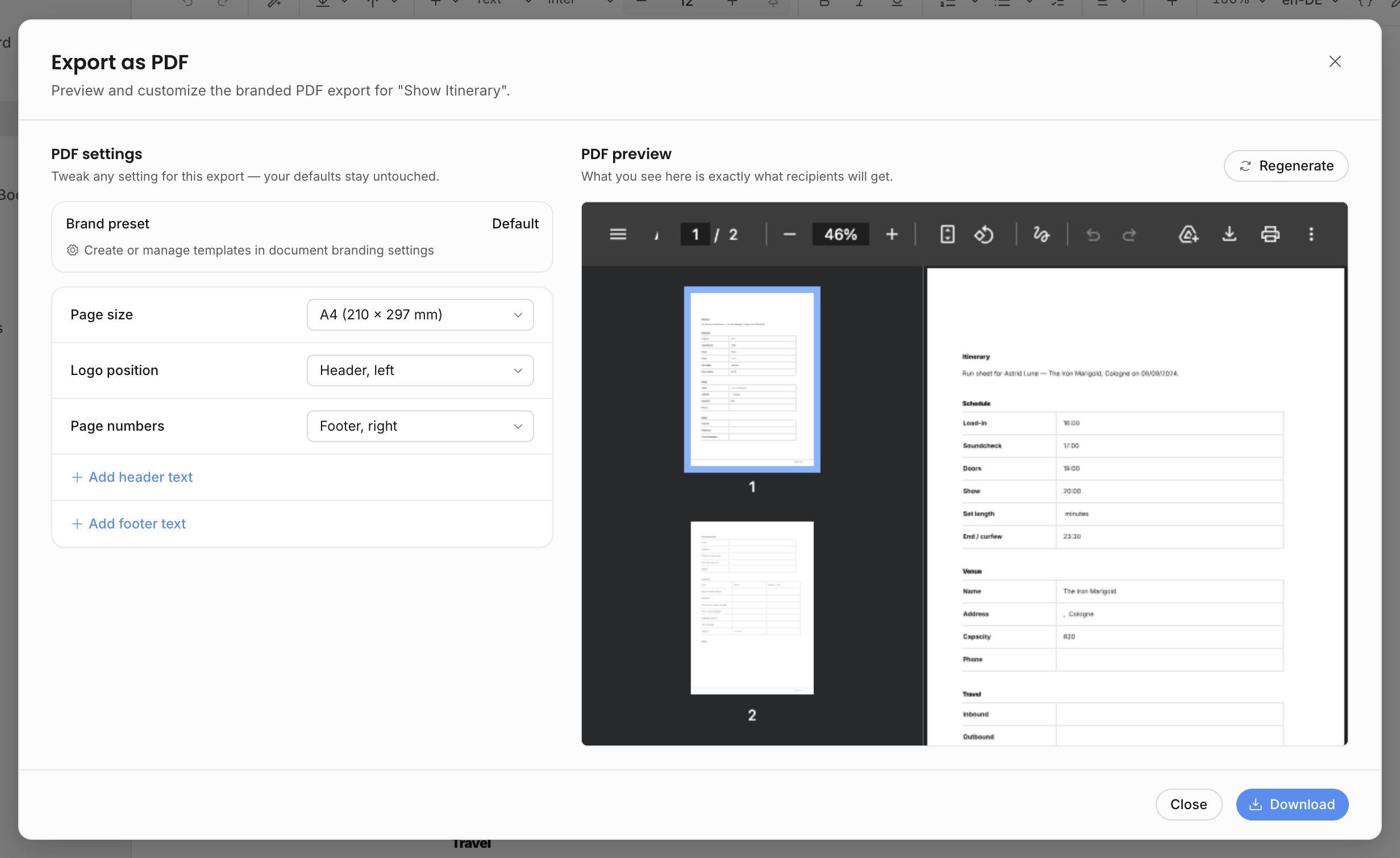
Documents can be exported to the formats enabled for that document type. The document PDF export dialog uses the agency's PDF brand presets, lets you preview the export, and can override export settings for that one download without changing the agency defaults.
Contracts and invoices also have PDF-specific lifecycle actions, such as sending, uploading signed PDFs, issuing invoices, recording payments, and voiding or crediting invoices. Treat those lifecycle actions as contract or invoice work, not just generic document editing.
Archive, restore, and delete
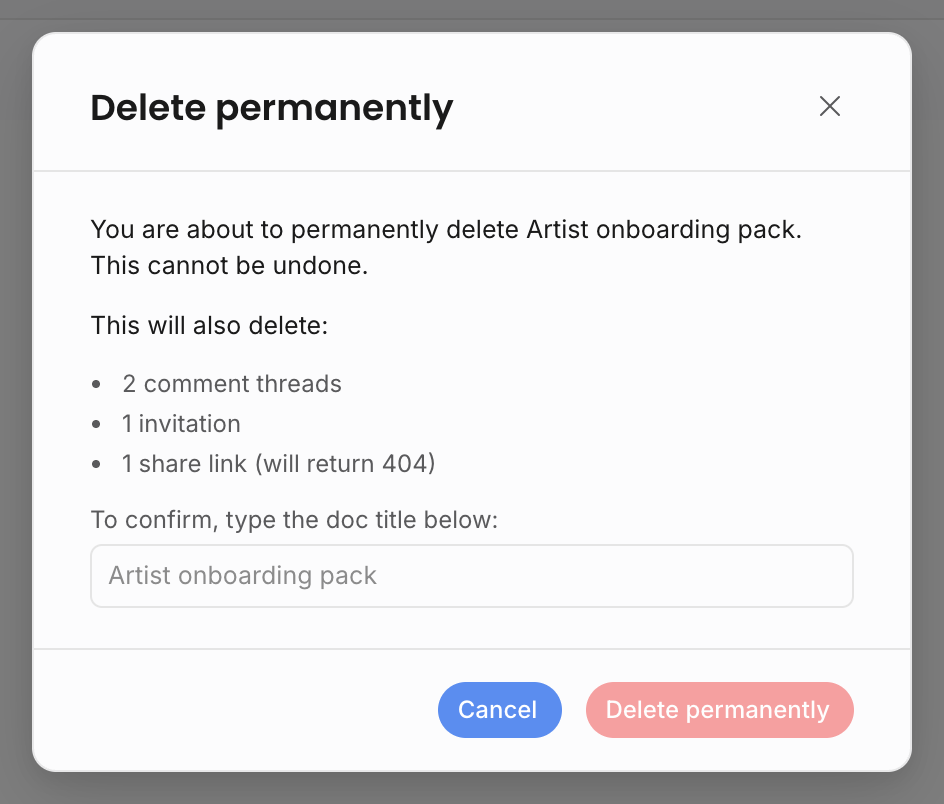
Use archive when a document should leave active work but remain recoverable. Archived documents can be restored. Permanent delete is intentionally narrower: the document must be archived first, and only the creator, an admin, or an owner can permanently delete it after confirming the title.
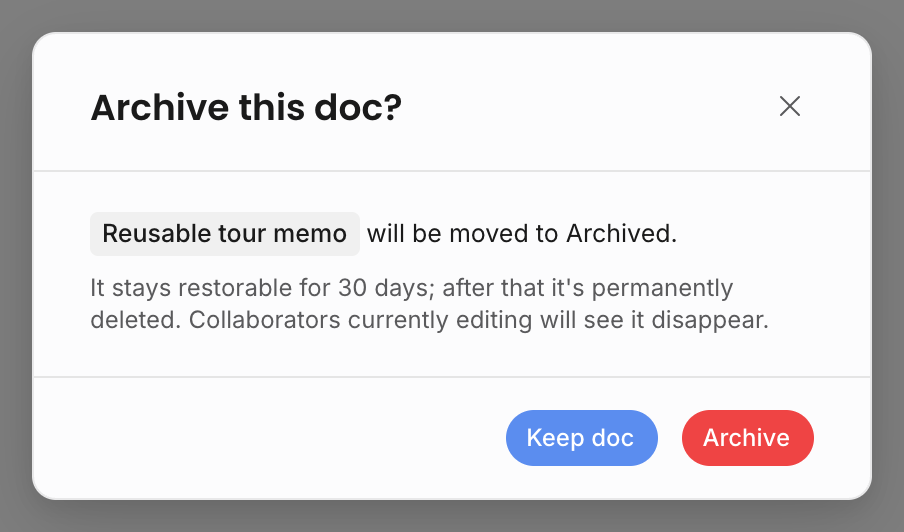
Archive is usually the right move for old drafts, outdated itineraries, duplicate notes, and resources you no longer want in active lists. Permanent deletion is for cleanup when the agency is sure the document and its related review history should be removed.
Duplicate, copy, and change type
There are two common reuse paths:
| Action | What happens |
|---|---|
| Duplicate | Creates a copy on the same parent with the same kind, visibility, team-edit setting, content, locale, and display settings. Archived sources cannot be duplicated; restore first. |
| Copy to another parent | Creates a new document on a different allowed parent from an existing visible document of the same kind. Live pills remain live and resolve against the new parent where possible. |
Changing a document's type is allowed only when the target kind exists and allows the document's current parent type. This prevents an event-only kind from being assigned to an artist or organization document by mistake.
Related: Live pills, Loop tables and blocks, Document templates and branding.