
Create a show
A show is the core booking event in Offstage. This guide covers the creation flow; the deeper detail work happens after the show opens. For the complete field reference, see Show fields.
The Create your first show tutorial guides this exact flow inside the app and ends on the new show detail page. See Guided tutorials.
Add the show
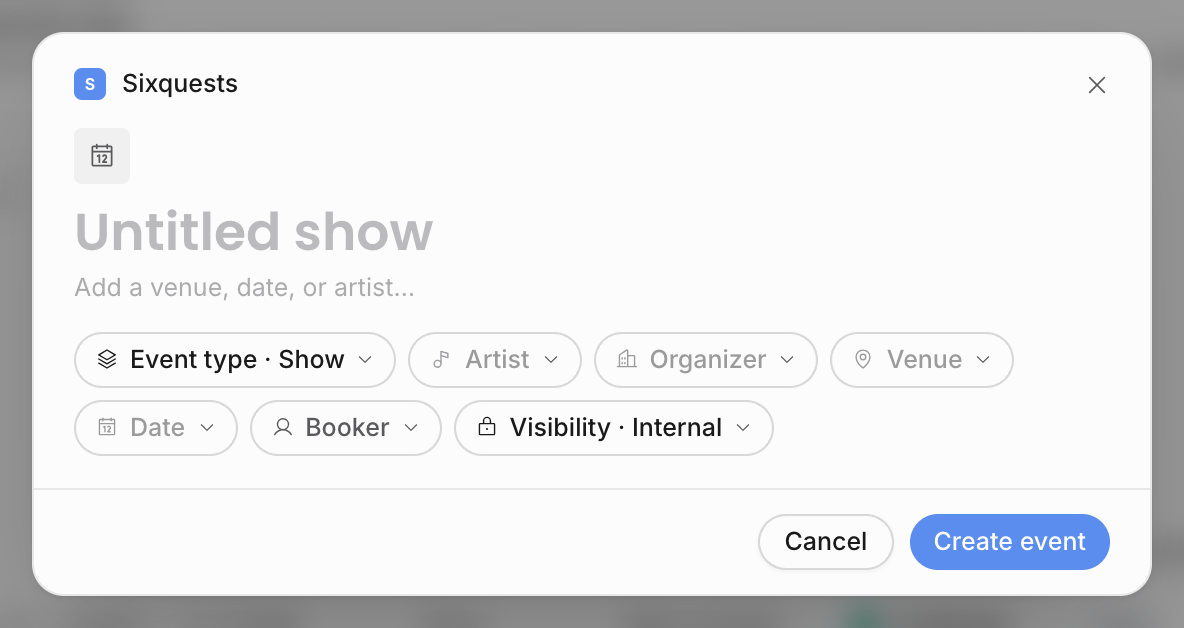
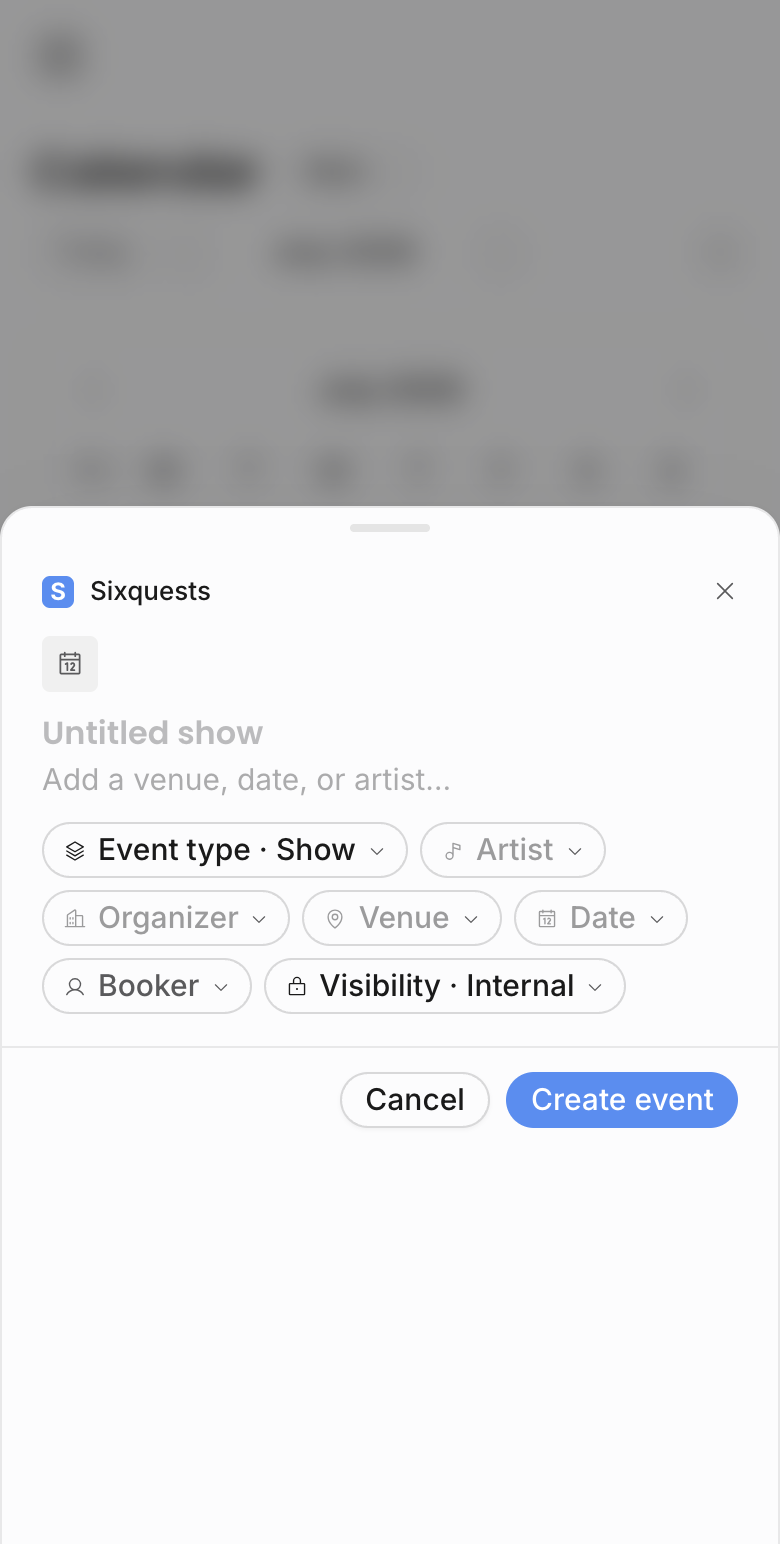
- 1Open the calendar and start a new event.
Click New, then choose Show.
- 2Choose Show.
Offstage can create shows, travel, and general events from the calendar. Pick Show for a booked performance.
- 3Pick the artist, organizer, and venue.
Choose the artist performing, who is putting on the show, and where it happens. If the organizer is a venue-type account, the venue field can fill from that choice.
- 4Set the date, booker, and visibility.
Add the show date, choose the team member responsible for the booking, and decide who can see the show. Exact times and deeper fields can be filled on the show detail page.
- 5Create the show.
The show lands on the calendar and opens its detail page, where tasks, finances, resources, documents, contracts, invoices, and updates live.
For example, booking "Aurora Skies" for "Bayfront Live" at "Moonlit Bay" on a Friday starts with artist, organizer, venue, date, booker, and visibility. The rest can be added when the deal becomes clearer.
The title can be typed manually, but it also auto-fills from the artist, venue or organizer, and date while the title is still untouched. Pick a venue-type organizer when the buyer and venue are the same contact; Offstage can fill the venue pill from that choice when the venue is still empty.
Times are local to the venue. Offstage stores them as wall-clock, so 20:00 reads 20:00 for you and for everyone you share the show with. More in Concepts: floating time.
After creation
Open Work a show next. That page explains the overview card, location, times, ticketing, finances, tasks, resources, and updates.
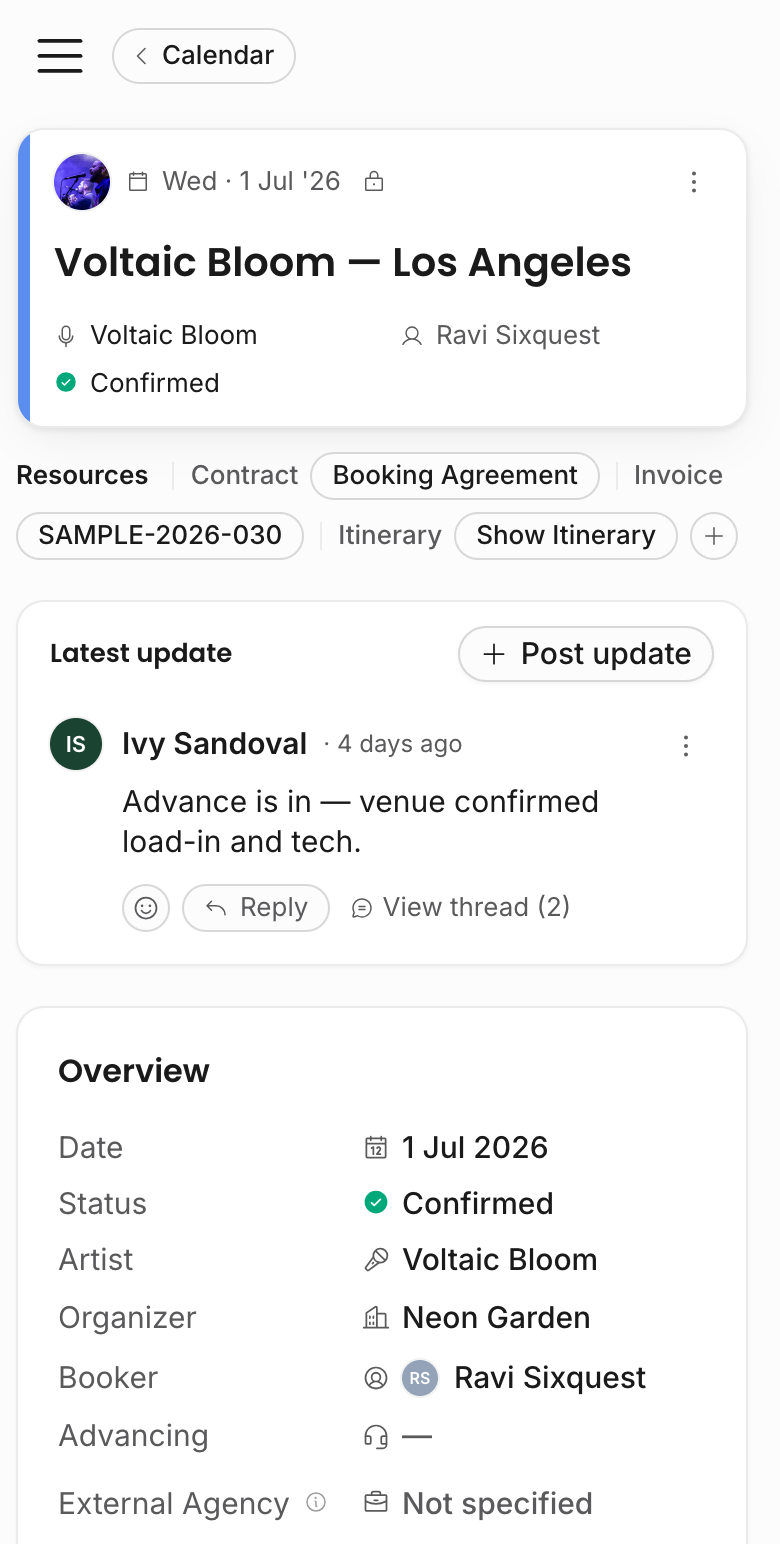
Why the first fields matter
Every show can connect to one artist, one organizer, one venue, and one booker. Those links power the artist page, calendar filters, document pills, contract and invoice defaults, team ownership, and Analytics drill-downs.
Next steps
Once the show is saved, you can act on it straight away:
- Work the show and fill deeper details.
- Create a contract from the show.
- Invoice and get paid once it is confirmed.
- Add travel or general events around it (see Key concepts).