Dashboard overview
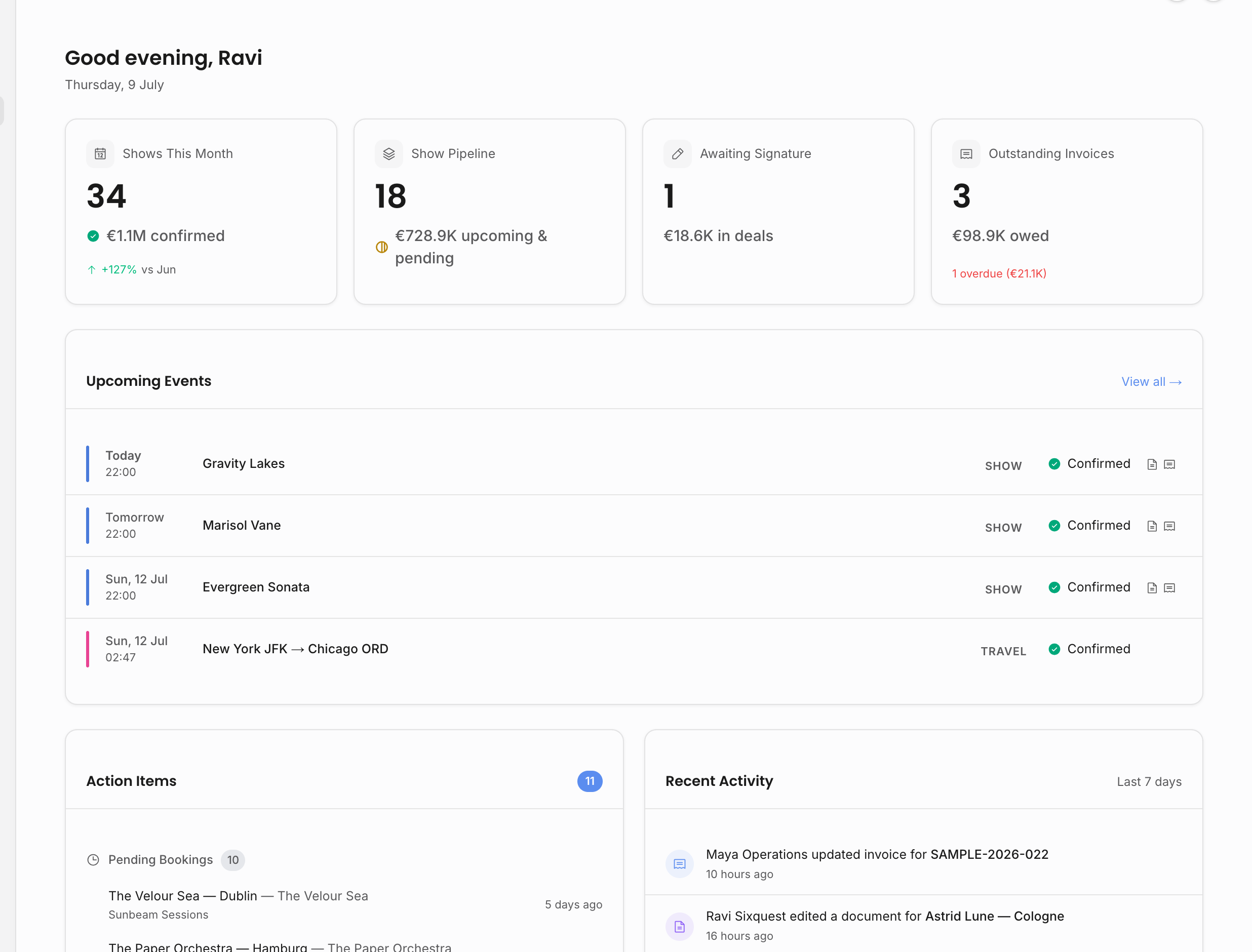
The Dashboard is the workspace home screen. It is designed for a fast scan before you decide where to work next.
What appears here
| Area | Use it for |
|---|---|
| Greeting and date | Confirm you are in the right workspace and working from today's context. |
| KPI cards | Read the current operating picture without opening Analytics: shows this month, pipeline, contracts awaiting signature, and outstanding invoices when permitted. |
| Upcoming events | See the next non-draft, non-cancelled calendar records in the next two weeks, then open Calendar for the source event. |
| Action items | Find process work that needs a person to act: pending bookings, unsigned contracts, and overdue invoices. |
| Recent activity | Catch visible changes across events, documents, contracts, invoices, artists, tasks, and other operational records. |
The Dashboard is not a second data-entry surface. When something needs detail, open the underlying record or list: Calendar, the show, the contract, the invoice, the artist, or the document.
KPI cards
The KPI cards are shortcuts into the areas they summarize. They are useful for orientation, but they are not a replacement for Analytics or the financial detail pages.
| Card | What it counts | Where it opens |
|---|---|---|
| Shows this month | Non-cancelled shows dated in the current month. If you can view financial data, the subtitle shows the net revenue line-item sum for those shows. The comparison is the show count versus the previous month. | Calendar |
| Show pipeline | Upcoming pending events, with unconfirmed net revenue when financial access exists. This card opens Calendar filtered to upcoming pending records. | Calendar with period=upcoming&status=PENDING |
| Awaiting signature | Sent contracts awaiting signature. If the user also has financial access, the amount is the summed deal value for those sent contracts. | Contracts |
| Outstanding invoices | Sent, partial, or overdue invoices with remaining owed amount. The overdue warning uses derived invoice status, so payments, due dates, voiding, and settlement affect what appears here. | Invoices |
Financial figures are hidden when the user lacks financial access. Contract and invoice cards are hidden when the user lacks the matching workflow permission. The current compact currency display is designed for a quick read, not multi-currency analysis; use Analytics or the record itself when you need more context.
Upcoming events
Upcoming events shows up to four dated events in the next 14 days. Drafts and cancelled records are excluded. Shows, travel, and general events can all appear, with a small type accent so you can distinguish performances from logistics and planning work.
Each row shows the day, time, artist or title, venue when present, status, and for shows small contract/invoice progress indicators. The progress icons are deliberately lightweight: they tell you whether a show has contract or invoice movement, but the real workflow still lives on the event, contract, and invoice pages.
Clicking an upcoming-event row currently opens Calendar, not the individual show detail page. Use the row to get into the right calendar context, then open the event for venue, timing, task, document, resource, and money details.
Action items
Action items are the Dashboard's operational follow-up list:
| Group | What appears |
|---|---|
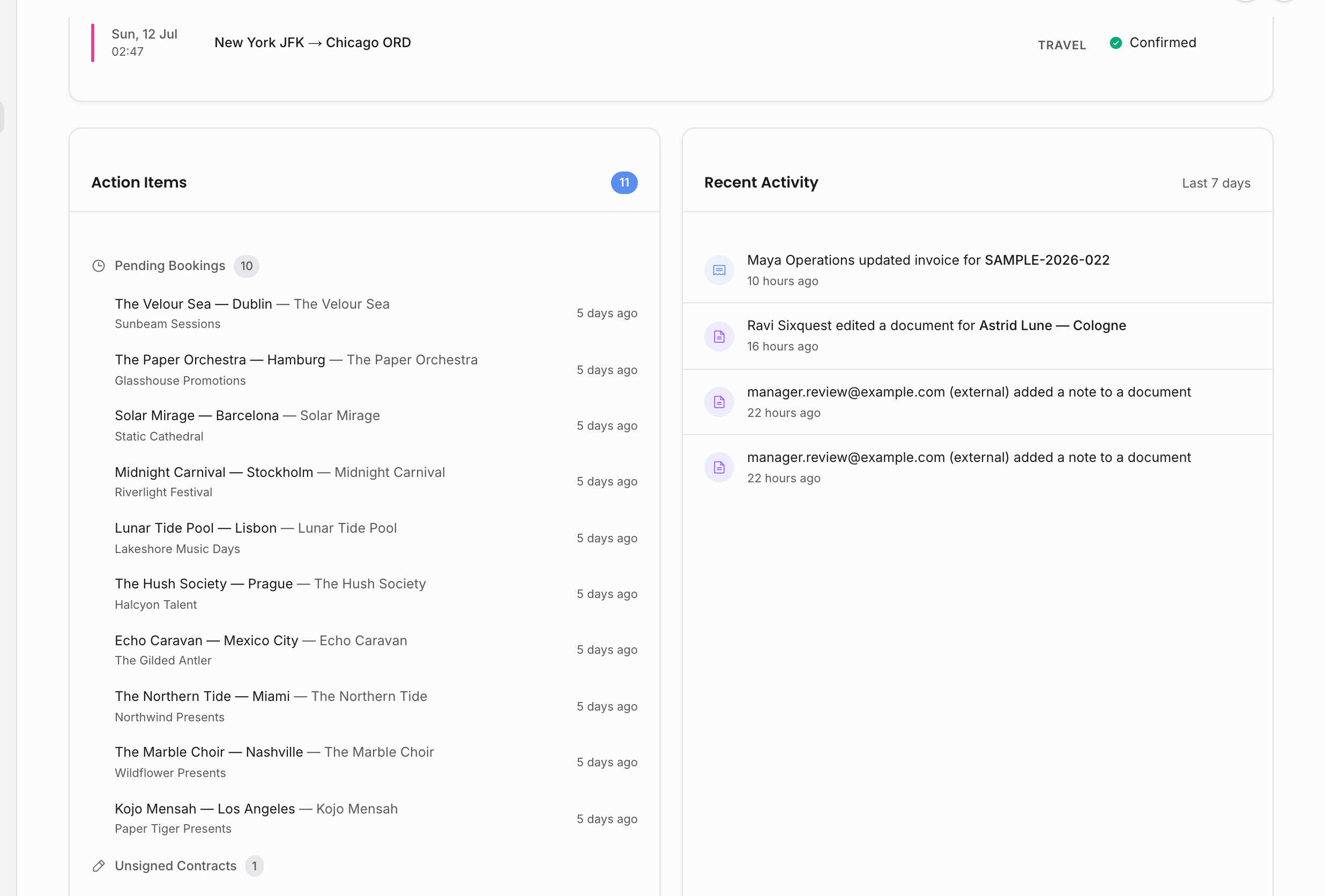
| Pending bookings | Pending events, newest first, with artist and organizer context when available. |
| Unsigned contracts | Sent contracts, oldest sent first, including event-parent and artist-parent contracts. Rows open the contract detail page. |
| Overdue invoices | Invoices whose stored status is overdue, with invoice number, client, due timing, and total. Rows open the Invoices area. |
This panel is intentionally narrow. It does not try to list every task, every unread update, or every possible workflow state. It pulls out the three kinds of work that most often need agency follow-up: bookings still in pipeline, contracts sent but not signed, and invoices past due.
How to use it during the day
Start here when you come back to the workspace. The Dashboard is best for triage: what changed, what is coming up, and what needs action. It should answer "where should I go next?" rather than replace the pages where work is done.
Use the KPI cards for a quick business read, then use Analytics when you need comparisons, booker performance, artist/venue breakdowns, or geographic detail. Use Upcoming events to return to Calendar. Use Action items when you want a short follow-up queue. Use Recent activity when you want to understand what another teammate or external reviewer just changed.
Recent activity
Recent activity shows a small, permission-safe activity feed from the last seven days. The feed filters out administrative settings noise and technical lock-acquired/lock-released events. It can still show deliberate workflow actions such as event changes, document work, contract and invoice changes, artist changes, and task activity when the viewer has permission to see the underlying entity.
When the viewer can access the source record, the activity row includes a link. When the viewer cannot access the source record because of artist scope, private event visibility, contract permissions, or invoice permissions, the row falls back to a generic description instead of exposing a forbidden link or leaking the record name.
Document activity opens the parent event document when the parent event is visible. Contract and invoice activity opens the matching contract or invoice when permitted. Artist activity respects artist scope.
Navigation from the Dashboard
Dashboard rows are entry points into source areas. KPI cards open Calendar, Contracts, or Invoices. Upcoming events and pending bookings open Calendar. Unsigned contracts open contract detail pages. Overdue invoices open the Invoices area. Recent activity rows link to events, event documents, contracts, invoices, or artists when the viewer can access them.
For records that are not visible from the Dashboard, use Search and command menu. Search is better when you already know a name, venue, invoice number, contract, contact, or artist.
Permission effects
Dashboard content follows the same permissions as the pages it summarizes. A teammate without financial access should not see financial values. A teammate scoped to specific artists should only see relevant records. This matters most for financial KPI cards, contracts, invoices, and artist-scoped teams: the Dashboard should not become a shortcut around the underlying permission gates.
If something looks absent, first check whether the user can view that record type or artist. Then open the source page directly to confirm whether the underlying record exists. For financial questions, compare the Dashboard's quick summary against the source line items, contract values, invoices, or Analytics rather than treating the Dashboard as the final accounting view.
Related: Calendar overview, Search and command menu, Analytics access and scopes.