
Document settings
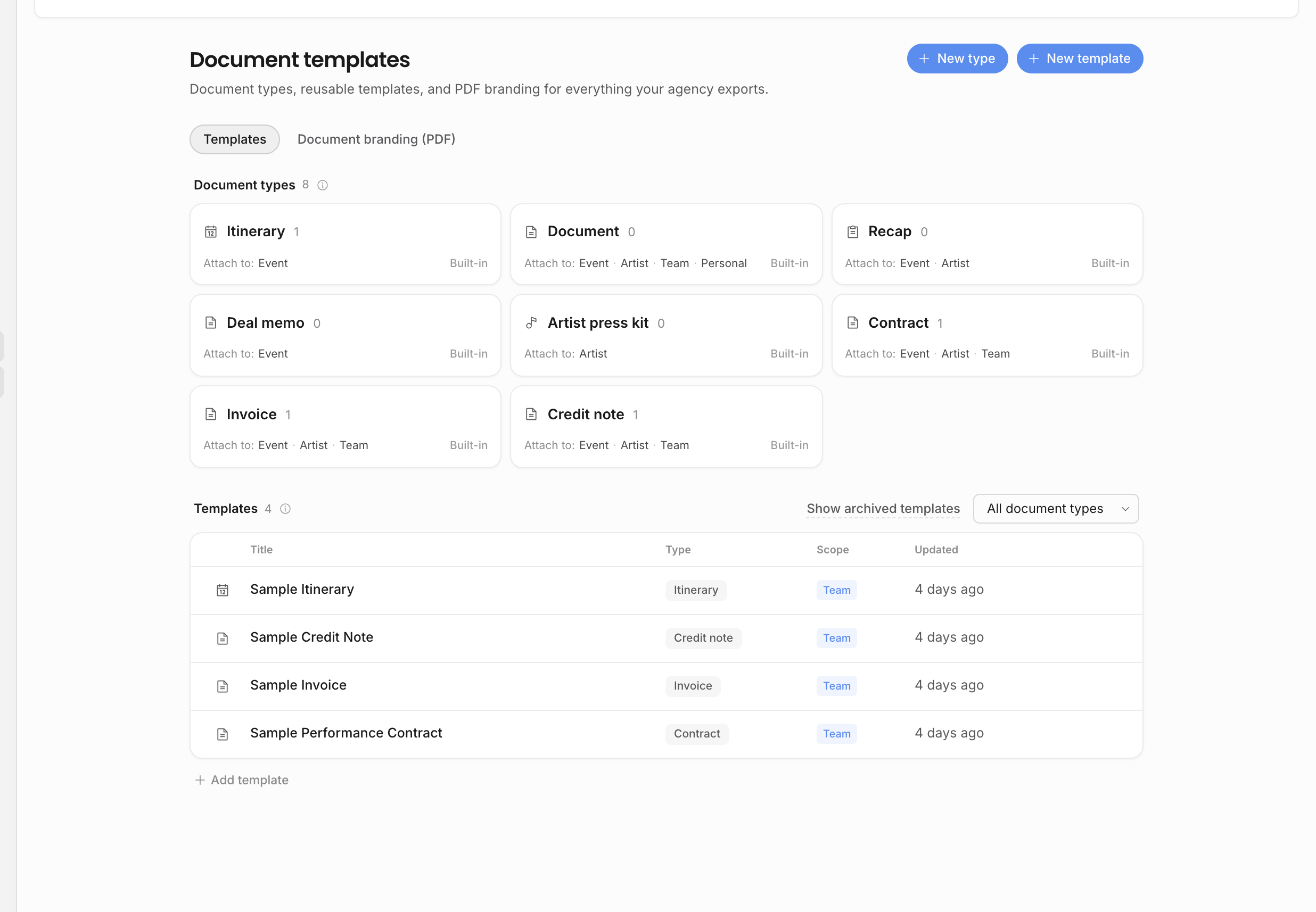
Document settings control which document types the agency can create, which reusable templates are available to the team, and how exported PDFs look. In the app, open Settings → Document templates. The active settings area has two tabs: Templates and Document branding (PDF).
Any workspace member can view document types and create personal templates. Creating team templates, promoting personal templates to team templates, editing team templates, or managing document types requires Manage templates. Editing PDF branding presets requires Manage organization settings.
Templates tab
The Templates tab combines document types and document templates.
| Area | Use it for |
|---|---|
| Document types | Define the categories the team can choose when creating documents. Each type has a label, icon, slug, and allowed parent contexts. |
| Parent contexts | Decide where a type can be created: event, artist, team, or personal. For example, an itinerary usually belongs to an event, while an internal playbook may belong to the team. |
| Personal templates | Reusable starting points visible only to the creator. Any member can create these. |
| Team templates | Reusable starting points available to the whole agency. These require Manage templates to create, edit, promote, archive, restore, or permanently delete. |
| Archived templates | Hide old templates from pickers without deleting them. Archived templates can be restored or permanently deleted later. |
Built-in document types keep their core parent-context rules so the standard document model stays stable. Custom types can be added when the agency has a repeatable category that is not already represented.
The template list is also a working library, not only a settings table. Use the document-type filter when you only want to review templates for one kind of document, and use the archived view when you need to restore or permanently remove an old template. Template rows are sorted so active templates stay ahead of archived ones, team templates stay ahead of personal copies, and recently changed templates are easy to find in the flat list.
When creating a document type, choose the parent contexts carefully. A type allowed on Event appears for event documents; Artist appears on artist pages; Team is for organization-level documents; Personal is for private user documents. The parent context affects where templates appear, which live pills make sense, and which preview entity the template editor can offer.
Template editor
Creating a template opens the document template editor. It uses the same rich editor family as working documents, so template authors can include headings, tables, lists, links, live pills, loop structures, contact blocks, line-item blocks, and reusable wording.
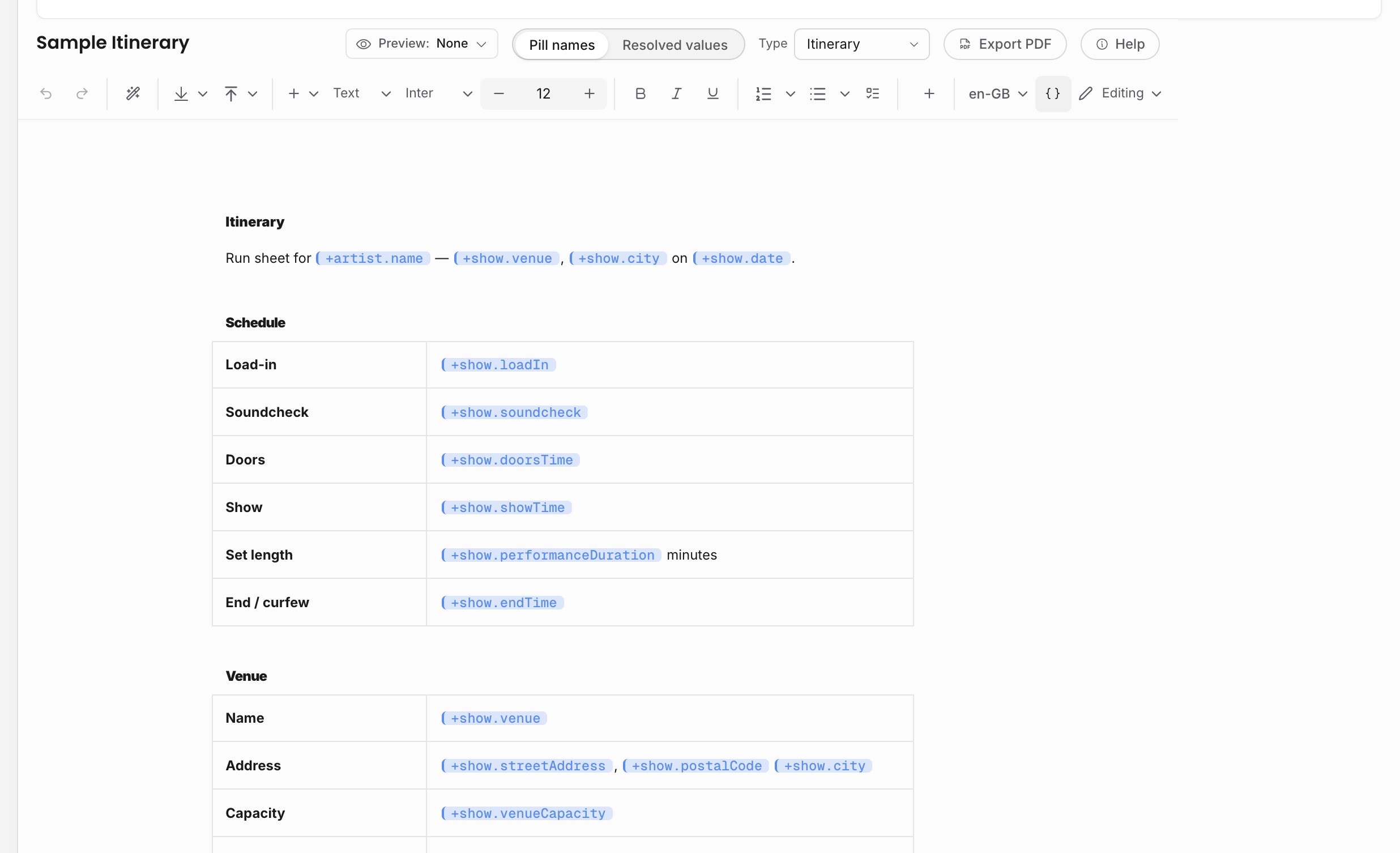
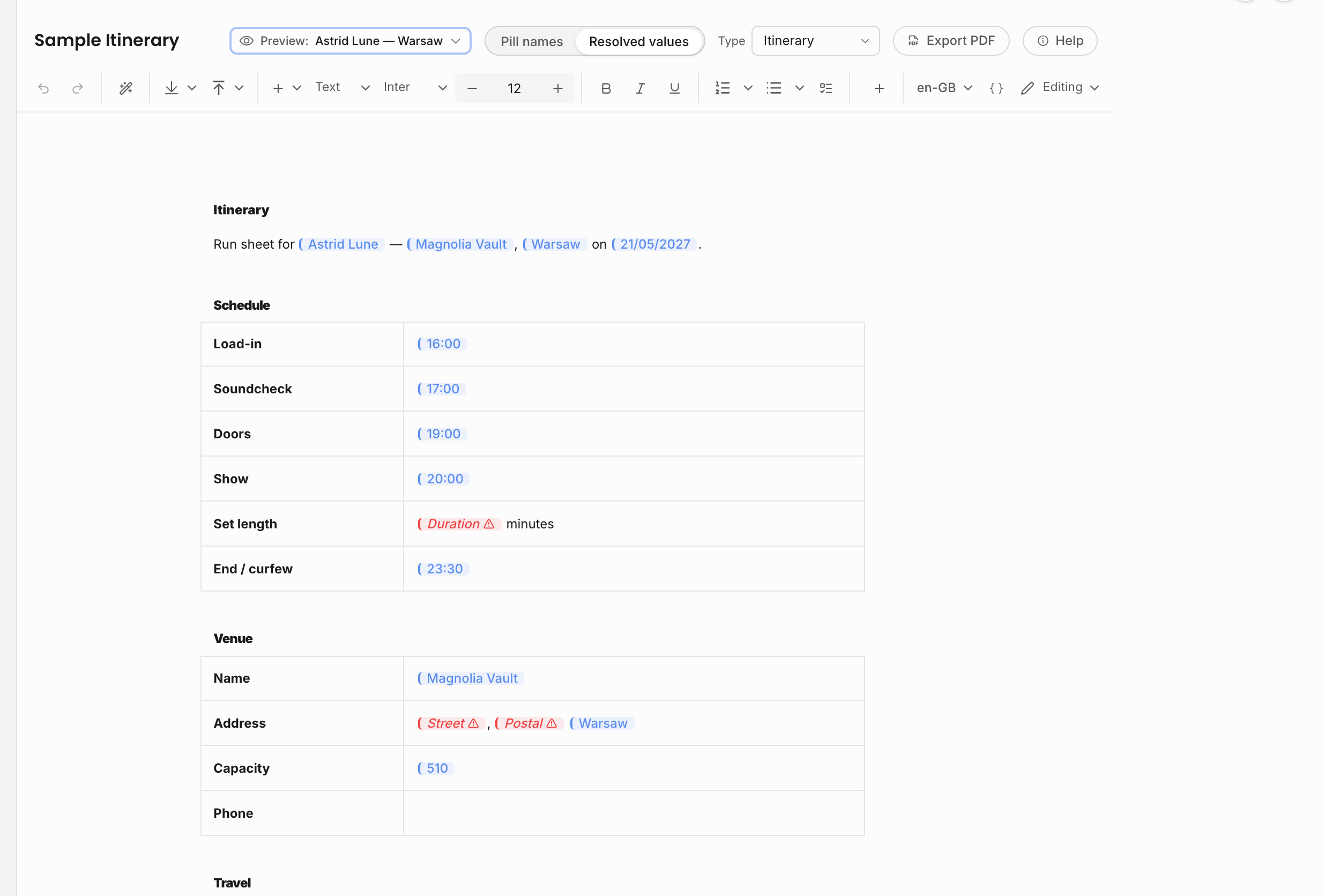
The editor has two important modes:
| Control | What it does |
|---|---|
| Ownership | Personal templates are private to the creator. Team templates are shared with everyone in the agency. |
| Document type | Controls where the template appears when people create documents. |
| Locale | Controls how dates and numbers resolve inside live pills. |
| Preview entity | Lets the author choose an event or artist, when the document type supports it, so live pills can be previewed with real sample values before the template is used. |
| Editing / viewing mode | Editing shows the raw template body. Viewing renders the resolved version, including loops, against the selected preview entity. |
| VAT treatment | Available on money-related templates so new contract or invoice documents can inherit the intended VAT basis. |
If a teammate cannot edit a team template, they can duplicate it to a personal template and adjust their copy. If a personal template should become agency-wide, a member with Manage templates can promote it to a team template.
For event- and artist-scoped templates, choose a preview entity before trusting the resolved preview or exporting a sample PDF. Without a preview event or artist, event-specific and artist-specific pills can only show their raw names or empty values. This is useful while writing the template, but it is not a final proof that the template will resolve well on a real show.
Changing the document type of a template changes where that template can be used. Review the body after changing type because the available parent context, live pills, loops, line-item blocks, and export expectations can change with it.
Branding tab
The Document branding (PDF) tab controls the chrome around exported PDFs, not the body text of every document. Use it for agency-wide export presentation.
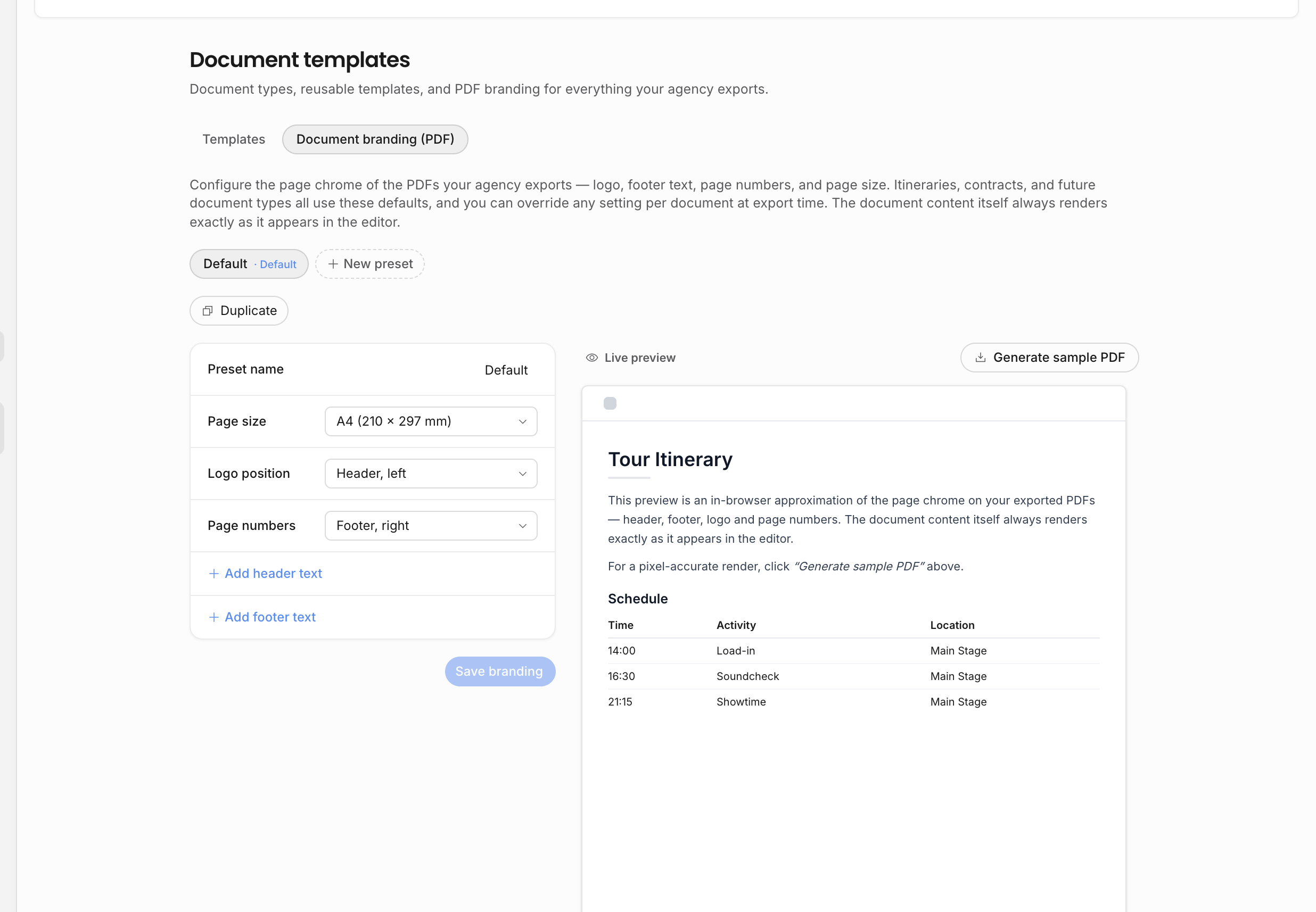
Branding supports multiple presets. A preset can be marked as the default, duplicated, deleted when at least one preset remains, or selected during export when a different PDF presentation is needed. Each preset can control header text, footer text, logo placement, page-number placement, and page size. The settings page includes a live preview and a sample PDF generator so admins can check the real export output.
The agency logo itself comes from organization branding. If a PDF has the wrong logo, update the organization logo first, then check the branding preset used for the export.
The branding preview is a fast visual approximation of the PDF frame. Use Generate sample PDF when you need to check the real exported page chrome, page numbers, logo placement, header, and footer before relying on the preset for client-facing documents. Export dialogs can still choose a different preset for a specific document when the default agency style is not the right presentation.
Contracts and invoices
Contracts and invoices are documents with business lifecycle attached. Their document body can start from a template, but the contract or invoice record still owns status, sending, uploads, payments, credit notes, activity, and financial state.
Use document templates for repeatable agreement wording, invoice wording, itineraries, riders, and internal documents. Use live pills for values that should come from the show, artist, counterparty, line items, invoice, contract, or organization. If a value should update when the underlying record changes, it should not be typed as static text.
External sharing
Document settings do not decide who can see a shared document externally. External review access is controlled from the document sharing flow and external-user permissions. Keep document templates focused on the content the agency needs to produce; use external sharing controls to decide who can open, review, or comment on the final document.
Related: Document templates and branding, Create and edit documents, Templates, pills, and copies.