
Calendar overview
The Calendar is the operating board for shows, travel, general events, drafts, and tour calendars. It is where an agency scans what is coming up, filters the roster, opens the show that needs work, and creates new calendar records.
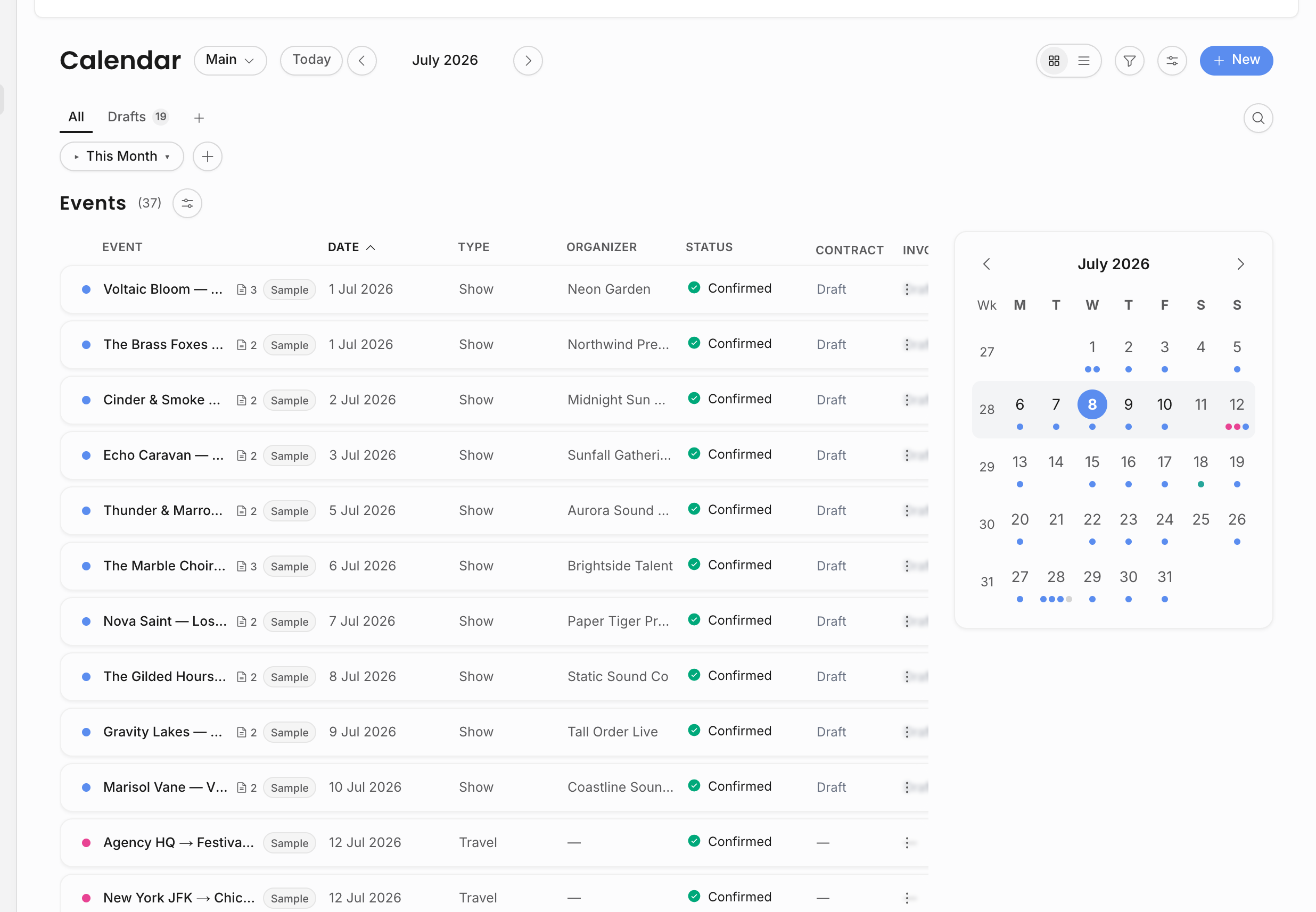
Ways to view events
| View | Best for |
|---|---|
| Month Overview | A dense event list with month context. Use it when you want a fast scan plus a small calendar for date filtering. |
| Month Detail | A full month grid with event bars. Use it to spot date conflicts, routing density, and gaps. |
| Week Overview | A list focused on the current week. Use it for short-term operations. |
| Week Detail | An hourly week grid with positioned events. Use it when exact timing matters. |
The view selector and the top Display options menu control the calendar surface itself. Display options can also color events by event type, artist, booker, or status, and can toggle calendar visibility, cancelled events, travel events, today's highlight, and week numbers.
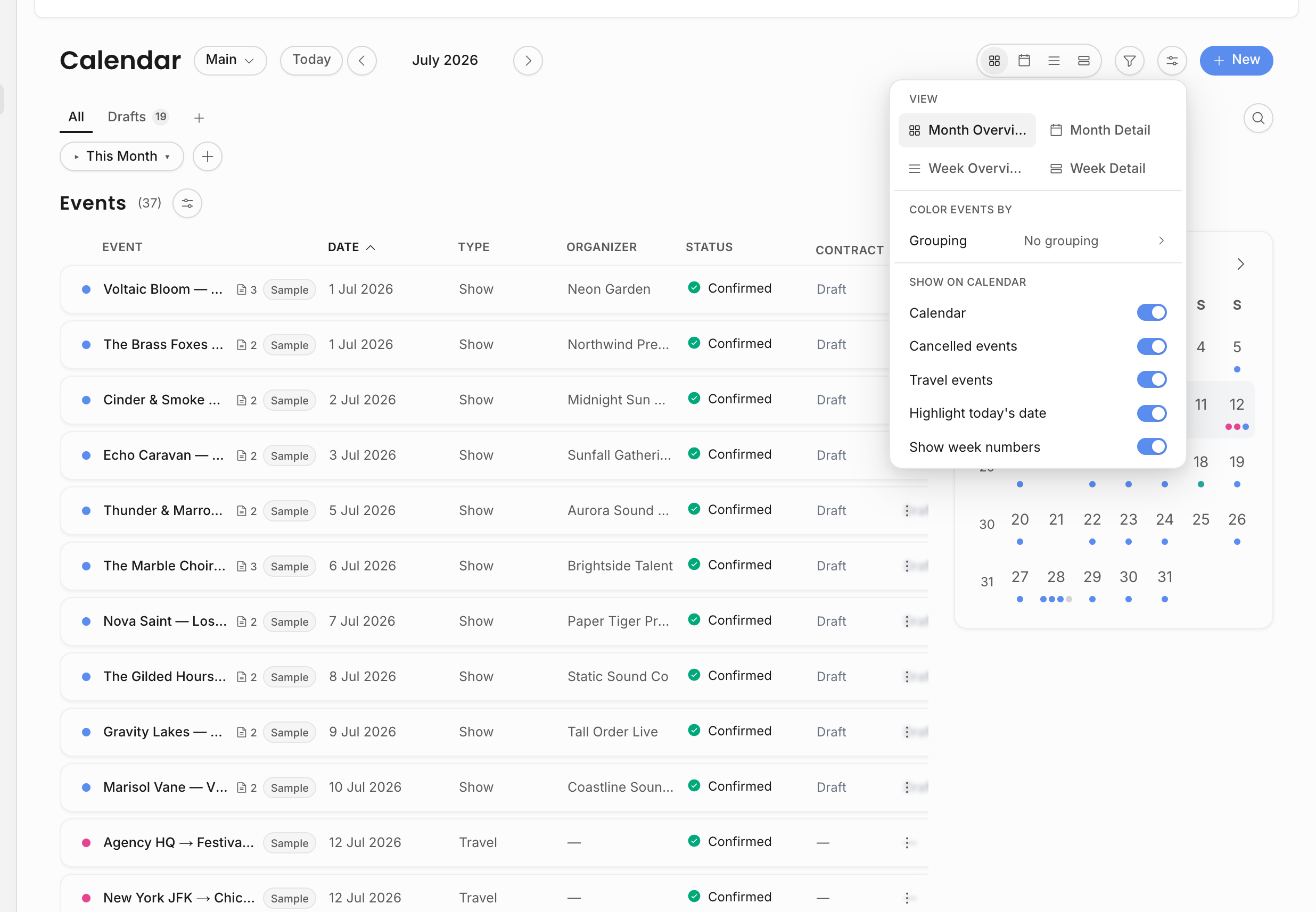
These are personal display preferences. They are saved for your browser so the calendar can keep your preferred view, card/table mode, sort, columns, active saved view, color grouping, and display toggles without changing the underlying event records for anyone else.
On narrow screens, some icon controls move into menus or sheets so the calendar remains usable without overflowing the header.
Main and shared modes
The Calendar has a Main mode and a Shared mode. Main is the internal planning calendar. Shared is where you manage schedules that are meant to be shown outside the workspace.
Use Main for day-to-day booking and operations. Use Tour calendars when you want to collect events into one, publish a link or feed, or review existing ones. Tour calendars are documented separately because they have their own visibility rules and recipient experience.
Saved views
Saved views are tabs for recurring slices of the calendar. The built-in views include All events and Drafts. Your own saved views can store a useful combination of filters so you do not rebuild the same calendar every day.
Use saved views for workflows such as:
- confirmed shows for a specific artist;
- upcoming travel;
- pending events that still need confirmation;
- one booker's events;
- a city or venue-heavy routing check;
- draft records that should be cleaned up.
Saved views are not separate copies of events. They are shortcuts over the same source records. If you change an event from a saved view, you are editing the real event.
The first saved views appear as tabs next to the built-in views. The More saved views menu opens the rest of your view list and includes Manage Views. From there you can drag views into a better order, click a name to rename it, delete views you no longer need, or create a new empty view and add filters later.
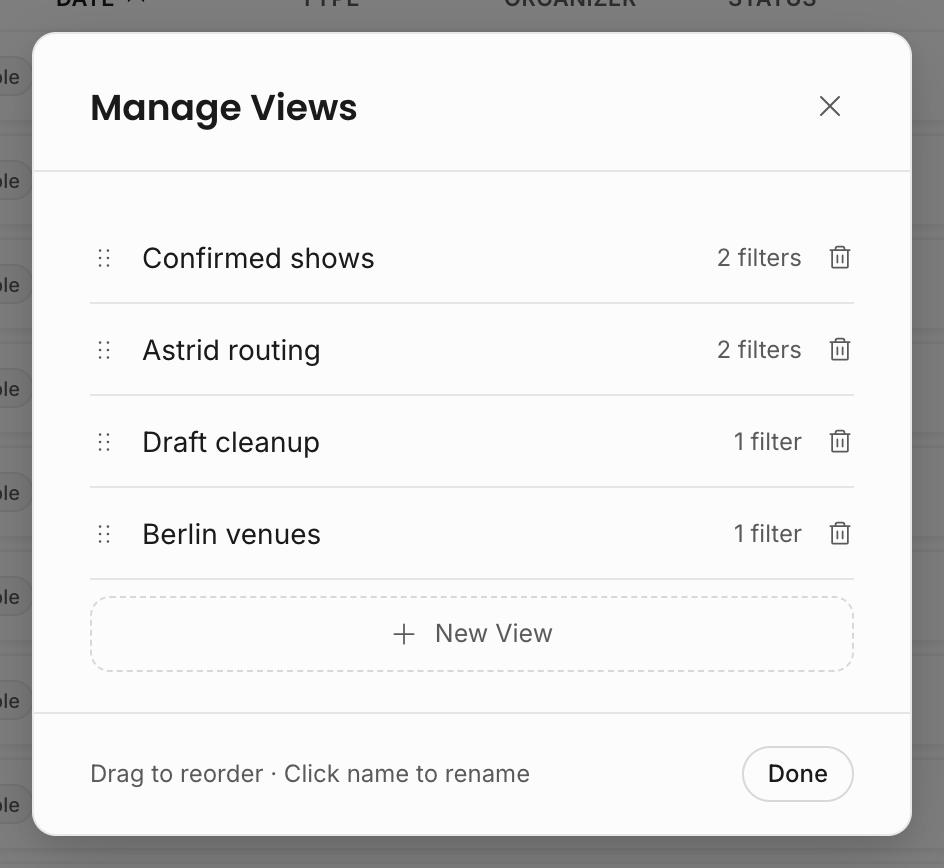
The filter count helps you distinguish broad views from narrow working lists. For example, a "Confirmed shows" view can combine status and event type, while an artist-routing view can combine artist and event type. Saved views belong to your workspace account, so they organize your own calendar workflow without changing what teammates see.
Filters and search
Calendar filters narrow the list without changing the underlying records. The main filter row includes period controls such as upcoming, this week, this month, next 30 days, past, all time, and custom ranges. The add-filter menu can narrow by artist, status, event type, organizer, and venue.
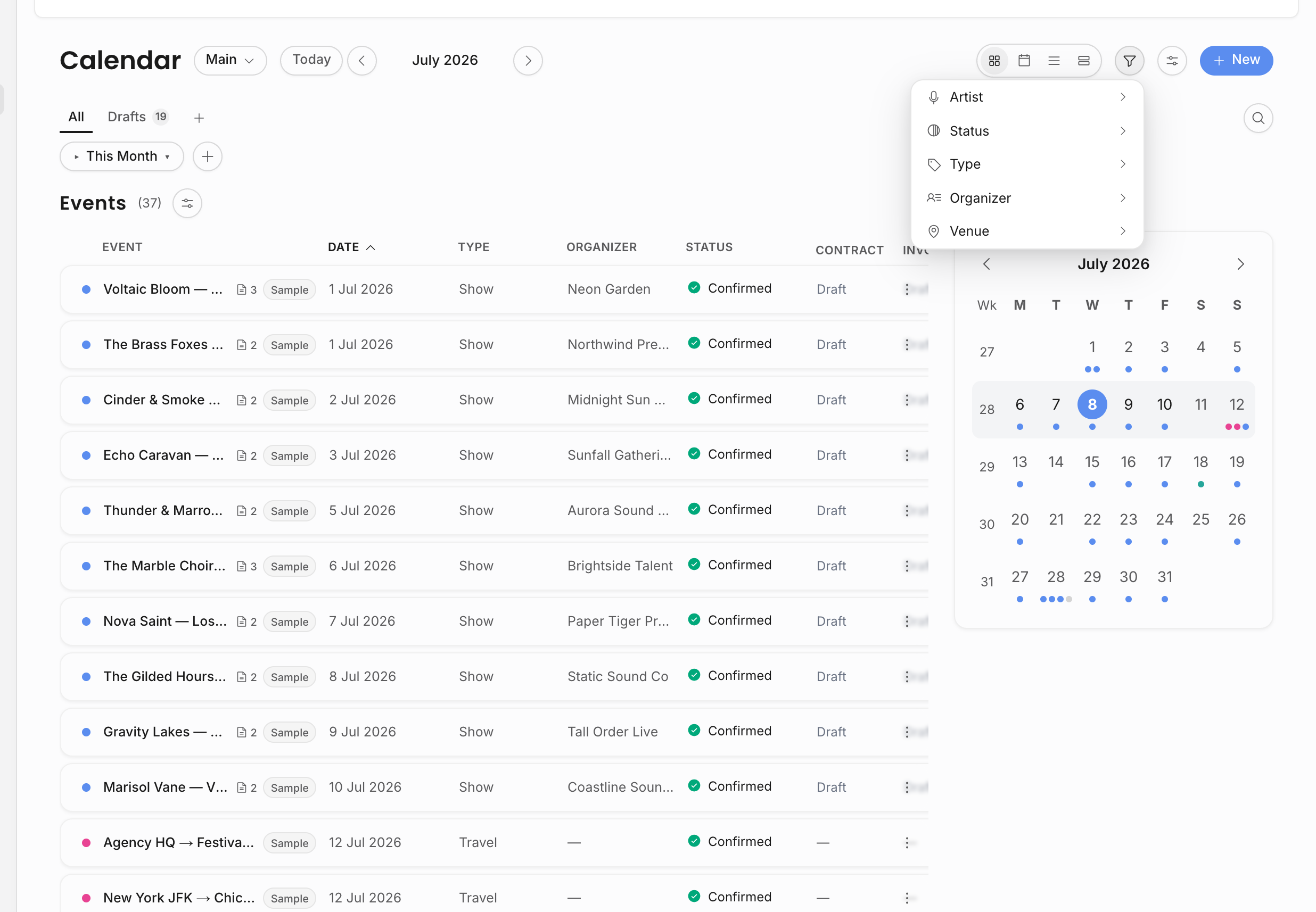
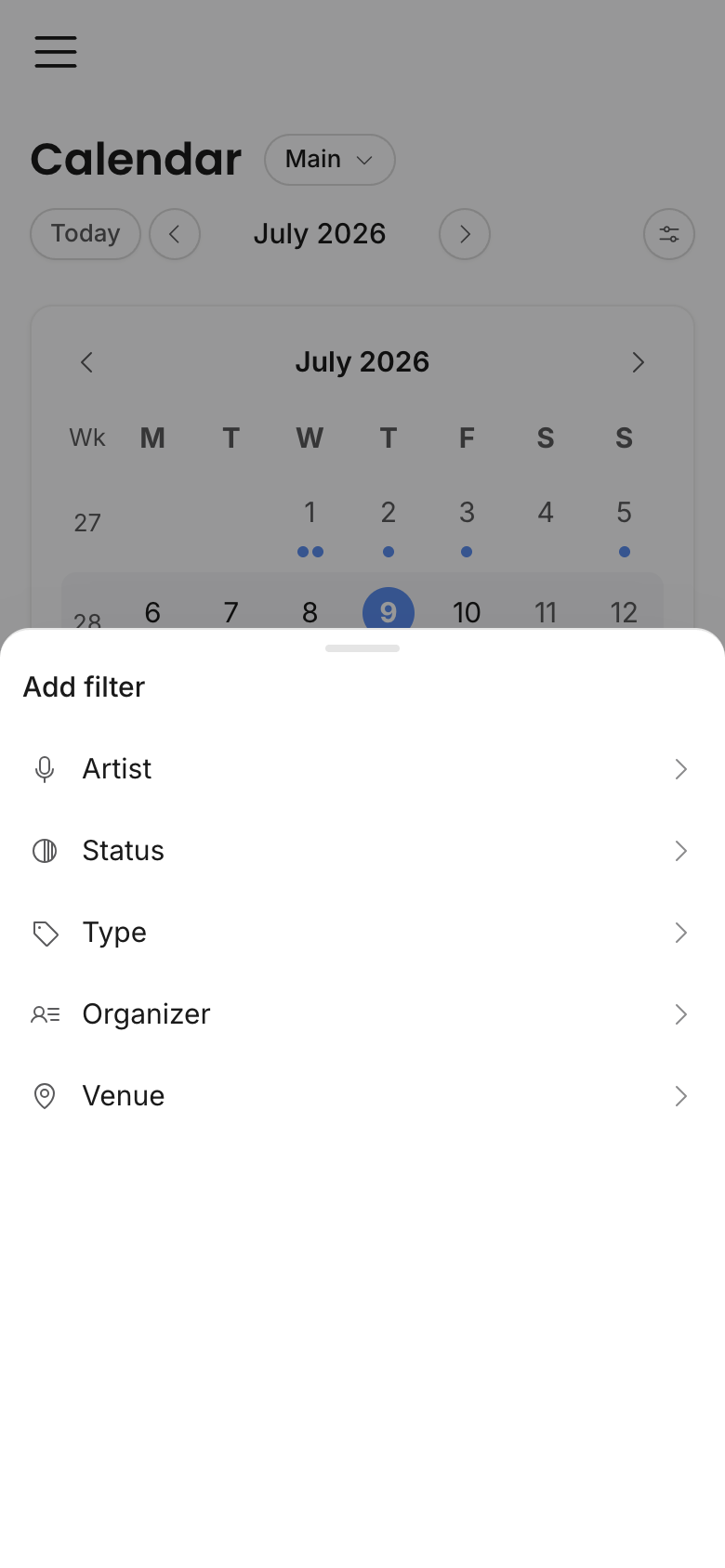
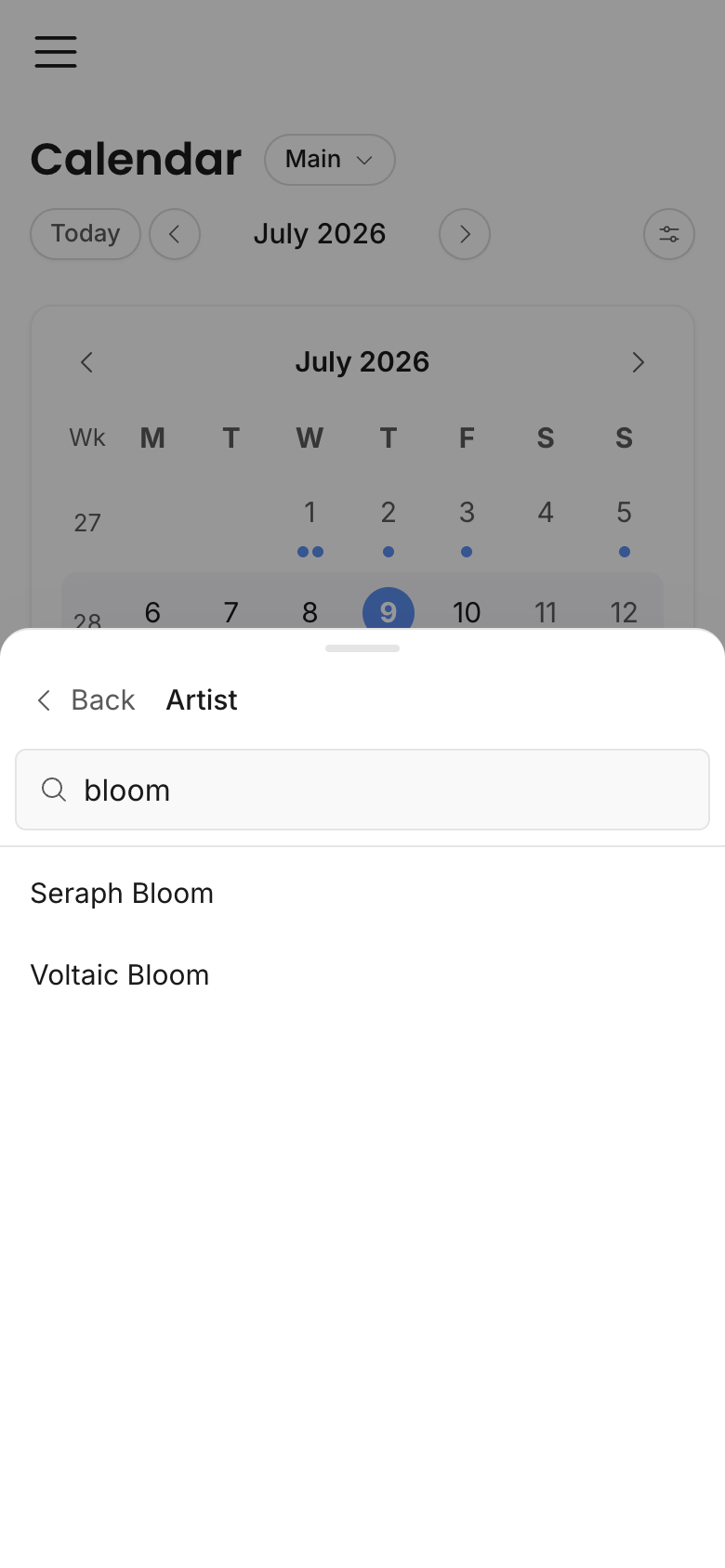
Search filters visible event text. For long rosters and contact lists, filter menus include their own search so you can find the artist, organizer, or venue value without scrolling through everything.
Active filters appear as chips. Clear them when you want to return to the broader calendar instead of wondering why an event is missing.
Period filters can be shared and refreshed. If you open a calendar link with period=upcoming, the page opens to the upcoming list immediately. Status filters also keep counts and pagination aligned. Artist, organizer, venue, type, search, and clicked day/week/month chips then narrow what you are currently looking at inside that calendar view.
Clicking the calendar navigation label, a month, a week number, or a day can add a time chip. That chip is different from the main period pill: the period controls the loaded event set, while the chip narrows what you are currently looking at inside the calendar view.
Event list, table, and cards
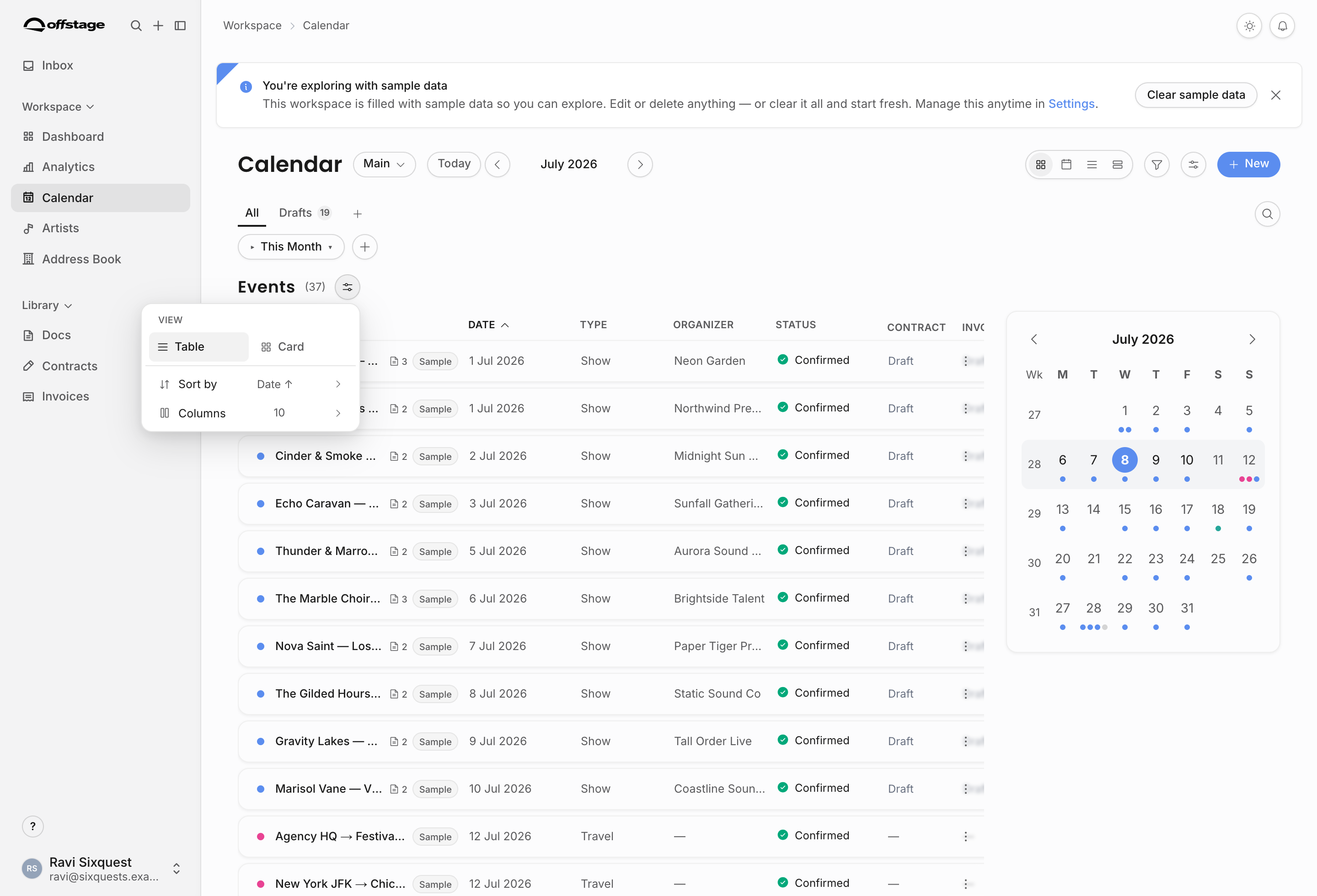
The lower event area has its own display controls. These are separate from the top calendar display menu:
| Control | Use it for |
|---|---|
| Table view | Scan many events with structured columns. |
| Card view | Read richer event summaries without opening each show. |
| Sort by | Sort by date, artist, type, organizer, status, time, or created date. |
| Columns | Show or hide table columns, with a minimum number kept visible so the table remains readable. |
Financial columns and record links follow permissions. A user without financial access should not see financial values just because they changed table columns.
Use the top sliders when you want to change the calendar itself. Use the sliders next to the event list when you want to change how rows/cards are displayed. The same icon appears in both places, but the scope is different.
Event cards
Event rows and cards are entry points into the event detail page. They can show status, type, artist, organizer, venue, city, time, visibility, document indicators, contract status, invoice status, sample-data markers, and contextual actions depending on the current view and permissions.
The row menu is useful for quick actions, but the event detail page remains the source of truth for editing the full show, resources, tasks, documents, contracts, invoices, updates, and files.
Document indicators mean at least one document is visible to you on that event. They respect document visibility, ownership, and permissions.
Drafts
Drafts let the team keep incomplete events separate from confirmed planning work. Use drafts for shows, travel, or internal planning items that are not ready to sit in the main confirmed calendar yet.
The Drafts saved-view tab is the clean way to review draft records. Draft visibility should not be mixed with ordinary "show/hide" display toggles because draft review is a workflow, not only a visual preference. The list highlights missing essentials such as title, artist, organizer, or date, so the team can decide whether to finish the draft or delete it.
Old event-suggestion review records are not part of the current production workflow and are intentionally not covered here.
Creating calendar records
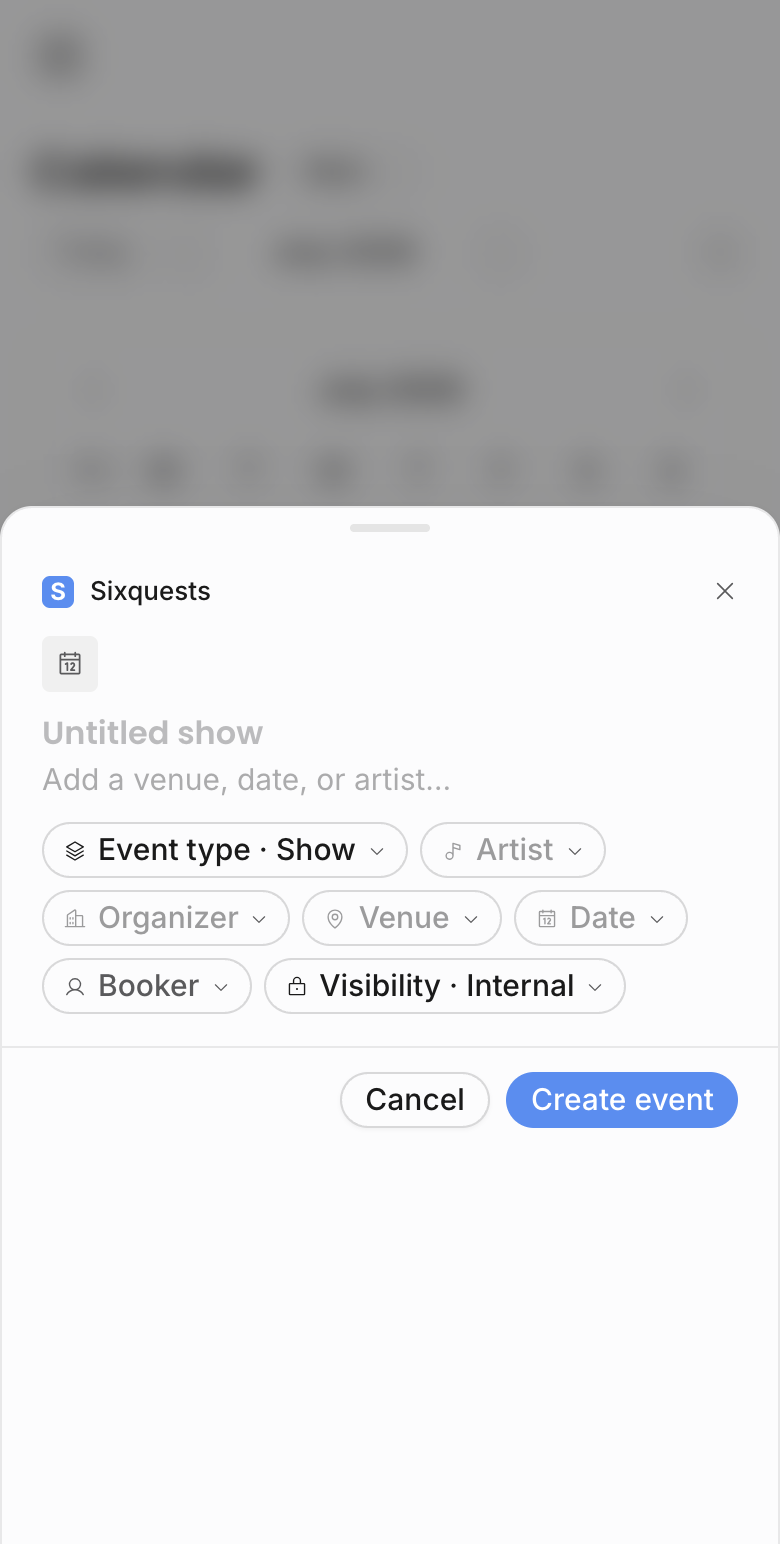
The New menu can create shows, travel, general events, and tour calendars when your permissions allow it. On desktop, the menu appears in the calendar header. On smaller screens, the same create actions move to the floating action button.
Create a show when the record is about an artist performance. Create travel for routing and logistics. Create a general event for meetings, holds, rehearsals, office work, or other calendar commitments that should not be treated like a performance.
Creating a show, travel item, or general event opens the event create modal. The modal can be prefilled from the calendar, command menu, or artist pages; after creation, the record is the same event that appears in the calendar and event detail page. Creating a tour calendar switches into the Tour calendars mode because they have their own setup flow.
Permission effects
The Calendar follows the same permission and artist-scope rules as the records it summarizes. A member may be able to view events without being able to create or edit them. Financial totals, contract links, invoice links, tour calendar actions, and artist-scoped records can all vary by user.
If two teammates see different calendar rows, columns, or actions, check role permissions, individual permission overrides, artist scope, and whether the event is internal-only, external-visible, private, draft, or cancelled.
Related: Create a show, Tour calendars, Travel and general events.