
Work a show
The show detail page is where a booking turns into day-to-day work. The calendar tells you when something happens; the show page carries the details, money, documents, files, tasks, and team conversation.
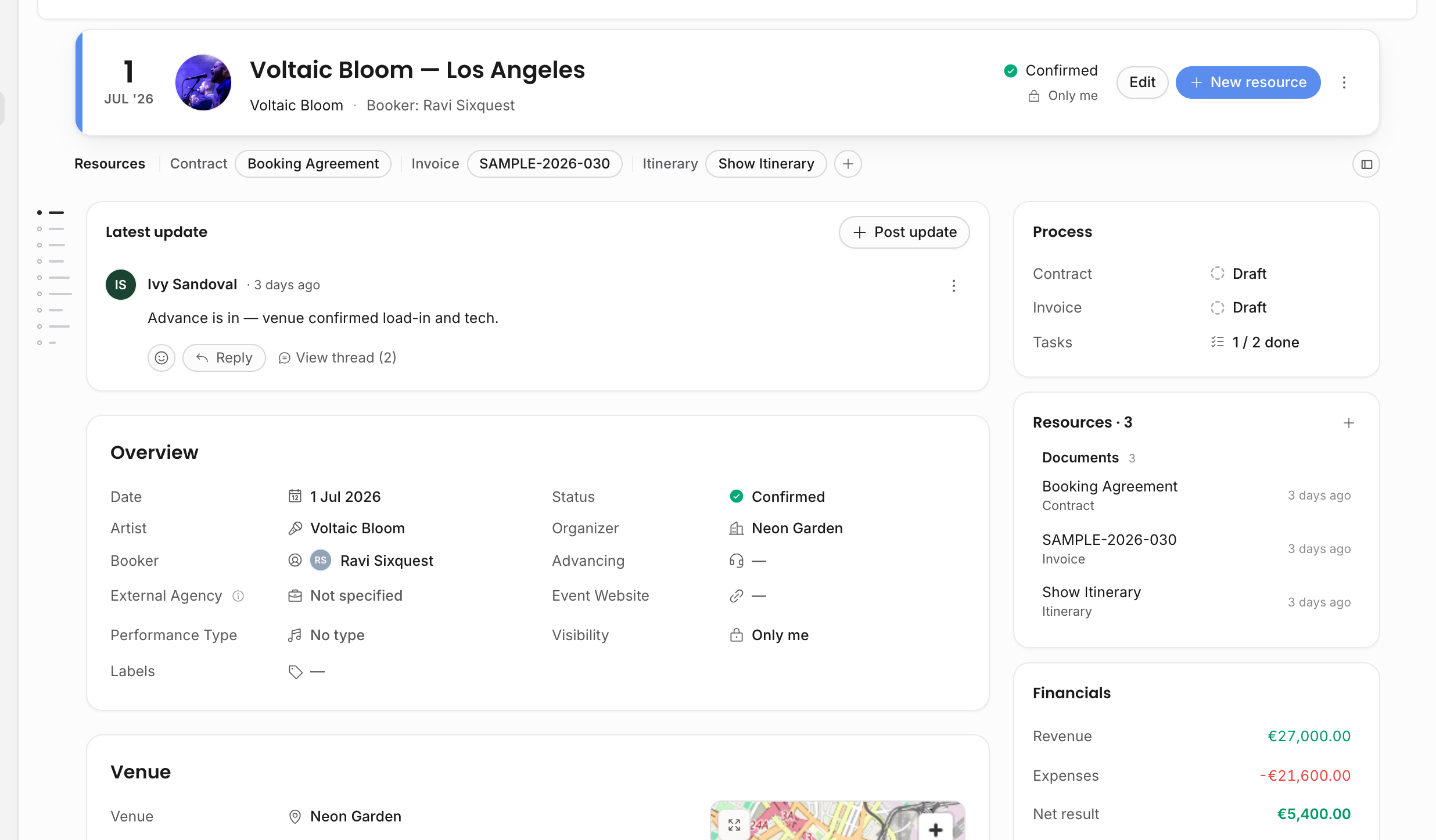
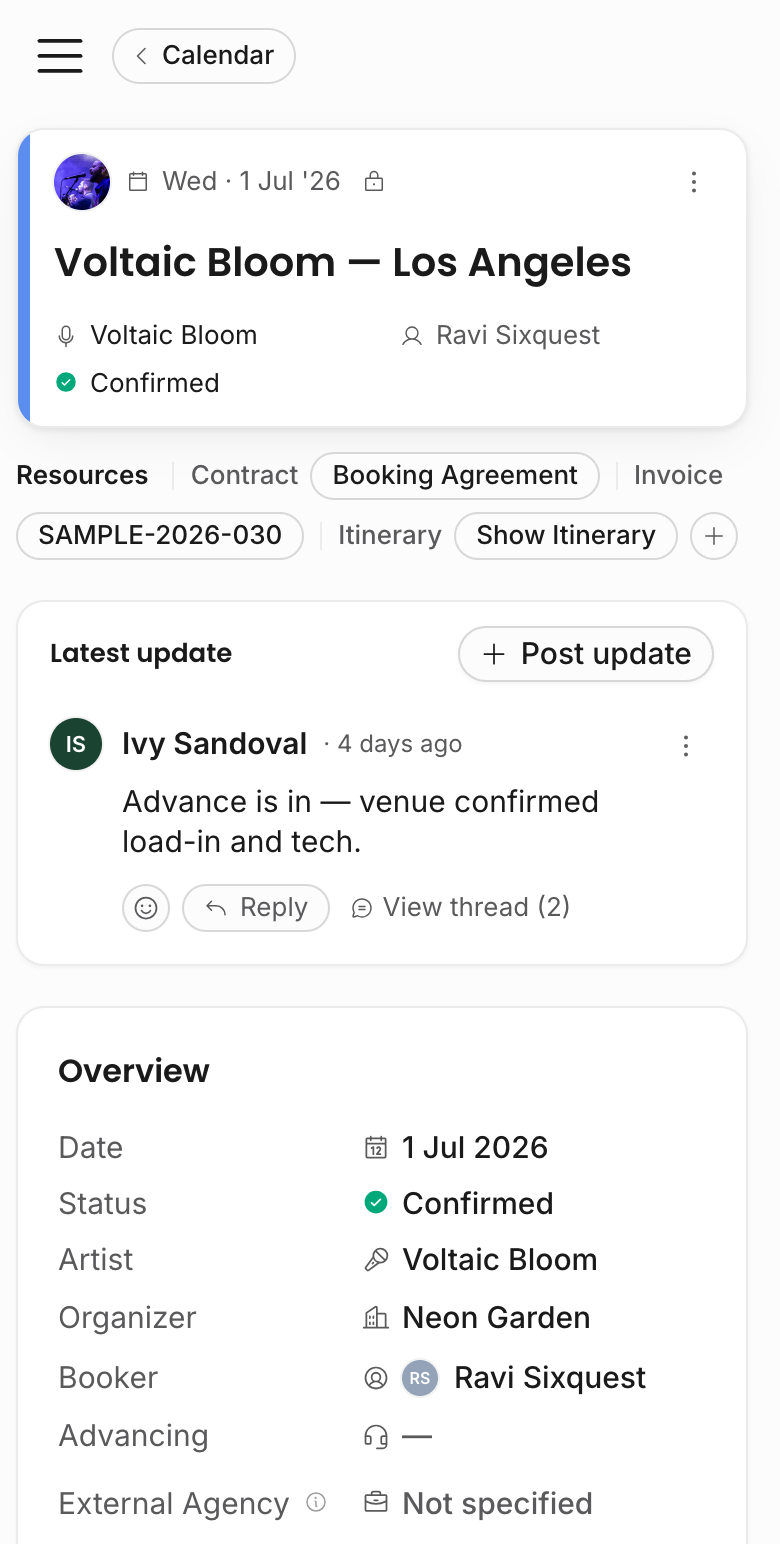
The main areas
The page changes by event type and by role. Shows render the full booking workflow. Travel events render travel details. General events keep the body lighter and use the side panel for properties. Financials, contract rows, invoice rows, and restricted custom fields only appear when the user has the matching permission.
| Area | Use it for |
|---|---|
| Header | Scan the type, date, artist, title, status, visibility, created/edited context, and resource pills. Create resources, duplicate, cancel, or delete when your role allows it. |
| Latest update | See the newest show update first and open the discussion thread when there are more decisions or replies. |
| Overview | Keep the artist, organizer, booker, advancing contact, performance type, labels, visibility, and core show data in one place. |
| Venue | Store venue account, venue name, address, capacity, contact person, map context, and time-zone label. |
| Times | Track load-in, soundcheck, doors, show time, end time, and duration. The time-zone chip labels the local wall-clock rather than moving the saved time. |
| Tickets | Store event links, venue links, capacity, age restriction, ticket prices, ticket currency, and pricing notes. Ticket prices are operational public-pricing fields, not financial-permission fields. |
| Deal terms | Store contract-relevant arrangements such as stage hands, guest list size, ticket share, backline, travel cost, ground transport, break-even clauses, extra costs, and specific arrangements. This section is visible with contract access and editable with contract edit access. |
| Financials | Add revenue and expense line items. These lines can feed contract deal value, invoice billed lines, credit notes, and analytics. |
| Contracts & invoices | Create or open contract and invoice documents attached to the show. The section respects contract and invoice permissions separately. |
| Tasks | Assign advancing, settlement, day-of logistics, and other work to teammates. Tasks can have phases, templates, status, due dates, and update threads. |
| Travel links | Link travel records, hotel context, and related routing back to the show. |
| Resources | Attach files and links, and create documents, contracts, invoices, itineraries, riders, recaps, or other configured document kinds for the show. |
| Side panel | Summarize process state, resources, financial totals, guest list, and recent activity without leaving the page. |
| Custom sections | Show workspace-defined custom fields that apply to this event type and that the viewer is allowed to see. |
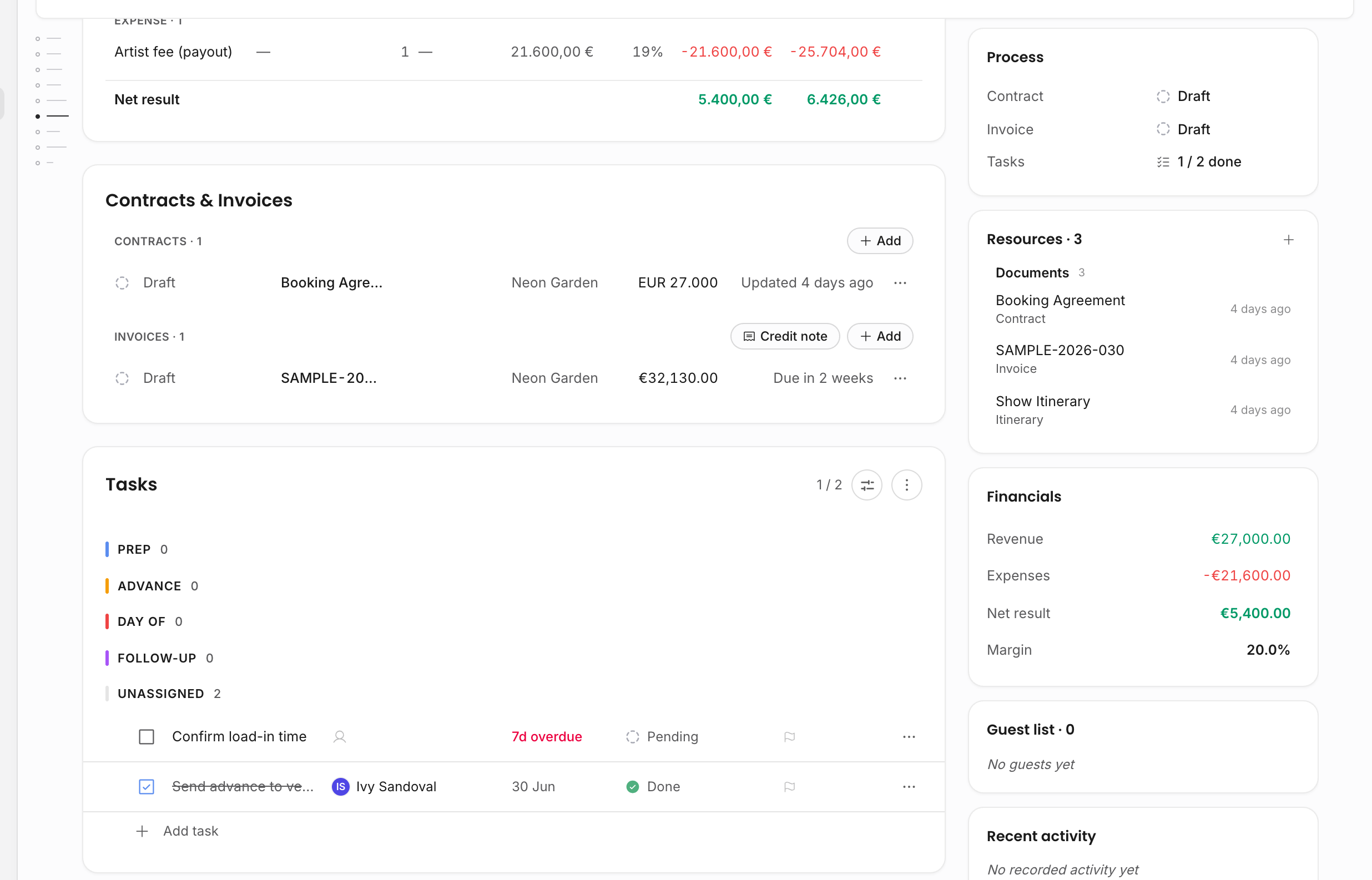
The first tutorial quest walks through these areas on a sample show. See Guided tutorials.
Edit anything, instantly
Every field on the page is live for team members who can edit events. Click a field, type or pick a value, and Offstage saves it the moment you finish: leave the field, press Enter, or pick from a dropdown, and a small check mark flashes on the row to confirm the change landed. For example, click the status field, pick "Confirmed", and the show is confirmed for the whole team the instant you pick it.
Big changes also show a "Saved" toast with an Undo button for about five seconds. Change the status, artist, venue, or date and you get that quick window to reverse a slip with one click.
If a save fails because you are offline or the server errors, Offstage retries once automatically. If it still fails, the field shows a "Not saved · Retry" chip and keeps the value you typed, so nothing is lost. Retry when the connection is back.
If a teammate changed the same field while you were editing it, the field shows an inline note naming who changed it and what they set it to, with two buttons: Keep mine and Take theirs. Conflicts resolve field by field, right where they happen.
Pressing Esc while editing a field closes the editor without saving. There is nothing else to remember: because each field saves on its own, there is never unsaved work to protect, so you can navigate away at any time. Cmd/Ctrl+S simply saves the field you are currently typing in.
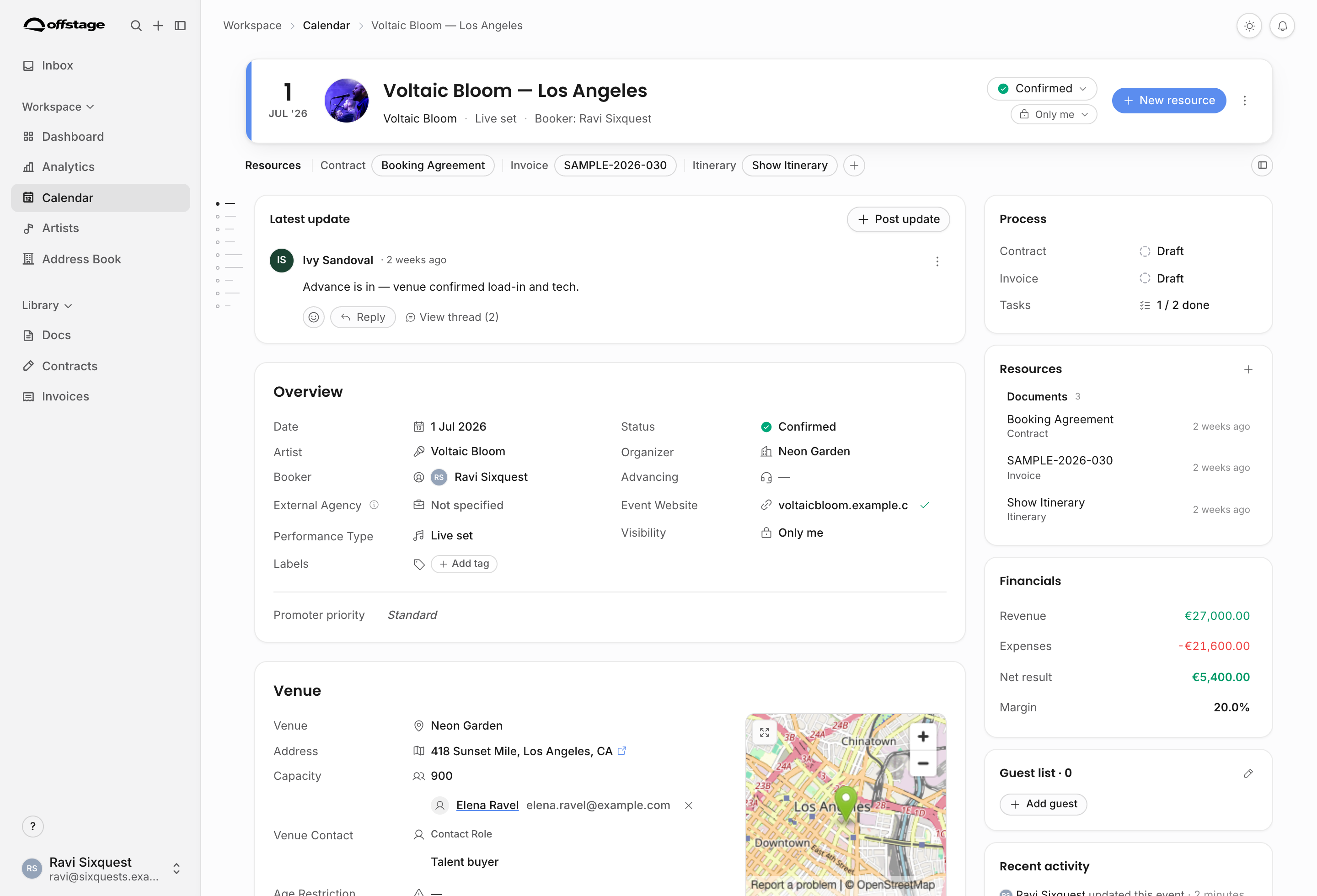
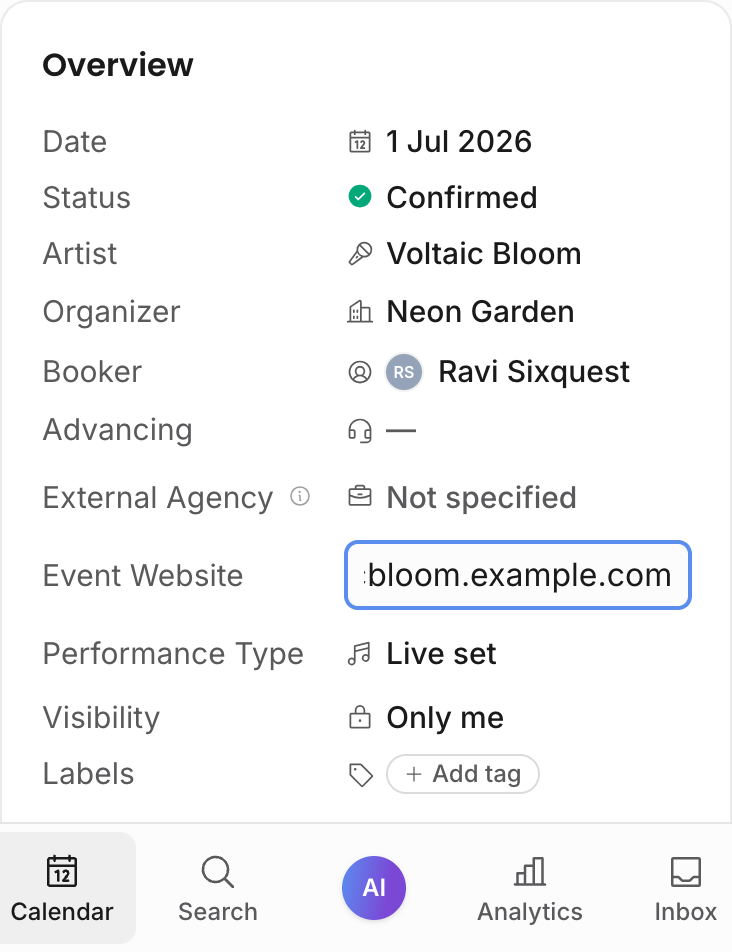
Visibility is part of the show, not just the calendar row. Changing it controls whether the show is private to you, internal to your team, or visible to invited external guests.
Revenues and expenses
The Financials card is where the show's money lives as structured line items. Each line is a revenue or an expense with a description, quantity, unit, price, tax rate, counterparty, and currency. The lines stay on the show, roll up into the side panel's financial totals, and feed analytics.
Enter these lines early, before you create financial documents. Contracts and invoices reference the show's lines instead of inventing their own numbers: a contract derives its deal value from selected revenue lines, and an invoice bills a chosen subset of them. When the lines already exist, both create dialogs can offer them for selection right away.
Add item opens a dialog with two ways to add a line:
| Tab | What it does |
|---|---|
| From catalog | Pick a reusable item from the workspace catalog. It pre-fills the type, name, unit, price, and tax rate, and everything stays editable for this show before you add it. |
| Custom | Enter a one-off line from scratch. Tick Save to catalog for future use to also store it as a reusable catalog item for the whole team (requires Manage templates). |
The catalog itself is managed under Settings → Events / Shows → Revenues and expenses. Keeping recurring fees, guarantees, commissions, and production costs in the catalog keeps naming, prices, and tax defaults consistent across the roster.
Editing or deleting a line later re-derives every linked document that references it: invoice totals and contract deal values update automatically unless someone has manually overridden them. Billing a line on an invoice or selecting it into a contract never changes the show's own totals; the selection only controls what that document references.
Add the show's revenue lines before creating a contract or invoice. Both create flows ask which revenue lines to reference, so the money you want to bill needs to be on the show first.
Resources and documents
The resource row and the Resources side-panel card show the same underlying event resources in different densities:
| Resource type | What happens |
|---|---|
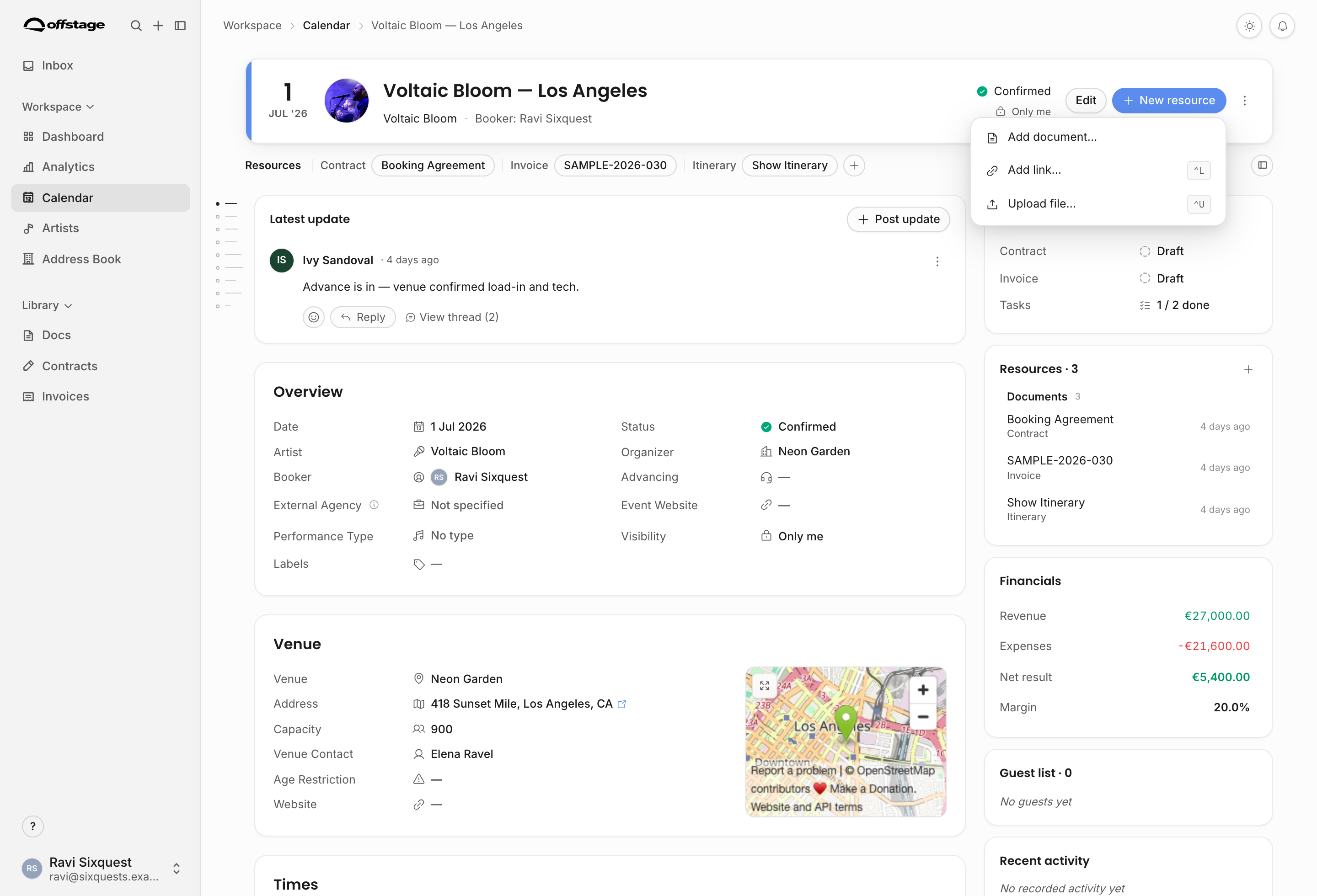
| Documents | Event documents open with the event. Contract and invoice documents open inside their contract or invoice workflow so the status and workflow actions stay available. |
| Links | External links are stored on the event and open in a new tab. |
| Files | Uploaded files stay attached to the event and download from the resource list. |
The Add resource action can create a new document, attach a link, upload a file, or start a contract/invoice-style document flow when the user has the relevant permission. If a user can see a show but cannot create documents on that parent, the add affordance is hidden.
Resource behavior is deliberate. Plain event documents stay with the event. Contract-owned and invoice-owned documents open through their contract or invoice workflow so status, sending, countersigned files, payments, credit notes, and document editing stay together. Files download. Links open externally.
Tasks
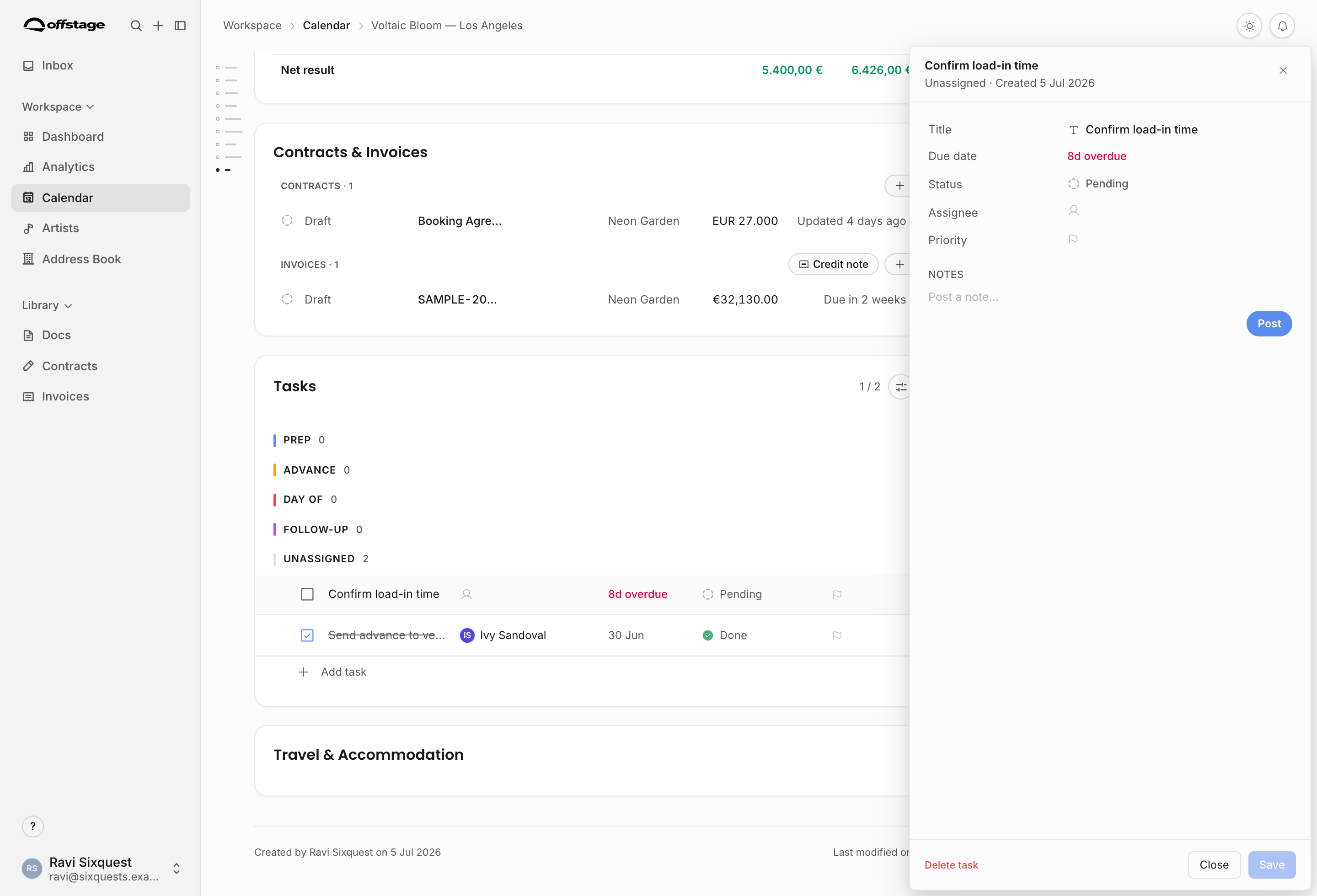
Tasks turn the show into an operating checklist. They support status, assignee, due date, priority, phase, notes, and update threads. Clicking a task row opens a side drawer where the team can inspect details and edit task notes without leaving the show page.
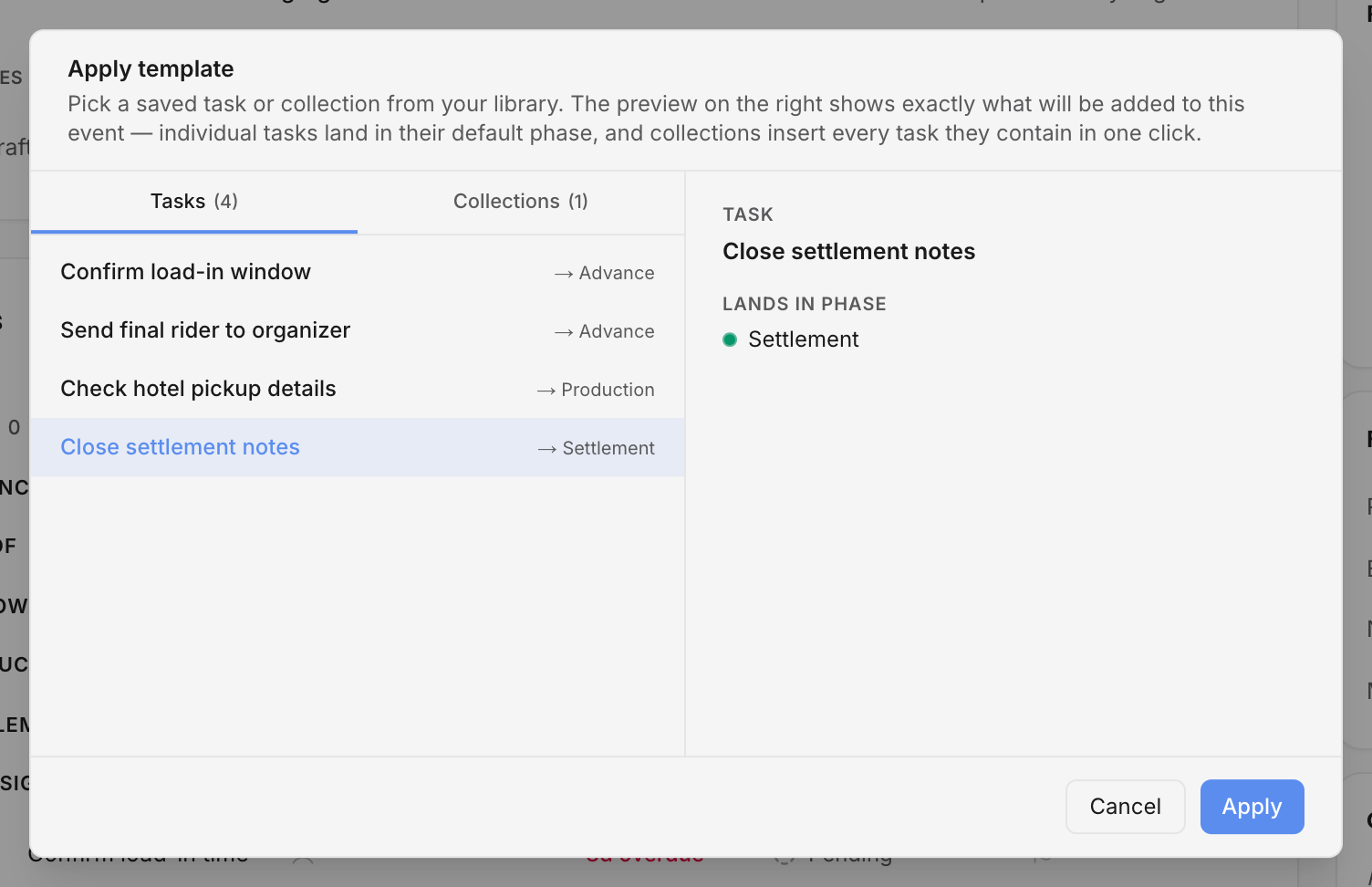
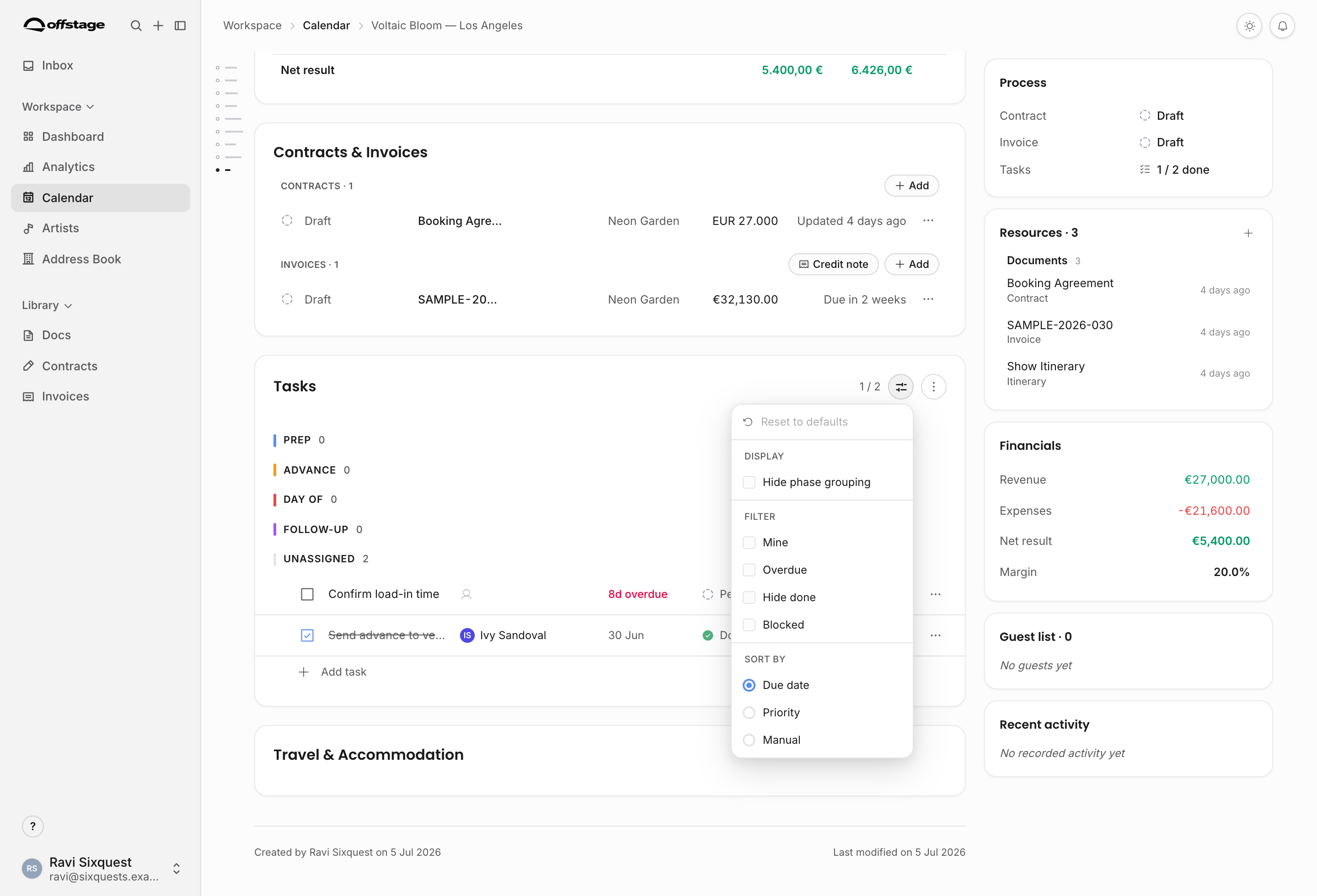
Task phases come from Settings → Events / Shows → Tasks. Tasks without a phase appear in the unassigned bucket. Empty phases are collapsed by default, and applying a template can open the phase that receives new tasks. Task sorting and filter preferences are saved for the member so each teammate can keep their own working view.
The task toolbar supports:
| Control | What it does |
|---|---|
| Apply template | Add one saved task or a whole task collection to the show. Each inserted task can inherit the default phase from its template. |
| Save as template | Save selected show tasks as reusable templates or a collection when the user has Manage templates. |
| Filters | Focus the list on your tasks, overdue tasks, blocked tasks, or hide completed work. Multiple filters narrow together. |
| Sort | Sort by due date, priority, or manual order. Drag reordering is available only in manual sort without active filters. |
| Phase menu | Move a task between phases or unassign it. |
Task templates affect future inserted tasks. Editing a task on this show does not rewrite the template library unless you explicitly save tasks back as templates.
Updates and discussion
The latest update card is the lightweight activity conversation for the show. Use it for decisions, status context, handoffs, and short updates that should stay with the event rather than disappear into chat.
Updates can include a status marker, reactions, mentions, replies, edits, and deletion by the author or an admin. The card shows the newest top-level update first; View thread opens the full drawer with all top-level updates and replies. Posting an update refreshes the show and contributes to the event's last-edited context.
Process side panel
The process card is a quick operating summary. It picks a representative contract status, invoice status, and task progress. For contracts, a signed contract is treated as the strongest state; otherwise the latest updated contract is shown. For invoices, the row uses the derived invoice status, so overdue, sent, partial, paid, void, and settled states reflect payments, due dates, payment schedules, and void/settlement state rather than only the stored base status.
Clicking process rows scrolls to the full body section. The side panel is not a replacement for managing contracts, invoices, or tasks; it is a scan layer for people checking where the show stands.
Permissions and scope
Show detail follows the same access model as the rest of the workspace:
- Private shows are visible only to their creator.
- Artist-scoped users can only open shows inside their artist scope.
- Financial fields and line items require financial view permission; editing line items requires financial edit permission.
- Contract rows and deal terms require contract access; editing deal terms requires contract edit access.
- Invoice rows require invoice access.
- Custom field sections inherit the permission group chosen in template settings: Events, Contracts, Invoices, or Financial.
- Changing event visibility requires the visibility permission, except that a user can still change visibility on their own events.
Work from the show outward
Most downstream work starts from the show:
- Create a contract from the show and select which revenue lines belong in the deal value.
- Invoice and get paid from the same show and select which lines the invoice bills.
- Credit notes post correcting lines back to the event so booked value stays understandable.
- Explore analytics reads show, artist, venue, organizer, booker, location, and financial data from these records.