
Send a contract
A contract in Offstage is a document-backed record you create from a show or artist, review with your team or counterparty, send as a PDF, and track until the signed copy comes back. This guide covers the lifecycle after the contract exists. To create the contract first, see Create a contract.
Write the contract
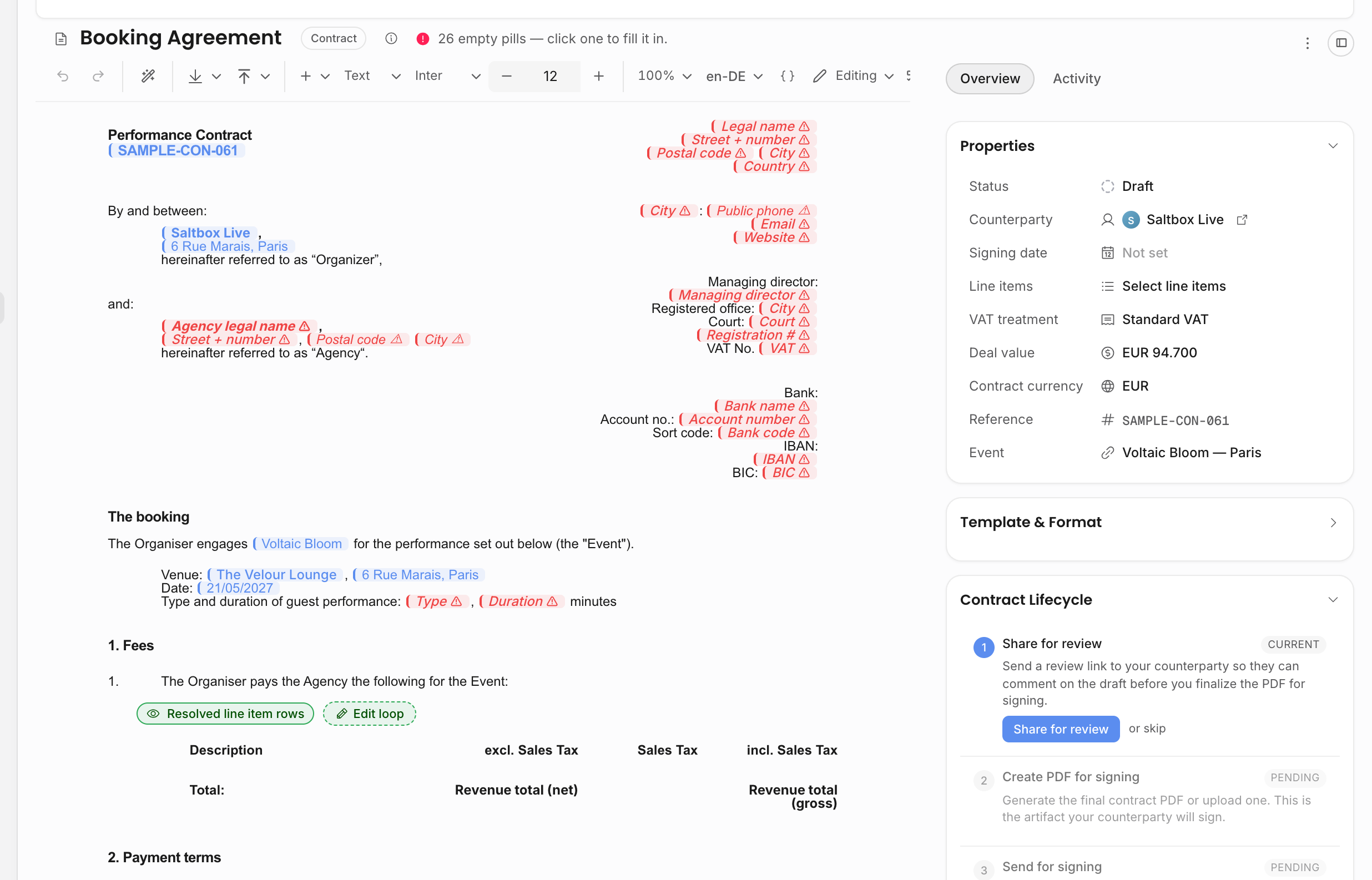
Open the contract and review the document body, selected deal lines, counterparty, amount mode, VAT treatment, and PDF style. Live pills pull in values from the show, artist, agency, contract, counterparty, and selected lines, so missing source fields show up before you send the PDF.
Lifecycle steps
- 1Share for review or skip review.
Use review sharing when someone should comment on the draft before it becomes the PDF you send. If your team has already reviewed it elsewhere, skip the review step and continue.
- 2Create or upload the contract PDF.
The lifecycle needs an unsigned PDF before the contract can be sent. Creating the PDF saves the current document body as the outgoing version.
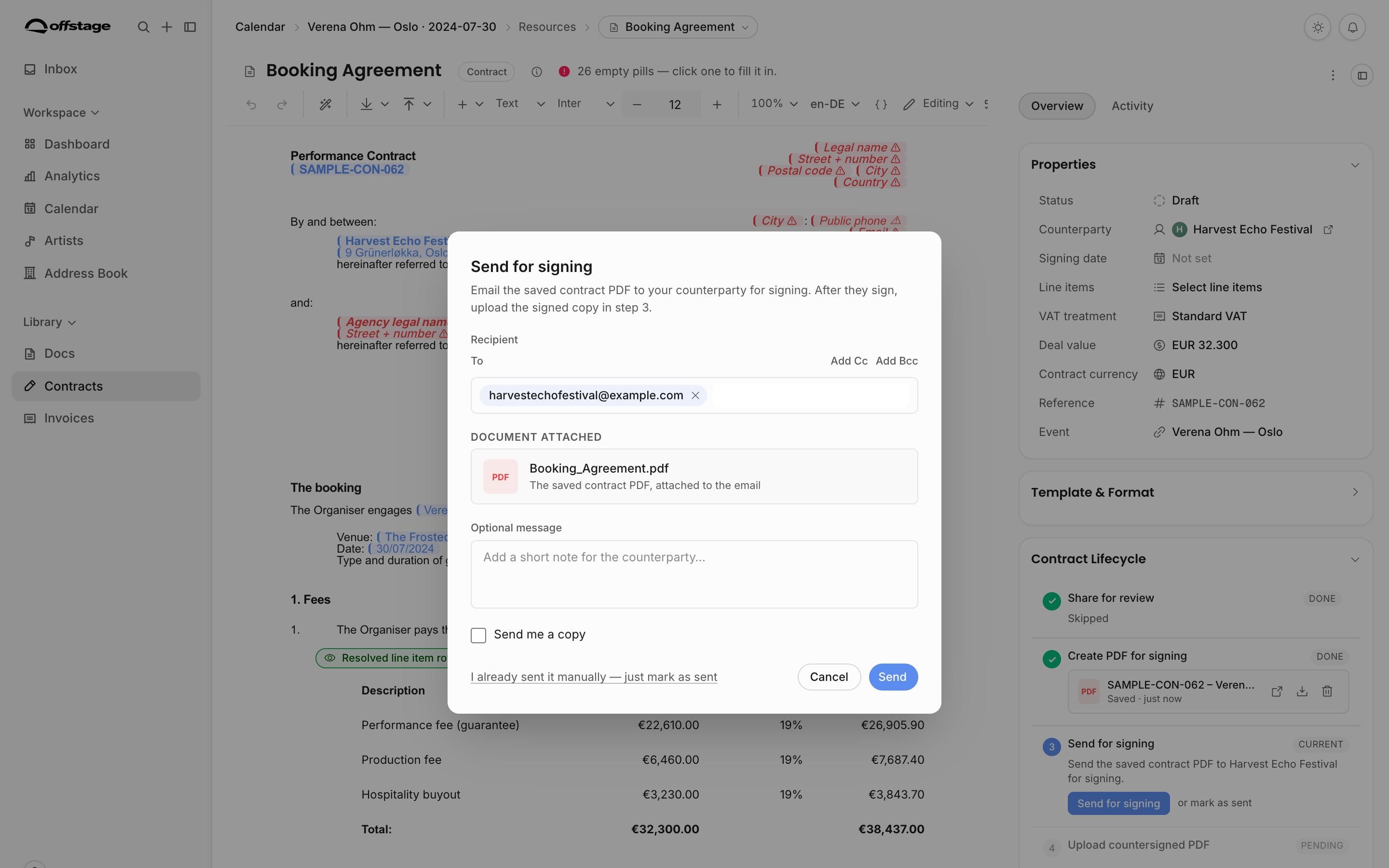
- 3Send the contract PDF.
Click Send for signing to email the saved PDF to your counterparty. Add To, Cc, or Bcc recipients, write an optional note, and send yourself a copy if needed.
- 4They sign offline and you upload the signed copy.
Your counterparty signs the PDF their own way (print and scan, or their own tool) and returns it. Upload the signed PDF back onto the contract, and the lifecycle moves to signed.
Offstage emails the contract PDF and tracks its lifecycle. Signing itself happens offline, then you upload the signed copy back. There is no built-in e-signature step.
Track the status
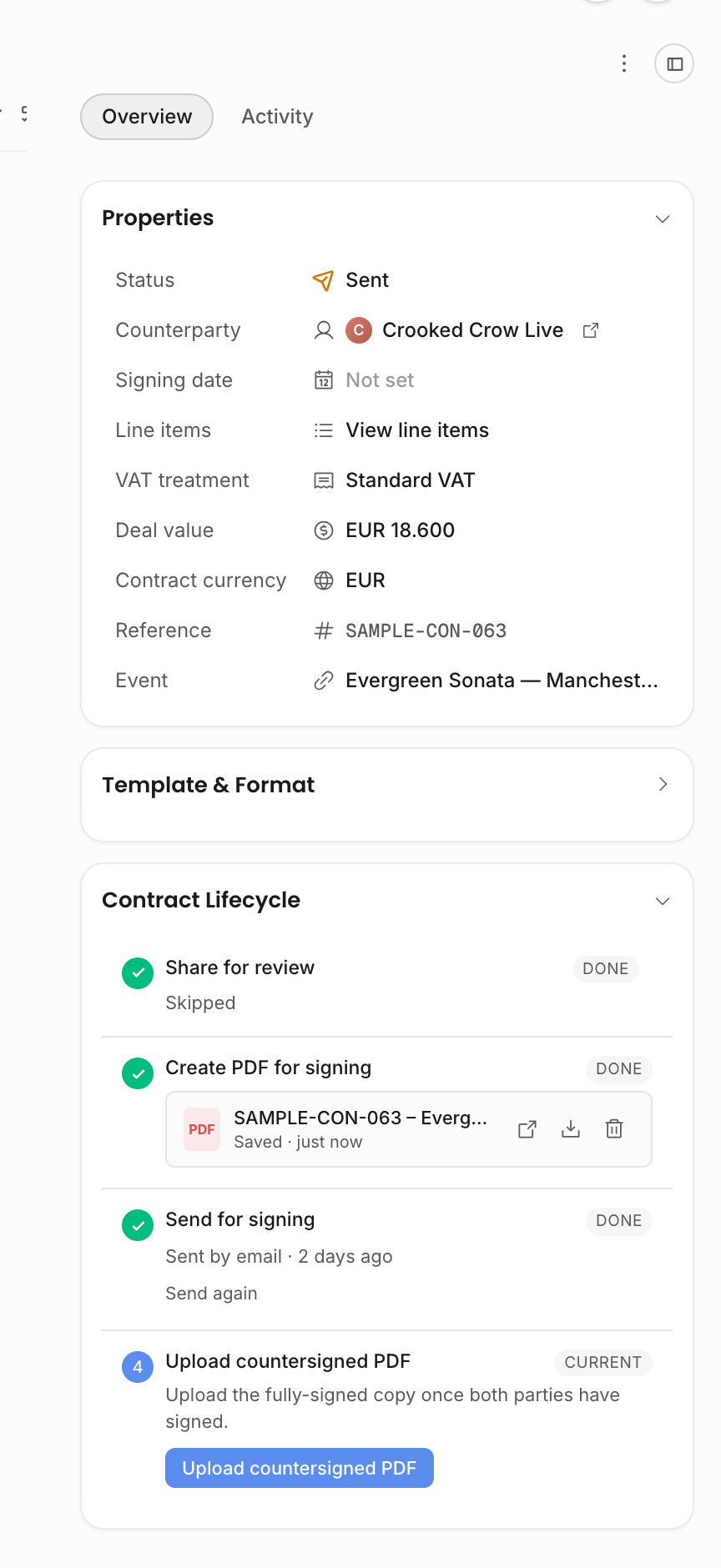
The side rail shows exactly where the contract stands, from review to PDF creation, sent, countersigned, or cancelled, so you always know what is outstanding. For example, once the email has gone out but the signed copy has not come back, the contract stays in the sent state and the current step is Upload countersigned PDF.
| State | What it means |
|---|---|
| Draft, no PDF | The document body exists, but no outgoing contract PDF has been saved yet. |
| Draft, PDF created | The outgoing PDF exists and can be viewed, downloaded, deleted, or sent. |
| Sent | The PDF has been emailed from Offstage or manually marked as sent. |
| Countersigned | A signed PDF has been uploaded back to the contract. This becomes the executed record. |
| Cancelled | The agreement was cancelled before a countersigned PDF was recorded. |
The saved PDF must exist before email sending works. If you already sent the file outside Offstage, use the manual sent link instead of sending another email.
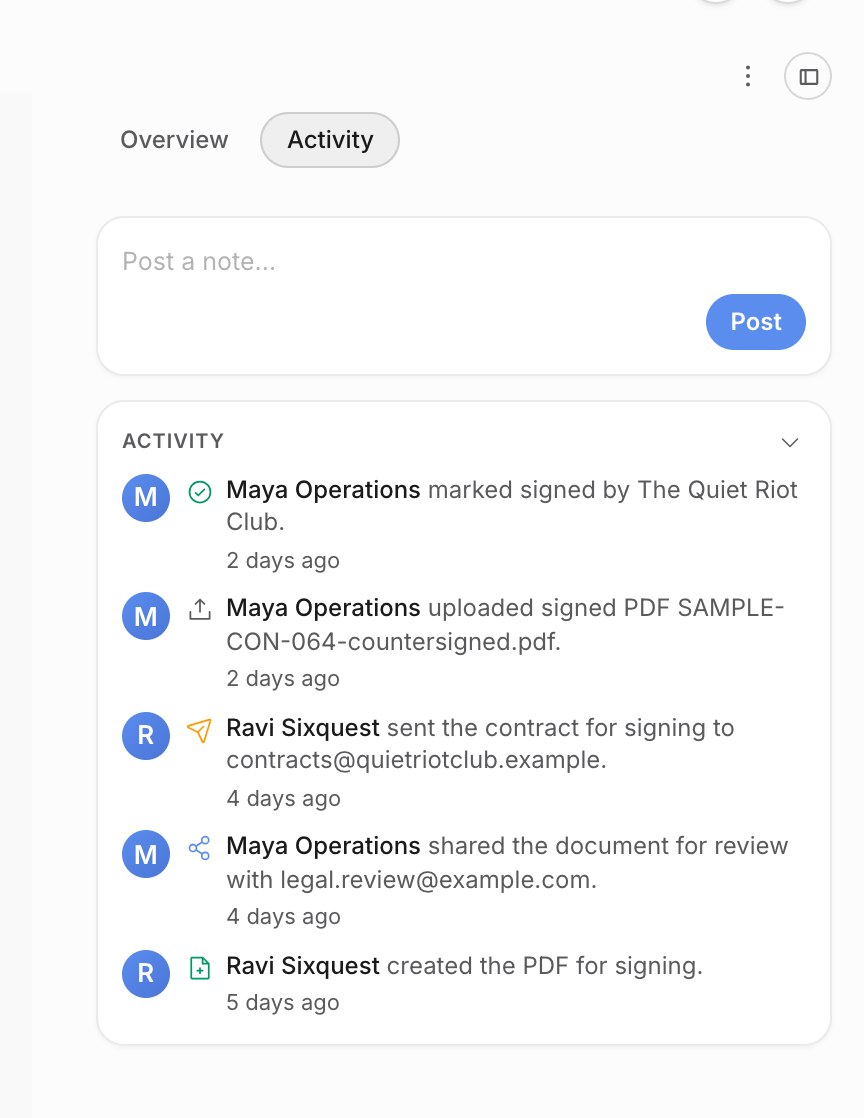
The Activity tab is the chronological history beside the lifecycle rail. Use it when you need to answer who created the PDF, who shared the draft for review, when the signing email went out, and who uploaded or marked the signed copy. The lifecycle rail tells you the current state; Activity explains how the contract got there.
Signed PDFs
When the counterparty returns the signed contract, upload the countersigned PDF and enter the actual signing date. The signing date is separate from the upload date because counterparties often sign before they send the file back.
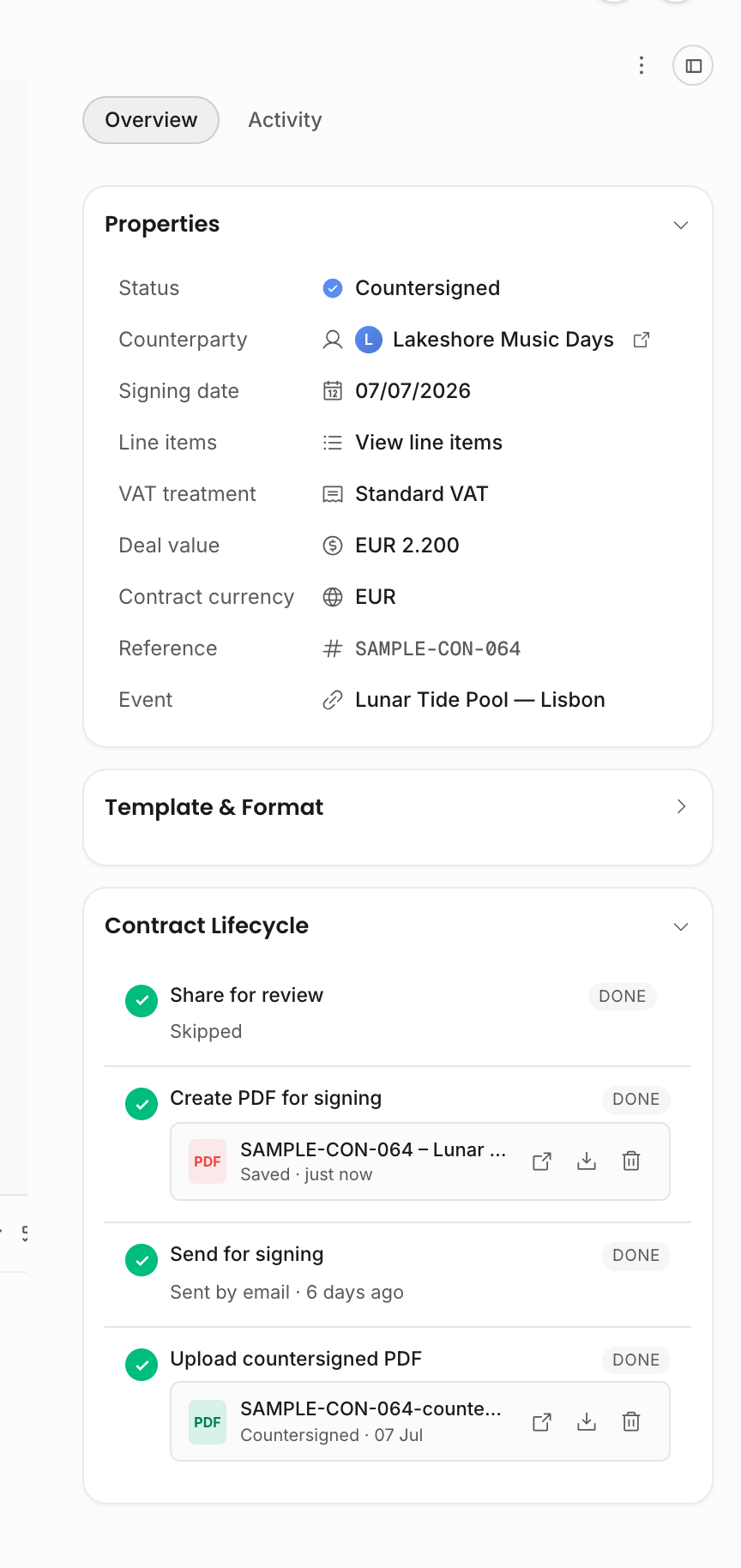
You can view or download both the outgoing and countersigned PDFs. Deleting the outgoing PDF moves the contract back to the earlier draft step. Deleting the countersigned PDF is more serious because it removes the executed artifact and should only be used when the team is deliberately correcting or restarting the signing record.
Cancellation and replacement
Cancel a contract when the agreement is no longer expected to proceed. A cancelled contract without a countersigned PDF stays in the cancelled state. If a countersigned PDF exists, the signed artifact remains the stronger record, so review that file before treating the agreement as cancelled operationally.
Next steps
With the contract handled, invoice and get paid for the show.