
Visibility and sharing
Visibility and sharing answer different questions. Visibility decides which source records are eligible for an audience. Sharing creates a path to those records.
Use this page when you are deciding whether to keep something internal, invite a named external collaborator, publish a tour calendar link, or share one document.
Internal visibility
Internal visibility is the first layer. Workspace roles, individual permissions, artist scope, and event visibility decide what a signed-in teammate can see and change.
Event visibility has three states:
- Only Me: only the event creator can see the event. Use it for private holds, early planning, or work that should not appear to the rest of the team.
- Internal: visible to teammates inside their role and artist scope. Use it for normal agency planning.
- Internal + External: visible internally and eligible for external surfaces when the external audience also matches the artist scope and template rules.
Changing an event from Internal to Internal + External does not publish every detail by itself. It only makes the event eligible for external users and tour calendars. The actual external fields still come from the visibility template you choose.
Teammates need the Change event visibility permission to change other people's event visibility. A creator can still mark their own event as Only Me. Artist scope is separate: it keeps an internal teammate focused on selected artists even though they are still a workspace member. See Roles and artist scope.
Tour calendars
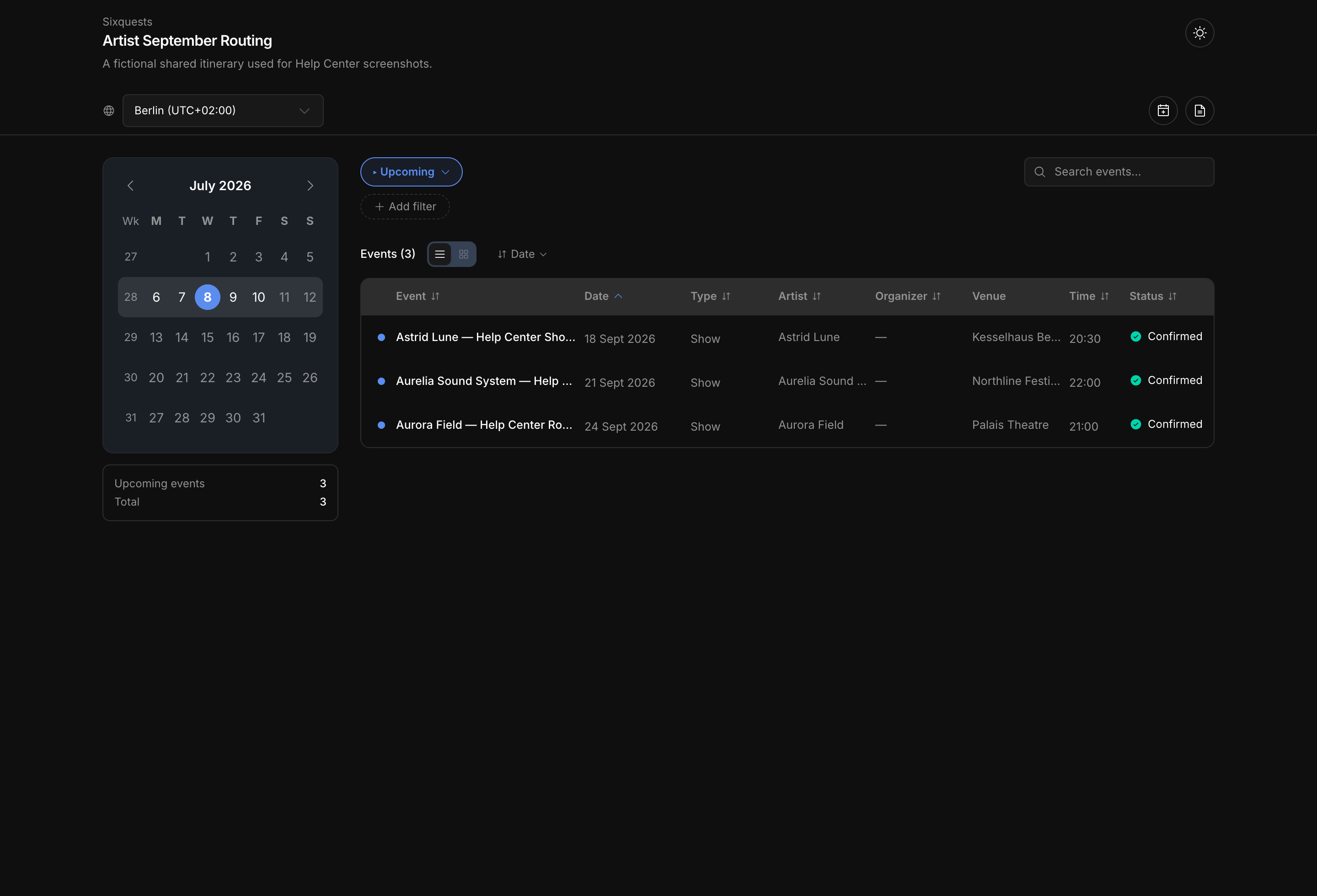
Tour calendars publish selected event data outside normal workspace navigation. They are useful when someone needs dates, routing, venue details, public notes, or travel context without becoming a team member.
An event must be marked Internal + External before it can appear in a tour calendar. Draft events are excluded. This keeps the first sharing decision on the source event instead of relying on a public link to hide internal records later.
A schedule can be shared as a web page or a calendar feed. Use the web page when the recipient needs to browse, filter, inspect event details, or download an individual event file. Use a feed when the recipient mainly wants dates to appear in their own calendar app.
Visible-field templates decide which details appear. Hidden fields stay hidden from the public schedule and feed. Internal notes are never exposed. Deal terms, revenue and expense line items, and custom fields appear only when a template explicitly grants them, and every one of those grants starts switched off. Calendar feeds keep a slim fixed subset and never carry deal terms, financials, or custom fields. Keep internal tasks, private updates, and workspace context out of broad calendar links.
Public links are bearer links: anyone with the active URL can view the fields allowed by that link and template. Regenerate, disable, or remove the link when access should stop. Tour calendar creation and public-link management require the shared-calendar permission.
Related: Tour calendars, Tour calendar templates.
Named external users
Named external users sit between a public link and a full teammate. They sign in through the external portal, have a managed status, and must have an artist scope. Their portal only shows non-draft events that are Internal + External and match that artist scope.
External users are best for recurring collaborators: artists, managers, promoters, co-managers, or partner teams who should have a stable login and a reusable visible-field template. They are not internal staff. They do not get the normal dashboard, internal notes, private updates, or tasks. Deal terms, revenue and expense line items, and custom fields appear only when their role template grants them, and those grants start switched off.
External-user templates are the second layer after event visibility. An event can be Internal + External, but an external user still only sees fields allowed by their template. Custom templates can be stricter than the built-in artist, promoter, or co-manager templates.
Named external users are managed from Settings. You can invite them, resend or copy invitation links, suspend access, remove access, change the visibility template, and adjust artist scope. This is different from disabling a public schedule link, because the access belongs to a person rather than only to a URL.
Related: External users.
Document sharing
Document sharing is narrower than workspace access. You can share a specific document for review without exposing the rest of the event, artist, contract, invoice, or workspace.
Document team visibility has its own states:
- Only me: only the creator and explicitly invited people can see the document.
- Team: teammates can see the document through the parent record, such as the show, artist, organization, contract, or invoice.
For team-visible documents, edit access follows the parent record. Event documents use event-edit permission, artist documents use contact-edit permission, contract documents use contract-edit permission, invoice documents use invoice-edit permission, and organization documents use organization-document permission. The document's general-access setting can also downgrade teammates from edit to view.
Document invites can grant View, Comment, or Edit capability on that one document. Anonymous document share links are view-only. Neither path gives the recipient unrelated records or the internal workspace.
The Create doc invites and share links permission is required to share documents externally. Sharing is also blocked when the document contains restricted live pills the sharer is not allowed to disclose, such as financial, contract, invoice, or sensitive-data fields. This protects against using a document share link to reveal data the sharer cannot normally see.
Use document sharing for a contract draft, invoice support document, itinerary, advancing note, rider draft, or custom document that needs feedback. Use a tour calendar or external user instead when the recipient needs a continuing view of many events.
Related: Share, review, and comment, Create and edit documents.
Internal permissions still apply
Sharing something externally does not loosen the internal permission model. A teammate still needs the relevant internal permission to manage event visibility, tour calendars, visibility templates, documents, contracts, invoices, settings, or external users.
That is why sharing decisions should be made from the source record:
- Change a show's audience from the show.
- Add a show to a public tour calendar from the tour calendar workflow.
- Invite an outside reviewer from the document.
- Manage recurring outside access from external-user settings.
The source record remains the place where staff manage truth, status, private context, and cleanup.
Which access path should you use?
Use Internal event visibility for normal team planning. Use Only Me for private holds and early work. Use Internal + External only when the event is ready to be eligible for external surfaces.
Use tour calendars when the recipient needs a broad schedule view and a bearer link is acceptable. Use named external users when the recipient should have a managed identity, reusable artist scope, and a stable portal. Use document sharing when the recipient only needs one contract, invoice, itinerary, or draft.
When in doubt, choose the narrowest access path that matches the job. It is easier to widen access later than to clean up an over-broad link.