
Invite your team
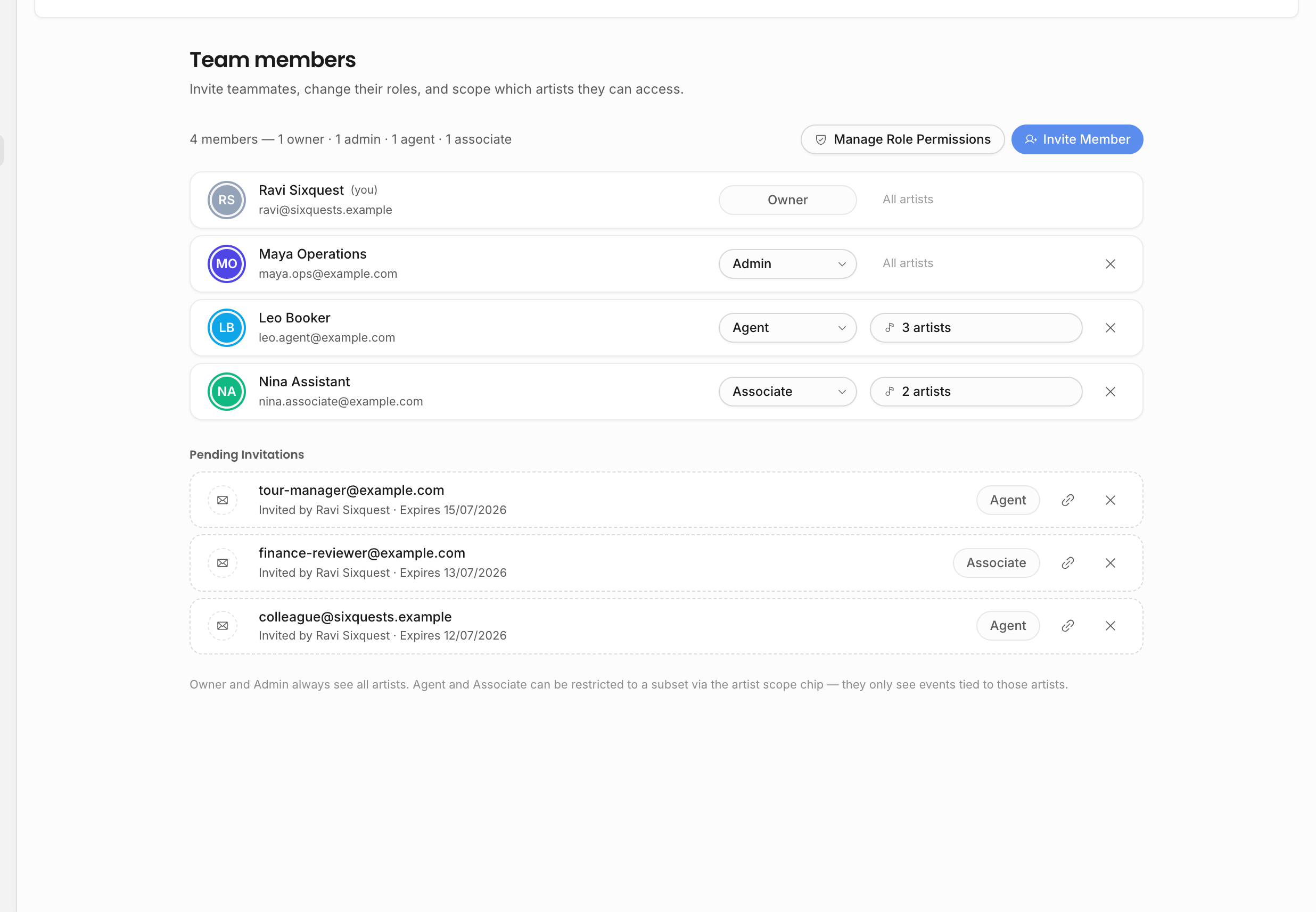
Invite teammates from Settings when you want them to work in the same agency workspace. Their role controls what they can do, and artist scope can narrow which roster records and related work they can access.
Send an invitation
- 1Open Settings.
Go to Settings → Team members. On mobile, open the settings menu first, then choose Team members.
- 2Choose Invite member.
Enter the teammate's email address.
- 3Pick a role.
Choose Admin, Agent, or Associate. The permission matrix decides what Agent and Associate can actually do.
- 4Add artist scope if needed.
For Agent or Associate, leave All artists on for unrestricted roster access, or turn it off and select the artists this person should work with.
- 5Send the invite.
The teammate receives an email and joins the workspace from that invitation.
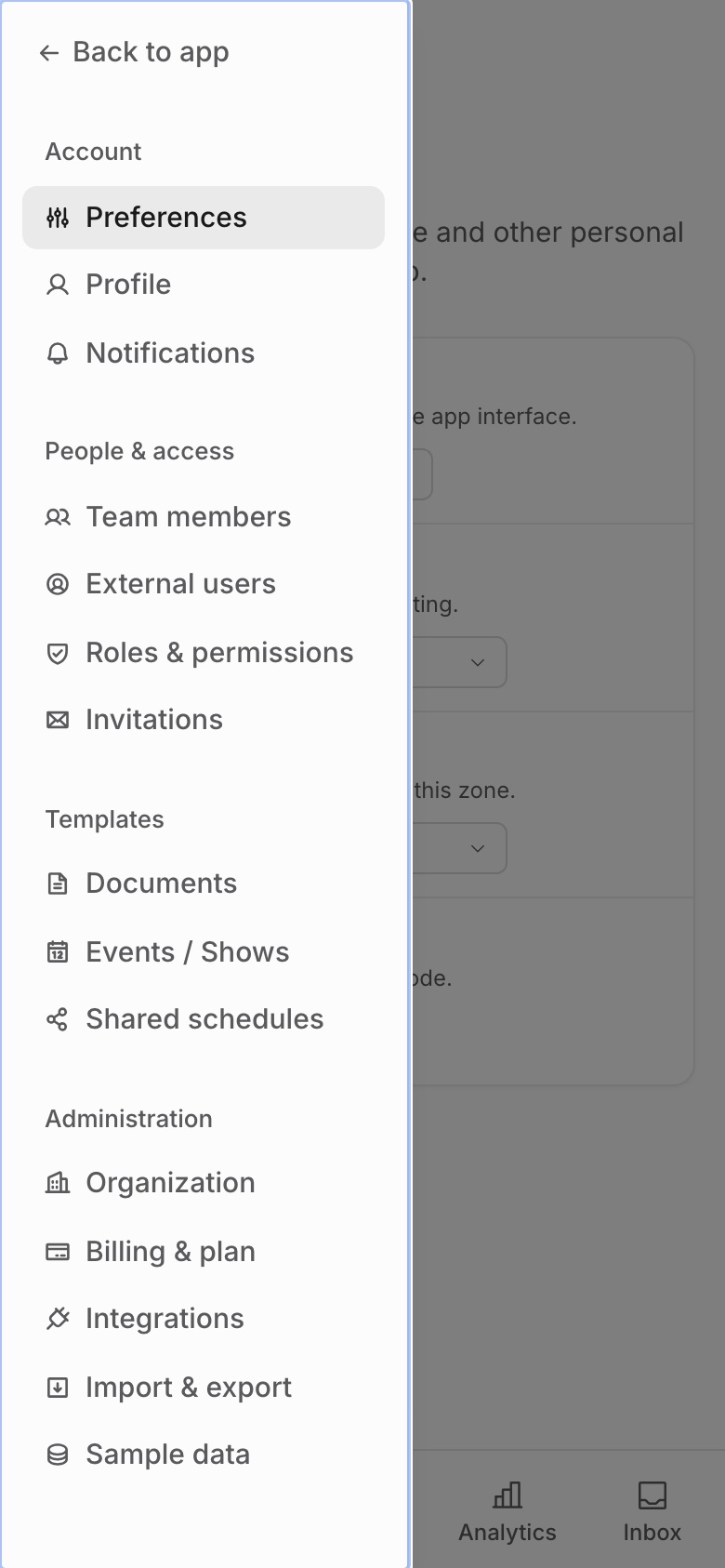
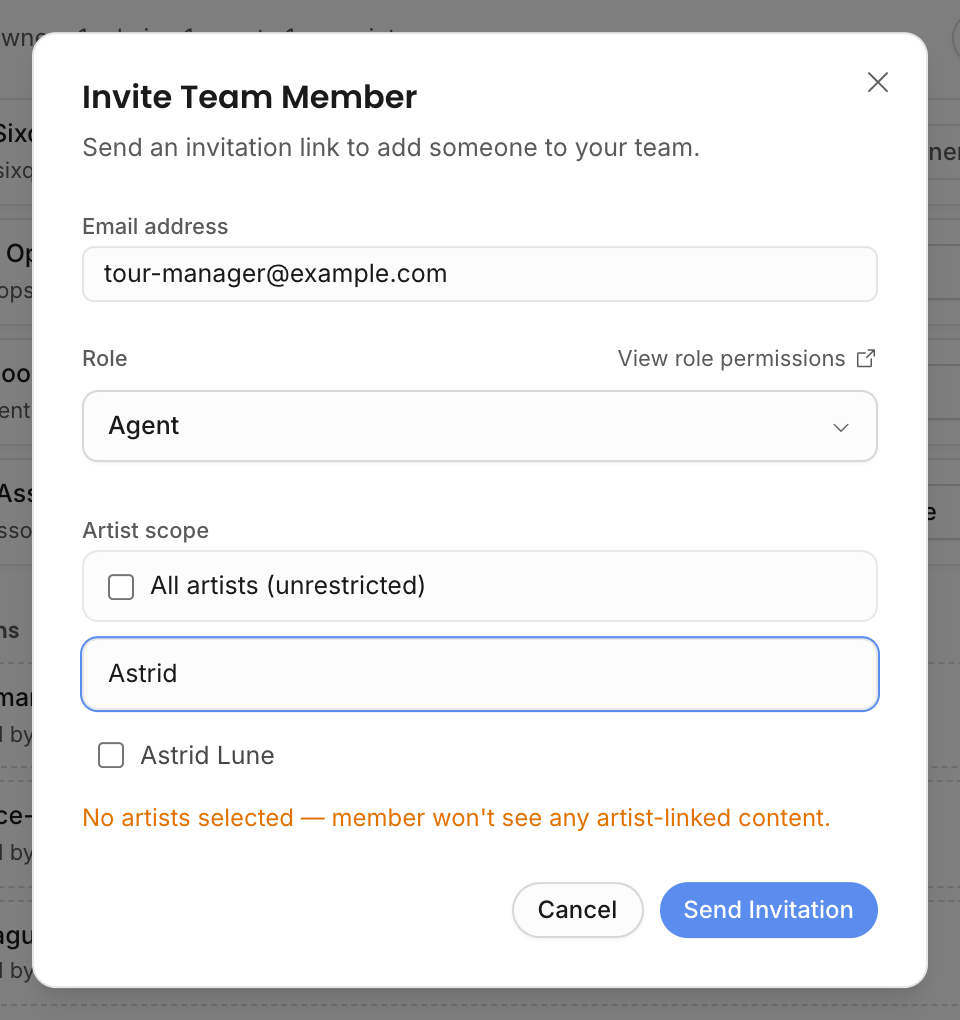
The Invite your team tutorial guides this flow and includes the mobile settings menu step. See Guided tutorials.
When the teammate opens the invite, Offstage checks that the invitation is still pending and not expired. They must accept it with the invited email address. If they create a new account from the invitation link, the invited email is used for sign-up. If they are already signed in with a different address, Offstage asks them to switch accounts or request a new invitation for the current address. See Account access.
What the Team members page controls
The Team members page is visible to every internal member so people can see who belongs to the agency workspace. Management actions are only available to owners and admins.
| Action | Who can do it |
|---|---|
| Invite a teammate | Owner or Admin |
| Invite someone as Admin | Owner only |
| Change another member's role | Owner or Admin, but only Owner can assign Admin |
| Remove a member | Owner or Admin; nobody can remove themselves from this action |
| Remove an owner | Owner only |
| Change artist scope | Owner or Admin, and only for Agent or Associate members |
| Change a member's identity color | Owner or Admin |
| Open role-permission settings | Owner or Admin |
Pending invitations stay visible in the Team members page. Managers can copy an invite link if email delivery fails, or cancel a pending invitation when it should no longer be usable.
Keep role names and permissions aligned
Offstage has four team roles: Owner, Admin, Agent, and Associate. Agent and Associate are configurable per agency; Owner and Admin stay locked so the workspace always has administrator roles.
Role names are labels. The permission matrix is the source of truth. If your agency uses Agent as a senior operating role, keep the toggles broad. If your agency uses Associate for interns, assistants, external bookkeepers, or part-time support, narrow the toggles and artist scope accordingly.
Do not rely on the word "Agent" or "Associate" alone when explaining access to a teammate. Check the actual role settings first, especially for financial data, contracts, invoices, analytics, sensitive data, document sharing, organization documents, and template settings.
For the generated permission reference, see Roles and permissions.
Artist scope
Artist scope is useful when someone should only work with part of the roster. It affects artist-related work rather than making a separate workspace. Keep the workspace privacy model in mind: everyone still belongs to the same agency workspace.
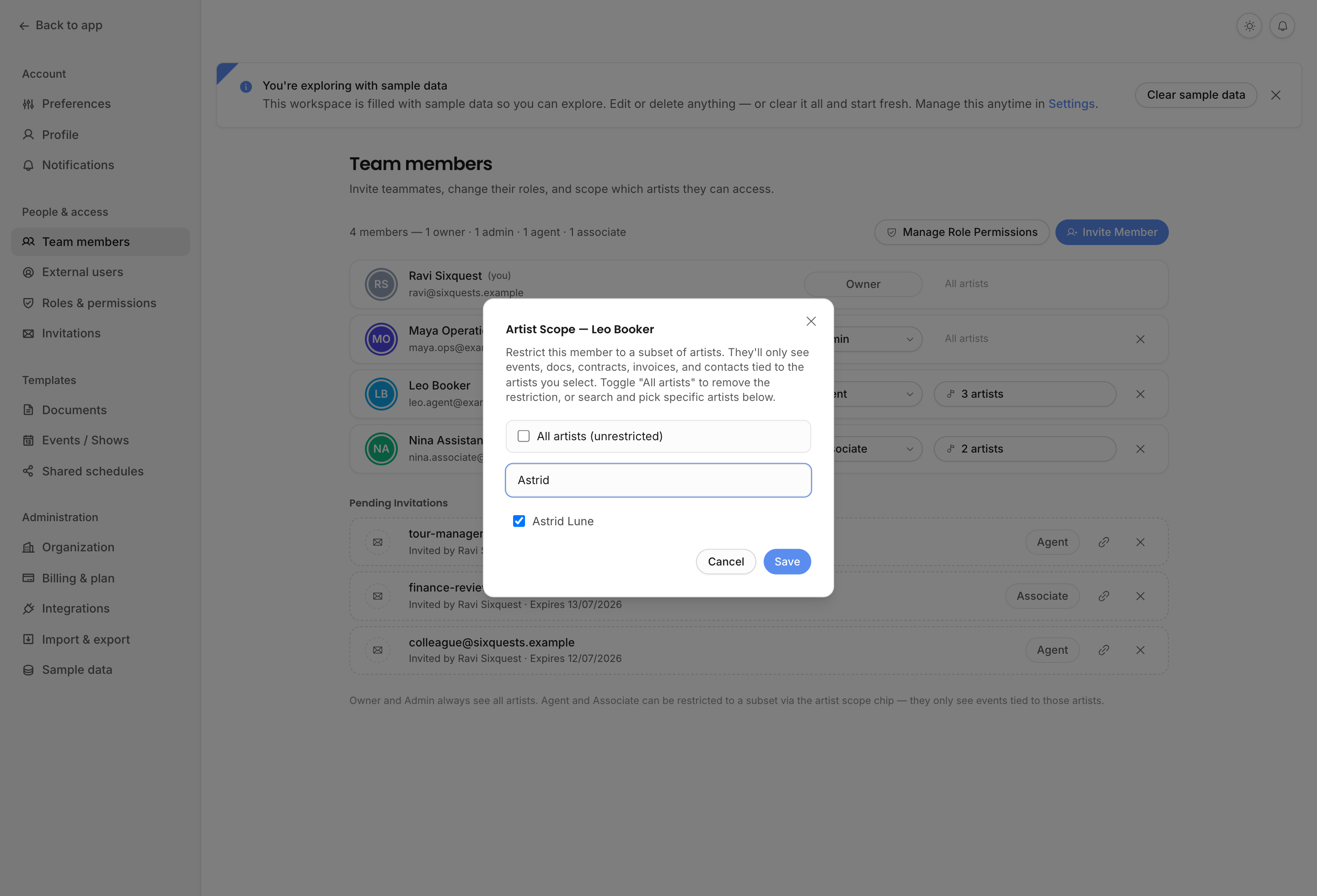
Artist scope can be set when the invitation is sent. If the teammate accepts the invite, the selected scope is copied to their member record. Managers can change it later from the Team members page.
Empty scope means All artists. A scoped Agent or Associate only sees records tied to selected artists where the relevant permission also allows the surface. Scope can affect artist pages, events, documents, contracts, invoices, contacts, notifications, and analytics. Owners and admins always see all artists, and promoting someone to Admin clears stale artist scope because it no longer applies.
Analytics has one extra layer: a member can have analytics access set to Booker, which limits analytics to events where that user is the booker. Booker-scoped analytics is different from artist scope; use it when an individual booker should understand only their own booked events.
Good operating patterns
For a booking agency, a practical setup is usually:
| Teammate type | Suggested setup |
|---|---|
| Senior operations or booking staff | Agent, with event/contact/contract permissions that match their work. Add invoice or financial access only if they need it. |
| Assistants or junior staff | Associate, with narrow event/document/contact rights and artist scope if they only support part of the roster. |
| Finance support | Agent or Associate with invoice and financial permissions, plus only the roster scope they need. |
| Temporary collaborators | Prefer external-user or document-sharing flows when they do not need internal workspace navigation. |
Use External users for people who should only receive a limited outside view. Use document sharing for someone who only needs one contract, invoice, itinerary, or document.
Related pages: