
Tour calendar templates
Tour calendar templates decide which event fields leave the internal workspace when someone views a tour calendar.
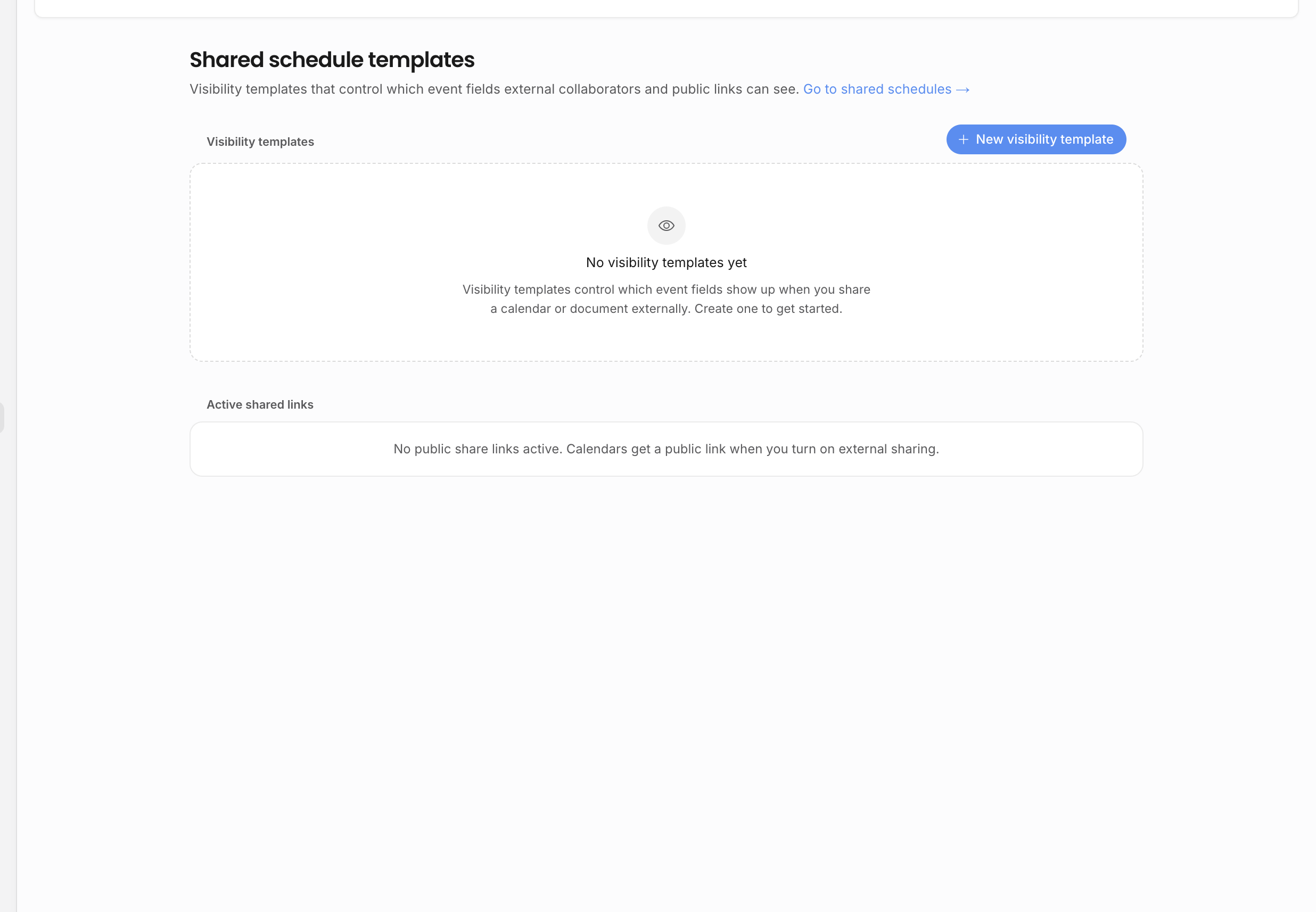
What a template controls
Each template is a named set of visible event fields. The app uses that set when a teammate publishes a tour calendar link, creates a feed, or configures an external-facing calendar view. A simple public tour calendar might expose title, date, venue, artist, and show time. A tour-manager calendar might expose more routing and travel detail. A broad public link should usually stay tighter.
Templates are useful because tour calendars can be reused. Instead of deciding the same field list every time, the team chooses a template that already matches the audience.
List and editor
The template list shows each template, whether it is the default, and how many fields it exposes. Users who can manage template settings can create a new template, set a default, edit the name, pick visible fields, and delete non-default templates.
Members without template-management permission can still view templates read-only. That lets teammates understand what an external audience will see without giving them control over the field set.
New templates start with a practical field set: title, date, status, event type, show time, venue, and artist name. Treat that as a starting point, not a complete sharing decision. After creating a template, open the editor and remove fields that are too broad for the audience or add fields that make the tour calendar useful.
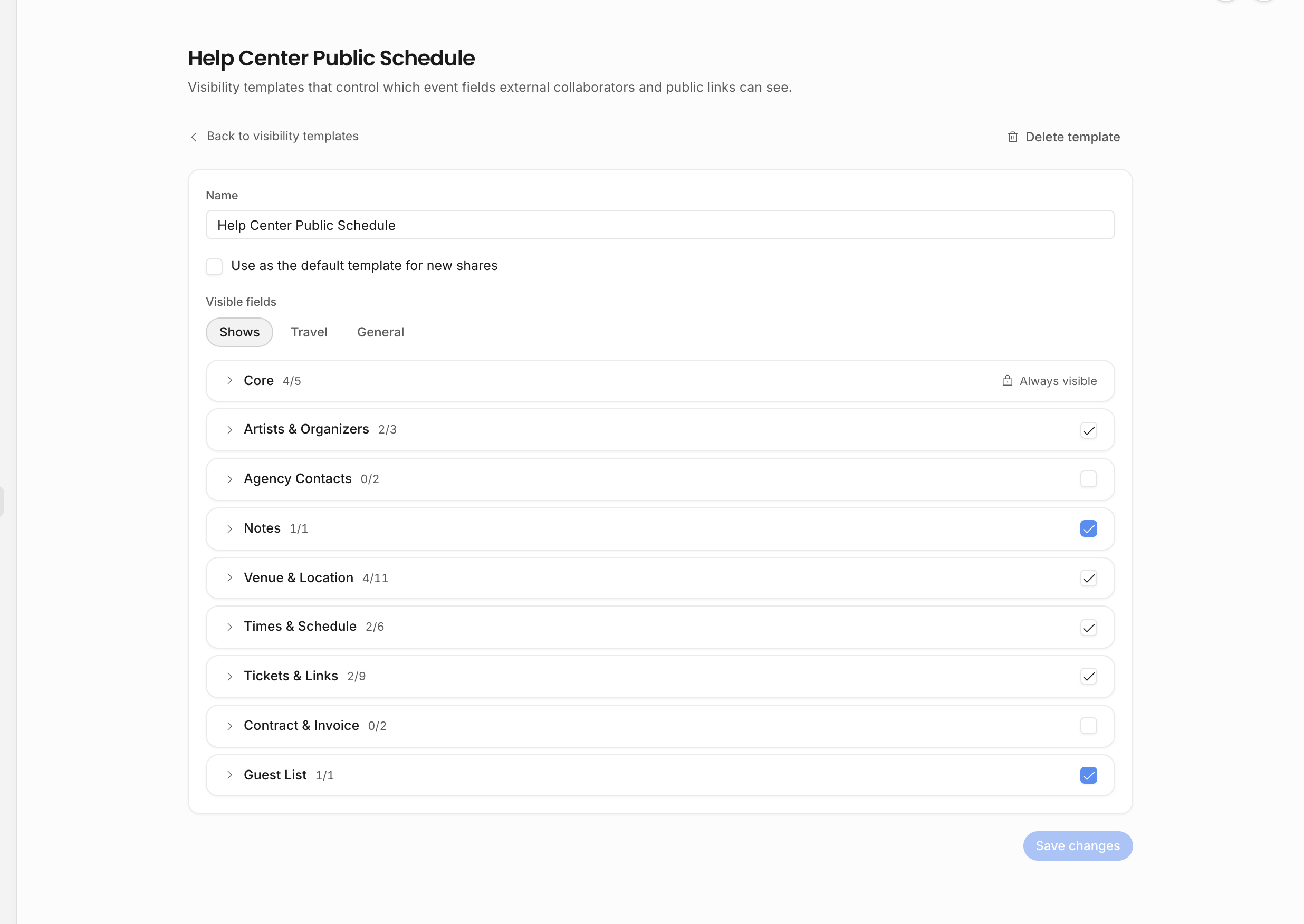
Field selection
The editor uses tabs for Shows, Travel, and General events. Each tab groups fields by the kind of information they reveal, and each group can be expanded or selected as a bundle. This makes it faster to build a template for one audience without scanning every possible field in a single list.
Show templates can include core details, artist and organizer names, agency contacts, venue and location, times and schedule, ticket links, contract or invoice status, guest list, and external notes. Travel templates can include outbound journey, accommodation, return journey, booking references, carriers, travel notes, and related contact context. General event templates focus on category, location, and the shared core fields.
Some core values are safe for many tour calendars, but they are still deliberate choices. For example, title and date are usually expected; status, performance type, ticket prices, booking references, guest-list fields, and contract or invoice status may be sensitive depending on who receives the calendar.
Keep these selections audience-specific:
| Audience | Typical fields |
|---|---|
| Public announcement | Event title, date, artist, city, venue, public timing. |
| Artist or tour team | Venue, schedule times, routing detail, production notes that are safe to share. |
| Internal collaborators | More operational fields, while still excluding private negotiations and unrelated records. |
Avoid exposing financial negotiation, internal notes, private tasks, private updates, and sensitive contact details through broad templates. Internal notes are never part of public calendar payloads. Deal terms, revenue and expense line items, and custom fields appear only when a template explicitly grants them, so leave those grants off on broad templates. Template discipline still matters because ticket prices, travel booking references, guest lists, contract status, and invoice status can be sensitive depending on the audience.
If a collaborator needs a narrow document or comment thread, use document sharing instead of widening a template.
Active shared links
Users with template-management access can also see active shared links. That inventory is manager-only because public calendar links and feeds are sensitive: anyone with the link can view the fields allowed by that link and template.
Use the active-links list to audit old shares, clean up expired review links, and understand which templates are currently in use. When a template changes, review existing shared links that depend on it so the external view still matches the intended audience.
Regenerating or clearing a tour calendar's link also revokes the subscriptions tied to it. Use that when a link has been sent to the wrong audience or an old feed should no longer update.
Relationship to tour calendars
Template settings define the reusable field sets. The tour calendar workflow uses those templates when publishing a specific tour calendar or feed. If a user says a shared link is missing a field, check both places: the event record may not have the value, or the chosen template may not expose that field.
Related: Tour calendars, Visibility and sharing, External users.