
Search and command menu
Search is the fastest way to move through a busy workspace. Use it when you know part of a show, artist, venue, organizer, contract, invoice, document, or contact and do not want to walk through navigation first.
The same search engine powers the desktop command menu and the Search page on narrow screens. Results are scoped to the current agency, your role, your artist scope, and the same record permissions used by the main lists and detail pages.
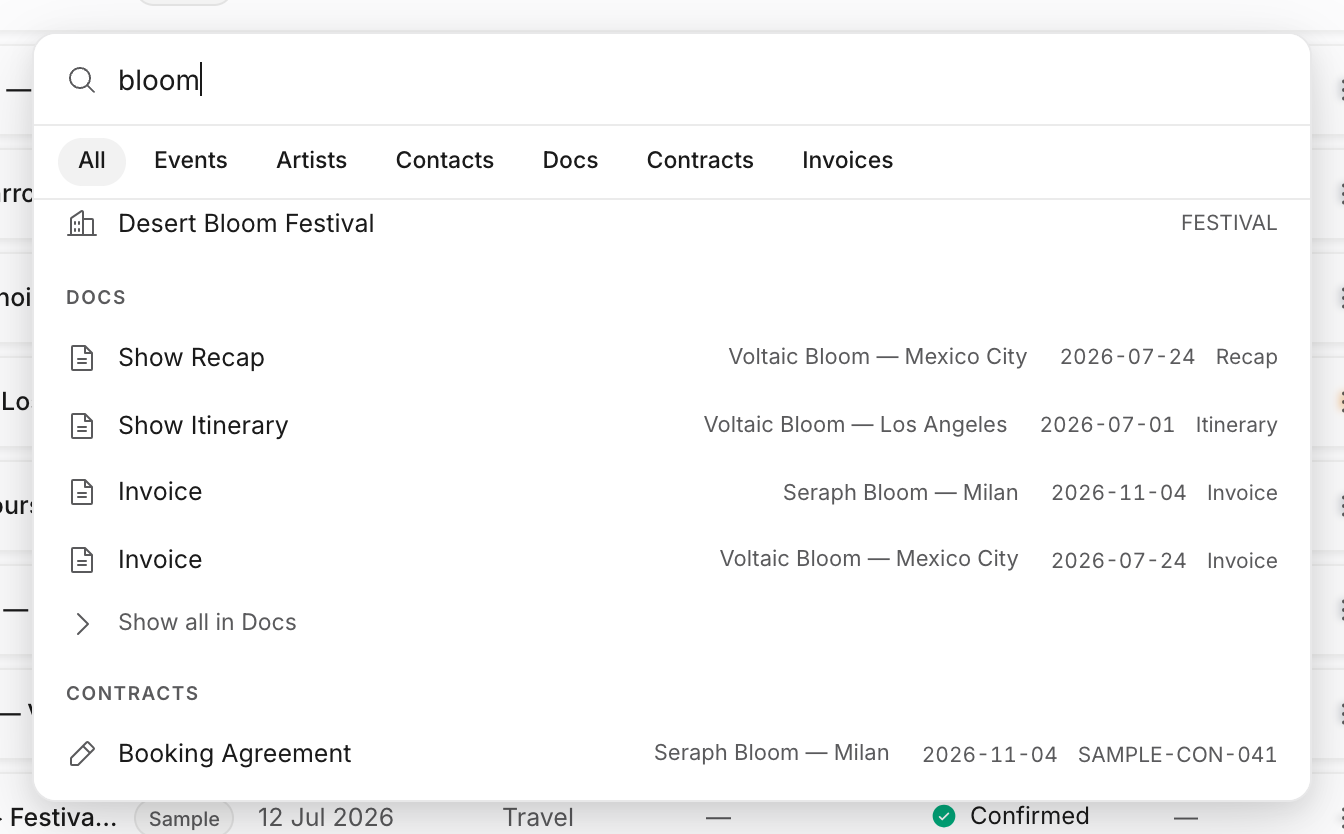
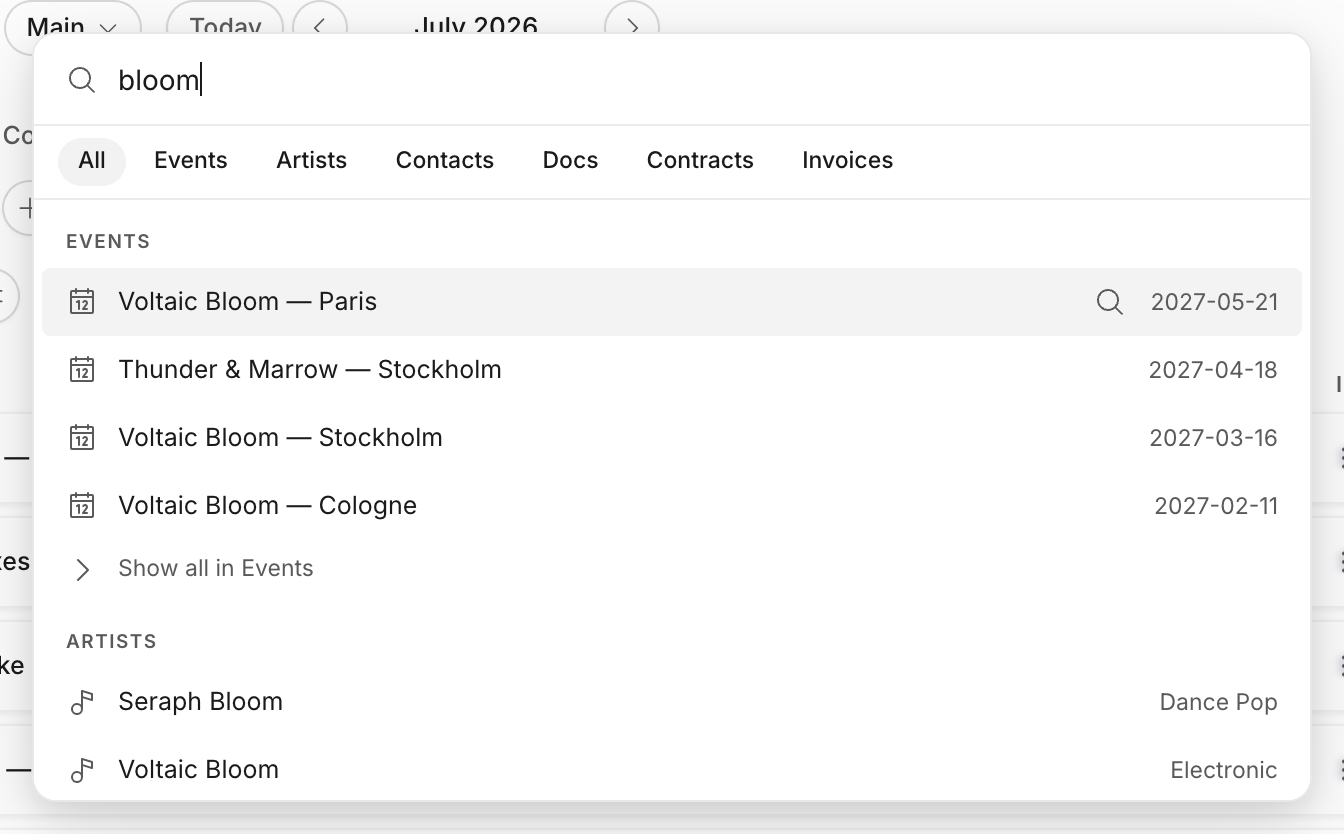
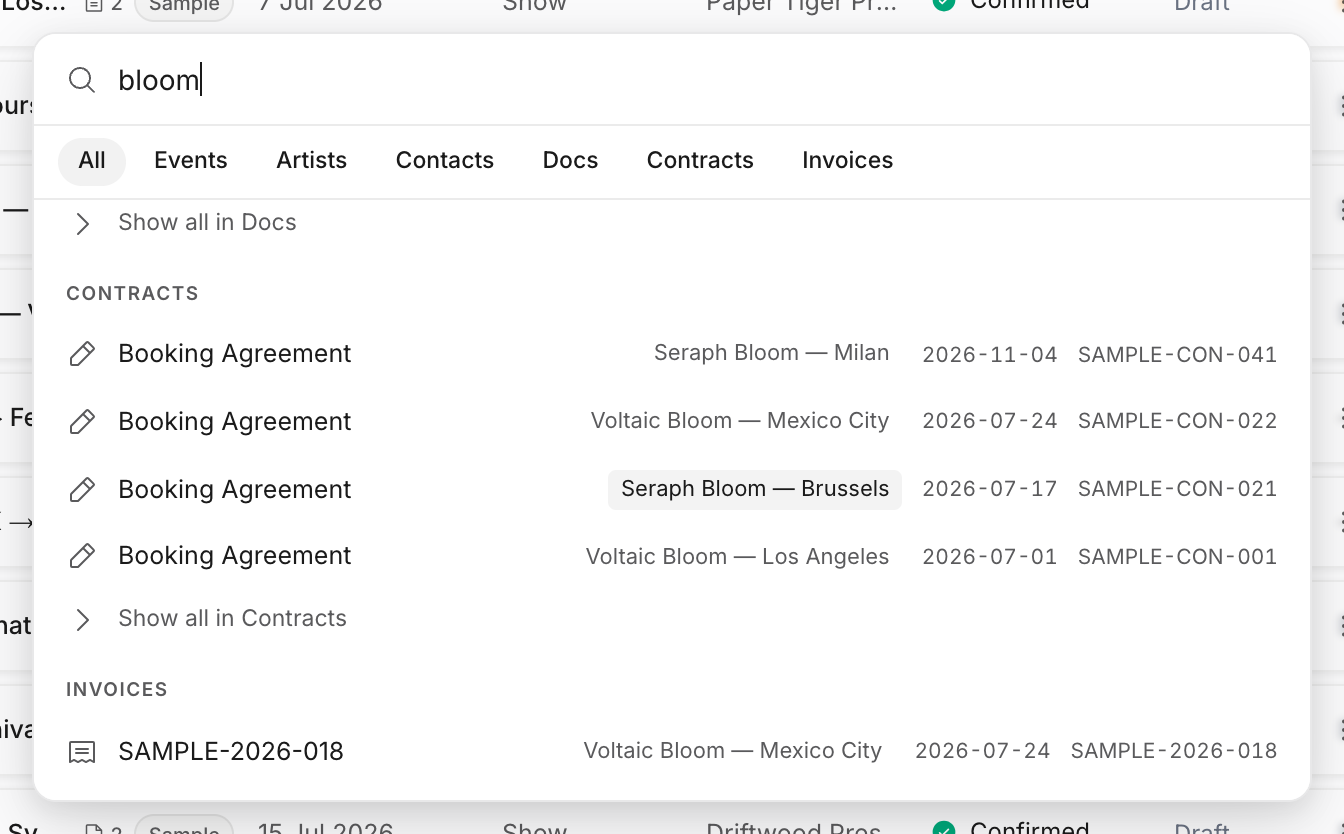
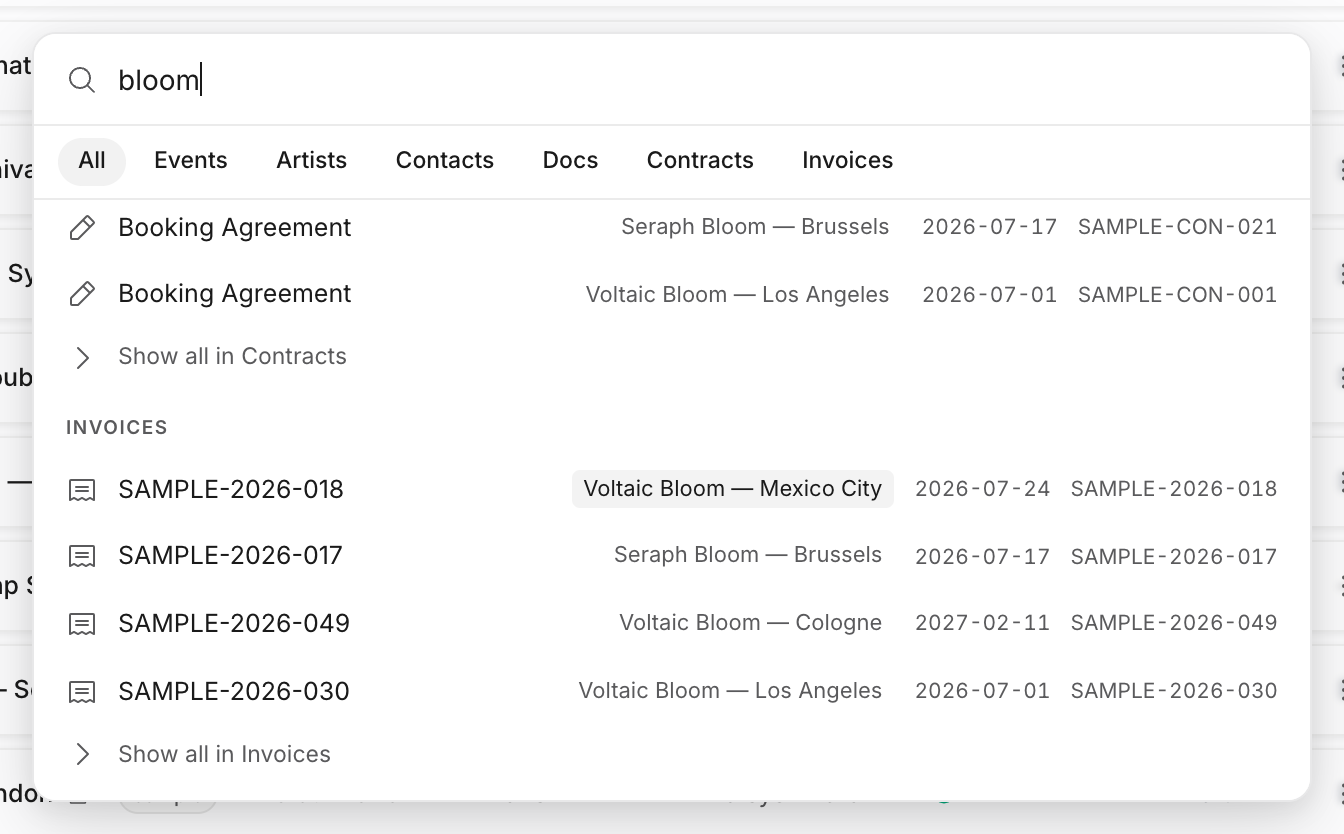
Open search
| Surface | How to open it |
|---|---|
| Desktop command menu | Press Cmd+K on Mac or Ctrl+K on Windows and Linux. You can also use the sidebar search button. |
| Mobile and narrow screens | Open the Search tab/page from the workspace navigation. |
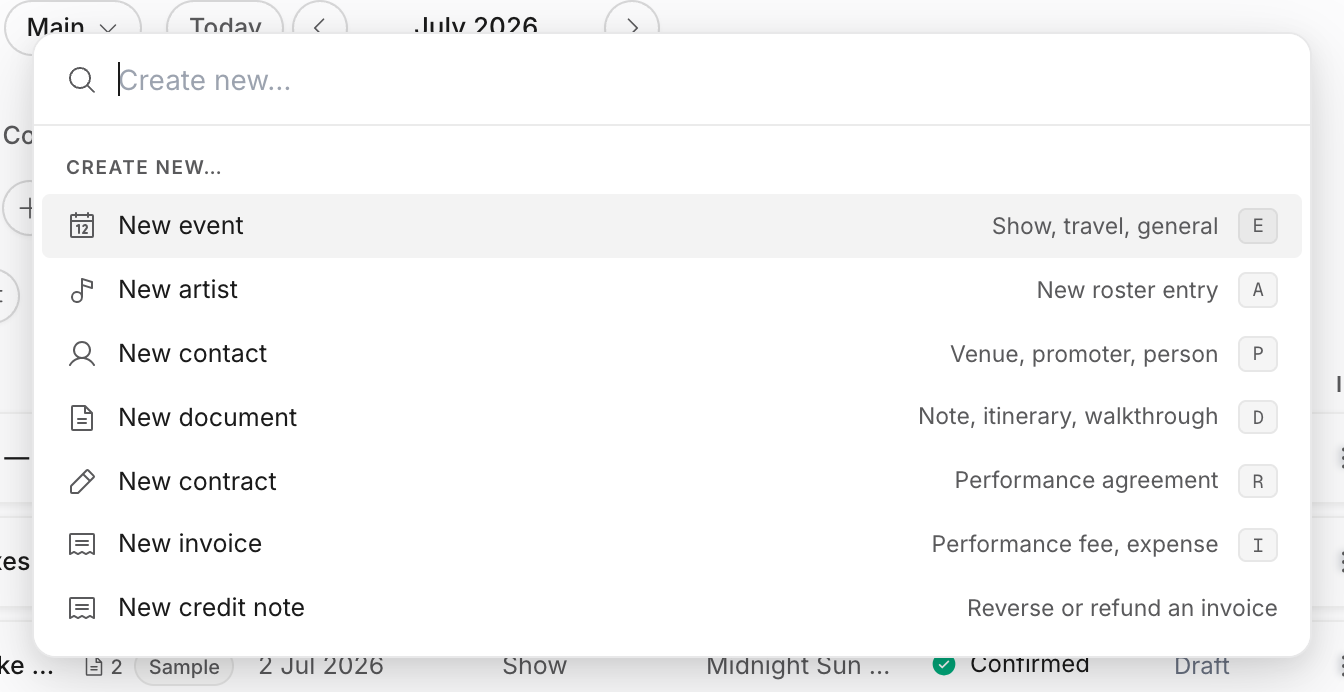
| Create-focused menu | Use the sidebar + shortcut when you want to start a new item from anywhere. |
The desktop command menu opens over the page you are already using. The mobile Search page uses the same result body in a full page so the rows have enough room on small screens.
What search covers
Search looks across the operational records agencies use every day:
- events and shows;
- artists;
- contacts, including people and business contacts such as venues, promoters, agencies, and other companies;
- documents;
- contracts;
- invoices.
Search starts after two typed characters. In the All tab it shows a balanced preview from each record type so one noisy category does not bury the rest. If more matches exist for a category, use Show all in ... or switch to that tab for a deeper list.
Results are permission-scoped. If you cannot view invoices, invoice results do not appear. If you cannot view contracts, contract results do not appear. If your role is scoped to selected artists, Search follows that scope for events, artists, contracts, invoices, and documents. Private Only Me events and documents are only returned to the creator unless an explicit document invite or share link grants access.
Use tabs when the workspace is busy
The All tab searches every supported record type. When you know the kind of thing you need, switch to Events, Artists, Contacts, Docs, Contracts, or Invoices to narrow the list.
Tabs are useful when a word exists in several places. An artist name can produce shows, artist profiles, documents, contracts, and invoices. Switching to Contracts keeps the same query but focuses the result list on agreements; switching to Invoices does the same for finance records.
Search through related context
Search is not limited to the main title. It also uses important parent and related names. For example:
- searching an artist can surface that artist's events, contracts, invoices, and documents;
- searching a venue or organizer can surface connected events;
- searching a person can surface a linked business contact, and searching a business can surface linked people;
- searching a contract or invoice number can jump straight to the finance record;
- searching a show title can surface documents, contracts, and invoices attached to that show;
- document results can match the document title, document kind, parent event, or parent artist.
This is why the command menu is often better than a single list page. It can use the relationship between a show, artist, buyer, document, contract, and invoice to find the record even when the exact title is not what you remember.
Refine from result chips
Some result rows show parent or related chips. Selecting a chip inserts that value into the search field so you can continue narrowing without retyping. On keyboard, you can also highlight a result and use the right arrow when the cursor is at the end of the input to insert the selected row label.
Result rows use structured context:
- document rows can show the parent event or artist and the document kind;
- contract and invoice rows can show the parent show or artist, event date, and document number;
- contact rows can distinguish people from business contacts and show linked people or primary company context;
- event and artist rows show date or genre context when available.
Click the row itself when you want to navigate. Click a chip when you want to keep searching around that parent or related name.
Recent and create shortcuts
When you open Search without typing, it can show recent records you personally worked on. Recent items come from your activity in the current agency and are de-duplicated, so the same show or artist does not repeat just because you touched it several times.
The same surface also includes create shortcuts for new events, artists, contacts, documents, contracts, invoices, and credit notes when your permissions allow them. The sidebar + opens the create-focused version of the menu, where those shortcuts are the main content.
Practical agency workflows
Use Search to jump from a partial memory to the source record. Type the artist name to find their next show, the agreement attached to it, or the invoice created from it. Type a venue or promoter name to find the show where that contact appears. Type an invoice number or contract number when someone replies to a finance email and you need the exact record quickly.
For research work, start broad in All, then use chips and tabs to narrow. For action work, use the create-focused menu when the next step is making a record rather than finding one.
Related: Dashboard overview, Source of truth, Calendar overview.