Share, review, and comment
Document collaboration can include workspace members and external people.
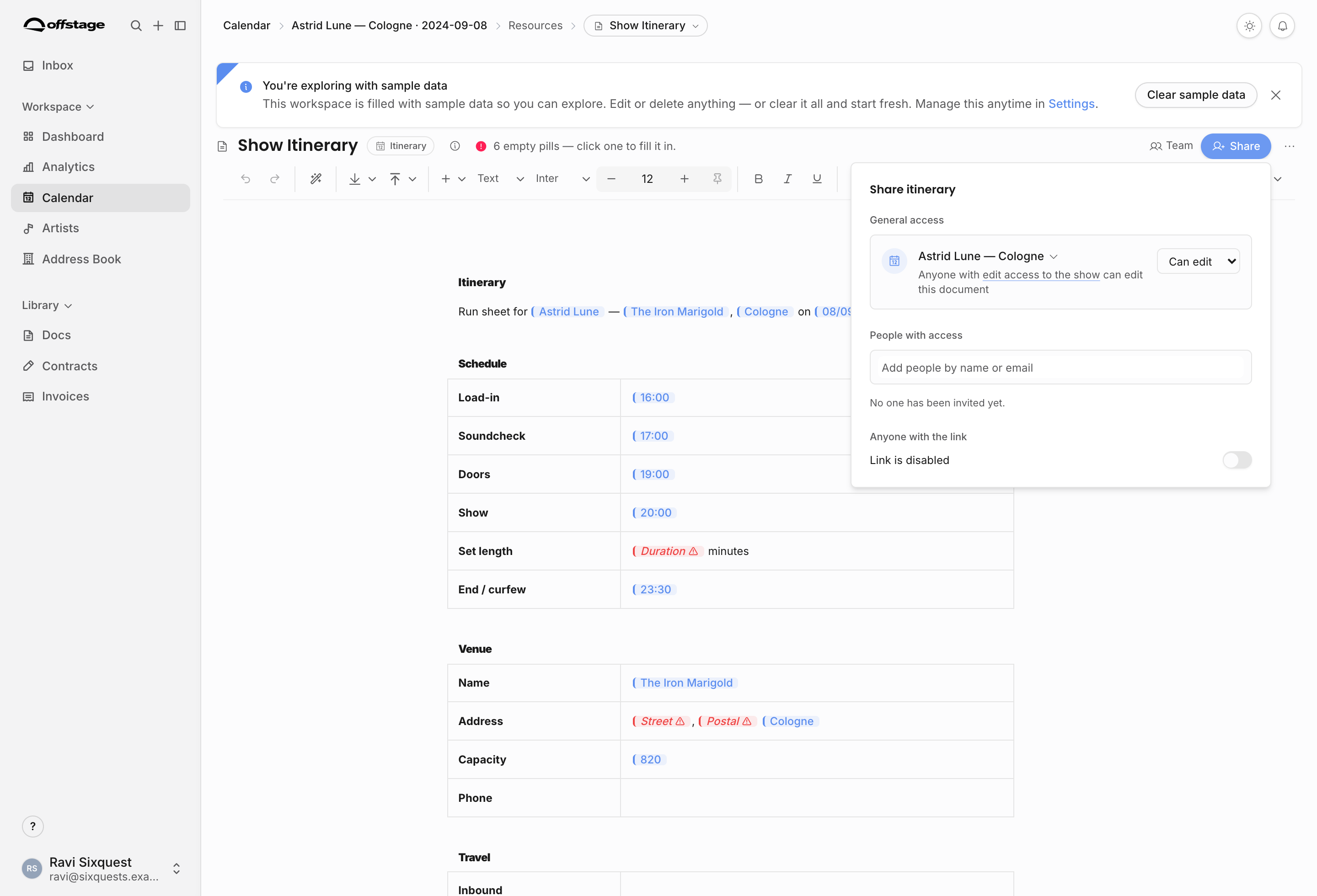
Sharing options
| Option | Use it for | Important limit |
|---|---|---|
| General access: Restricted | Keep the document creator-only through normal workspace access. | Explicit invites and active share links can still grant access. |
| General access: Viewer | Let teammates who can reach the parent view the document. | They cannot directly edit unless separately invited with edit access. |
| General access: Editor | Let teammates who can reach the parent and hold the relevant edit permission edit the document. | Parent access and role permission still apply. |
| External invite | Give a named outside collaborator view, comment, or edit capability. | The inviter cannot grant more access than they have. |
| Anonymous share link | Send a controlled bearer link for view-only access. | Anonymous link viewers cannot comment, suggest, or edit. |
Use internal access when the person is part of the agency workflow. Use an external invite when a counterparty, artist, manager, accountant, or reviewer needs access to one document surface without becoming a workspace member.
Sharing requires the Share documents permission and passes a pill-permission ceiling. If a document contains pills that disclose financial, sensitive, contract, invoice, or custom-field data, the sharer must be allowed to disclose those pill categories. If not, the share controls are locked even if the user can view the document.
What external reviewers experience
External reviewers use a limited document portal. They do not receive the full workspace sidebar, unrelated events, artist records, contracts, invoices, or internal settings. The portal header shows the agency, document title, the reviewer's access level, the invited email address, and a PDF download action when available. Anonymous share links stay view-only.
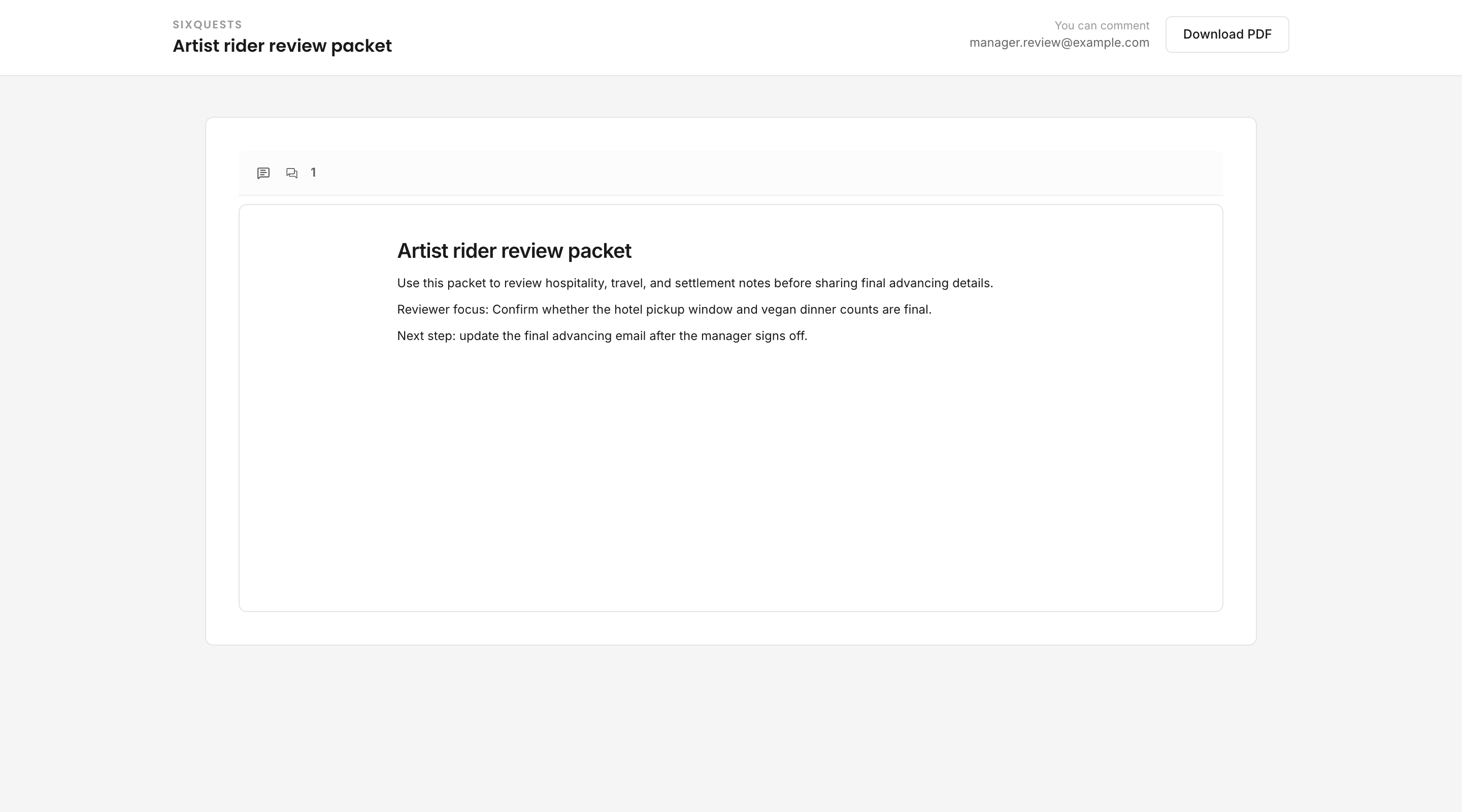
This matters for contracts and invoices. A counterparty can review the document they were sent, but they should not gain access to the event's private notes, unrelated financial records, or other documents unless those were explicitly shared.
External invite links can be emailed or copied. Email delivery failure does not make the saved invite disappear; use the copy-link fallback when needed. Revoking an invite or share link keeps the audit trail instead of deleting the historical record.
Comments and suggestions
Comments are for discussion. Suggestions are for proposed edits. Use comments whenever a document needs questions, approvals, or reviewer context before the team treats it as final.
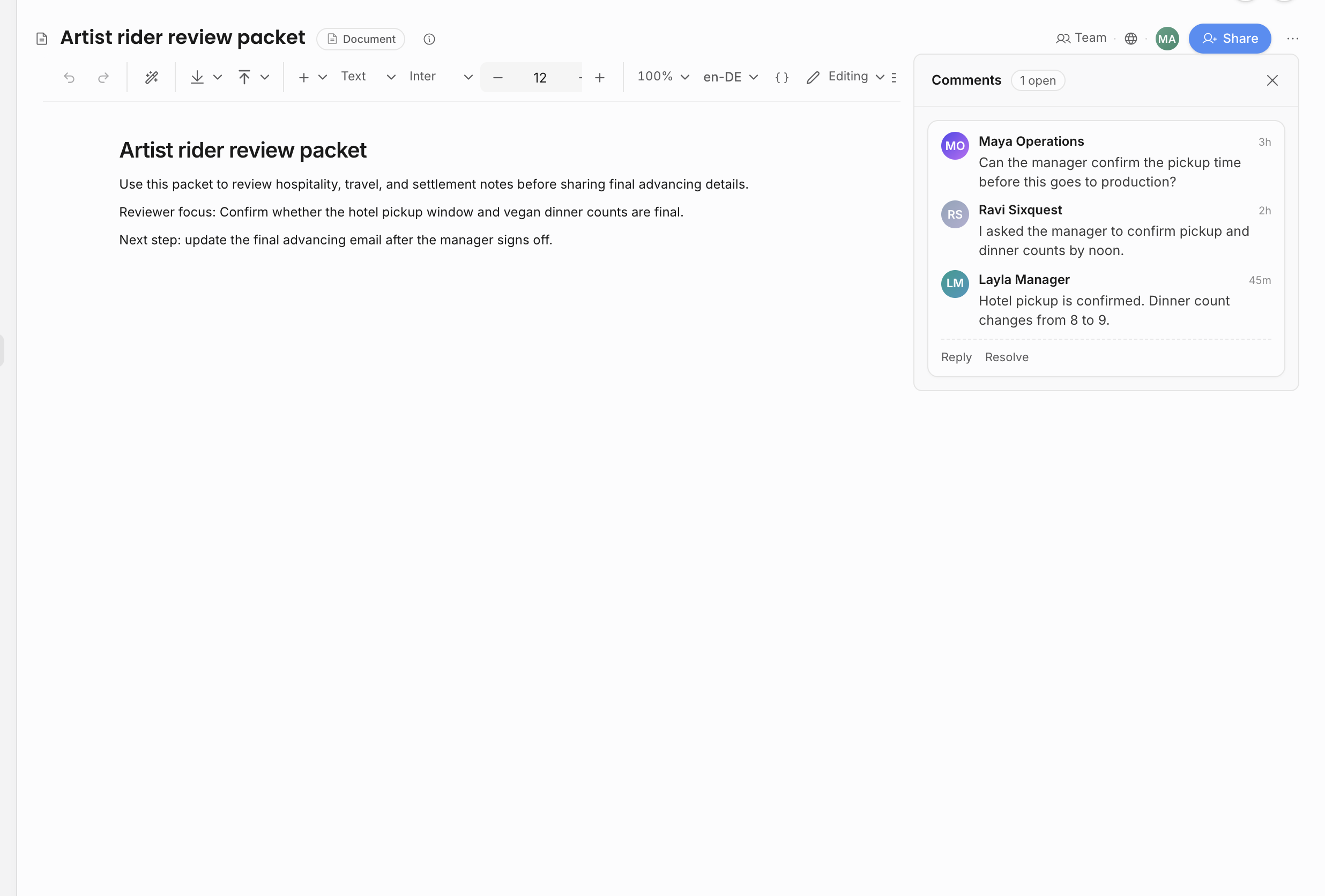
Use comments for questions, approvals, clarifications, or notes that should not change the document body directly. The comments panel shows the number of open threads, each reply in order, and the actions available to the current user. In the example above, an internal teammate asks the question, another teammate replies, and the external manager's reply stays in the same thread.
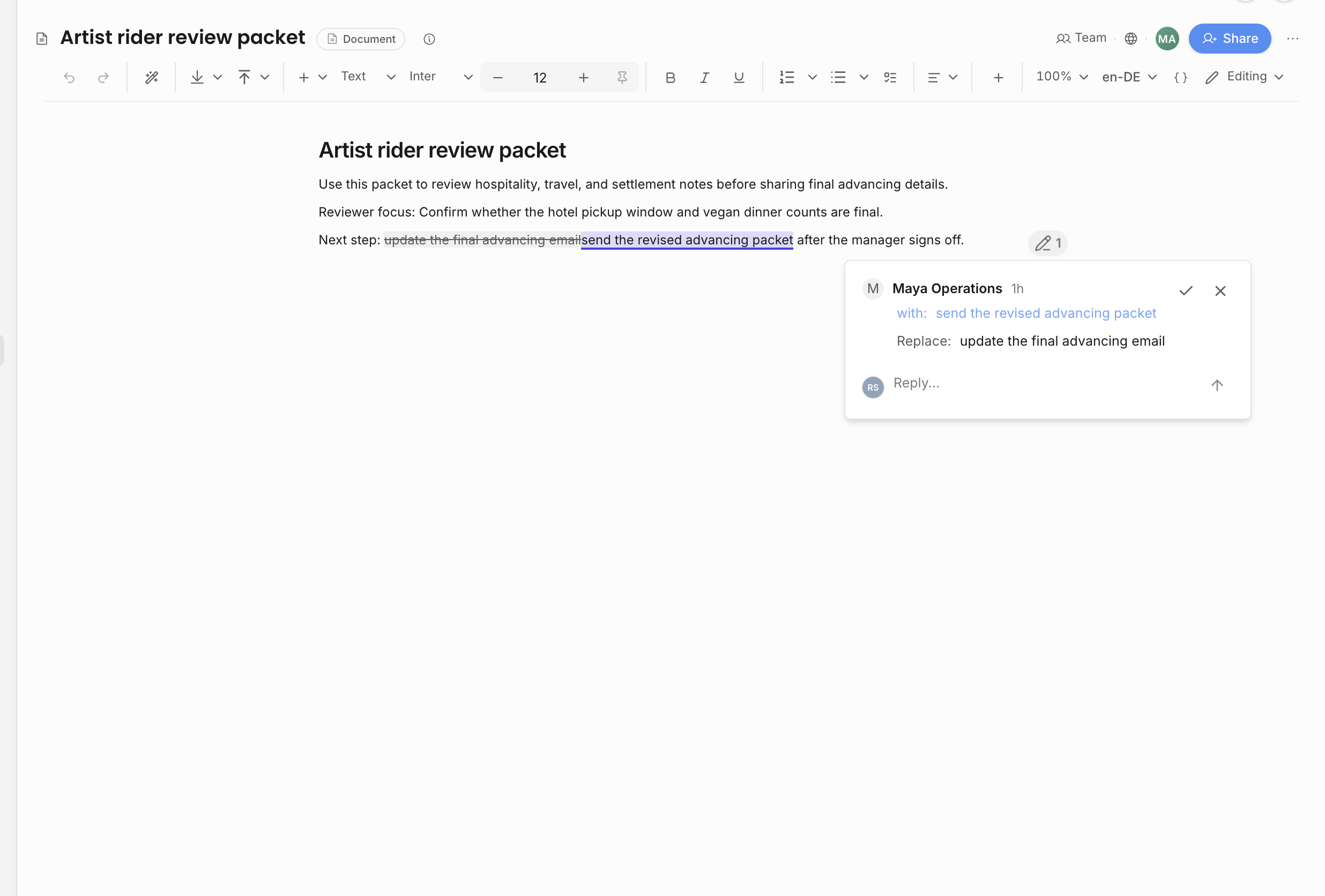
Suggestion mode is for proposed wording changes on collaborative documents where the mode menu offers Suggestion. Choose it when a teammate should mark proposed insertions, deletions, or replacements without directly changing the final text.
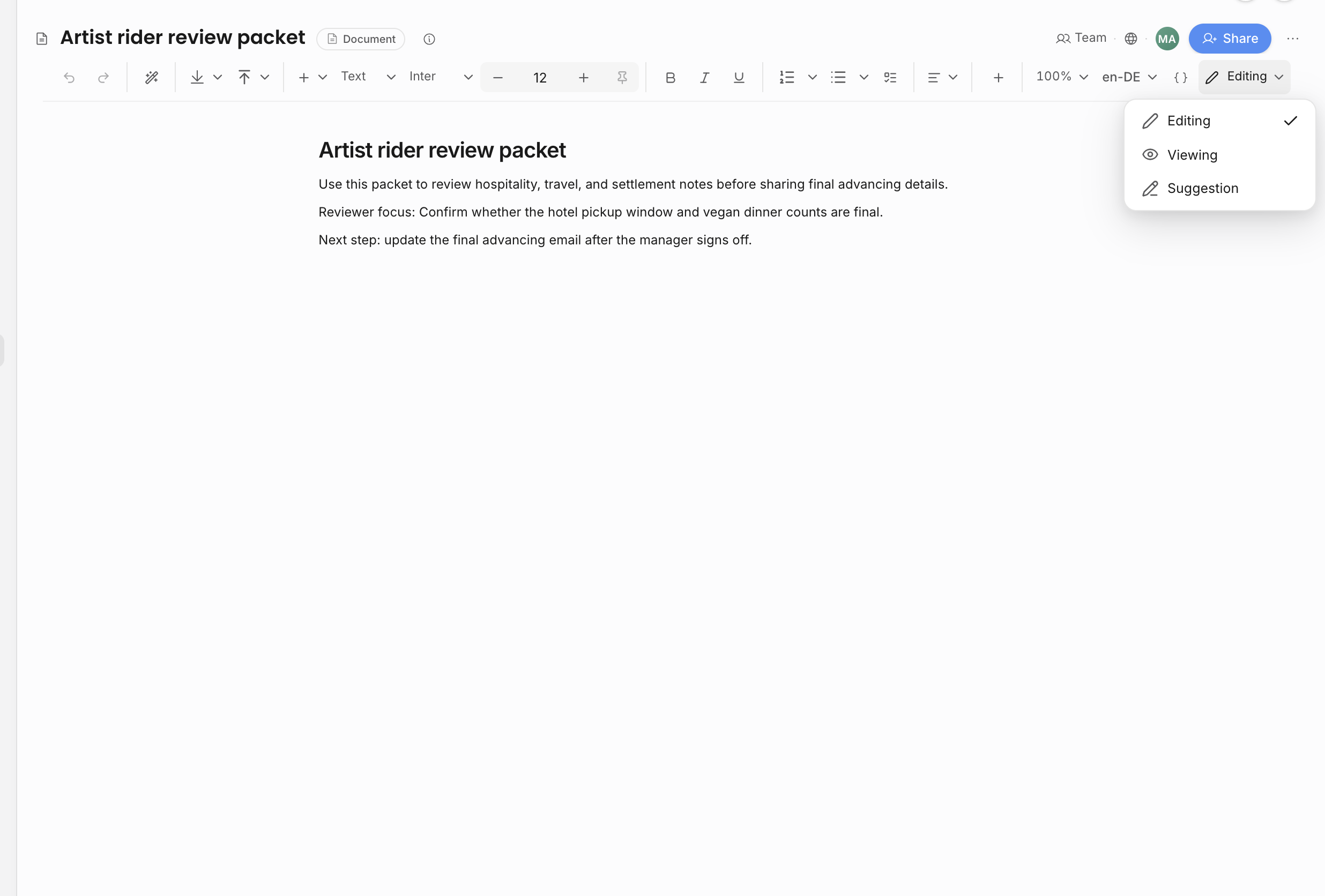
Internal reviewers who can comment but cannot edit may land in Suggestion mode by default. Editors can review those proposed changes and accept or reject them from the suggestion card. Comment-only reviewers should leave a comment instead of rewriting the body.
Contracts and invoices use their own review and lifecycle steps, so they may not show Suggestion mode in the editor. For those documents, use comments, sharing, review, PDF creation, sending, countersignature, and payment lifecycle controls instead of treating them like ordinary editable notes.
Comments and suggestions should stay attached to the document context they discuss. If the discussion is about an event decision, payment change, or operational status, consider whether that belongs on the show update thread or source record instead.
Any viewer who can read the document can create comments and replies when the document surface allows commenting. Resolving comment threads and accepting or rejecting suggestions require edit access. External invitees with Comment access can comment from the external document portal, but they do not rewrite the document body. External invitees with Edit access can edit the document surface. View-only invitees and anonymous link viewers cannot comment, suggest, or edit.
Locks
Locks protect documents during editing or external review. If a document is locked, check the lock banner and activity before making changes elsewhere.
The lock model prevents two people from unknowingly editing the same document at the same time. If a lock is held by another internal user or external reviewer, wait, coordinate, or use the available lock controls rather than making a separate copy just to bypass the state.
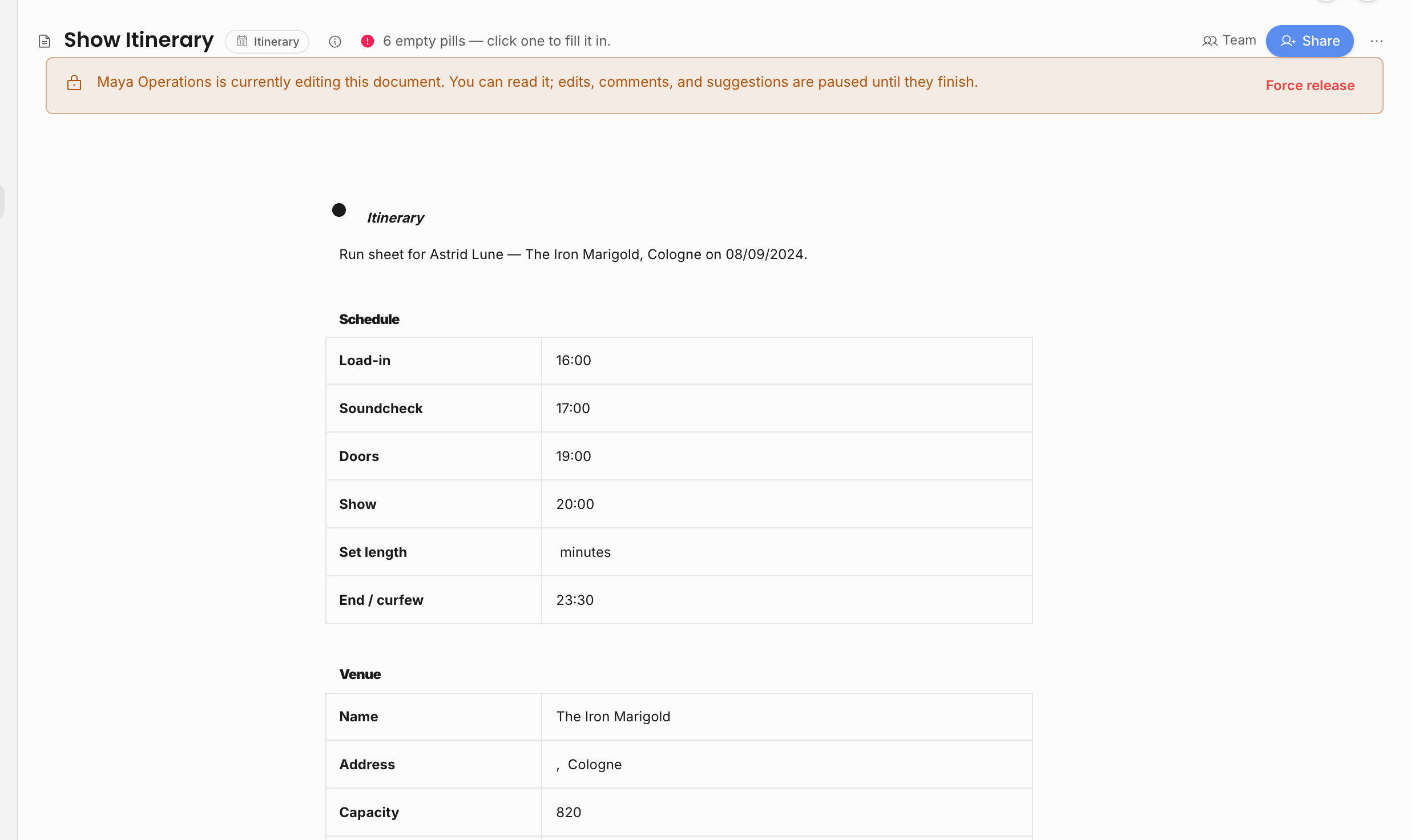
The lock also protects the title and review surface, not only the body text. That keeps the document, comments, and suggested edits aligned while someone is working.
Locks can also reach terminal states. If the document is archived or deleted while someone has it open, the editor becomes read-only and the user needs to navigate away or reload after the document is restored. If a session expires or a lock is lost, reload before continuing important edits.
Invite and access hygiene
Review external document access regularly:
- pending invitations that were never accepted;
- old reviewers who no longer need access;
- documents shared with the wrong external person;
- invite capability level, such as view, comment, or edit;
- whether a shared link or invite should be revoked after signature, payment, or approval.
External document access is a collaboration tool, not a permanent team membership. Use External users when an outside person needs recurring managed access across shared surfaces.
Related: External users, Visibility and sharing, Create and edit documents.