
Event templates and options
Event settings shape how shows are captured, worked, searched, and reused by the rest of the workspace. In the app, open Settings → Events / Shows. The section opens on custom form fields, with additional tabs for saved field options, task templates, and revenues and expenses.
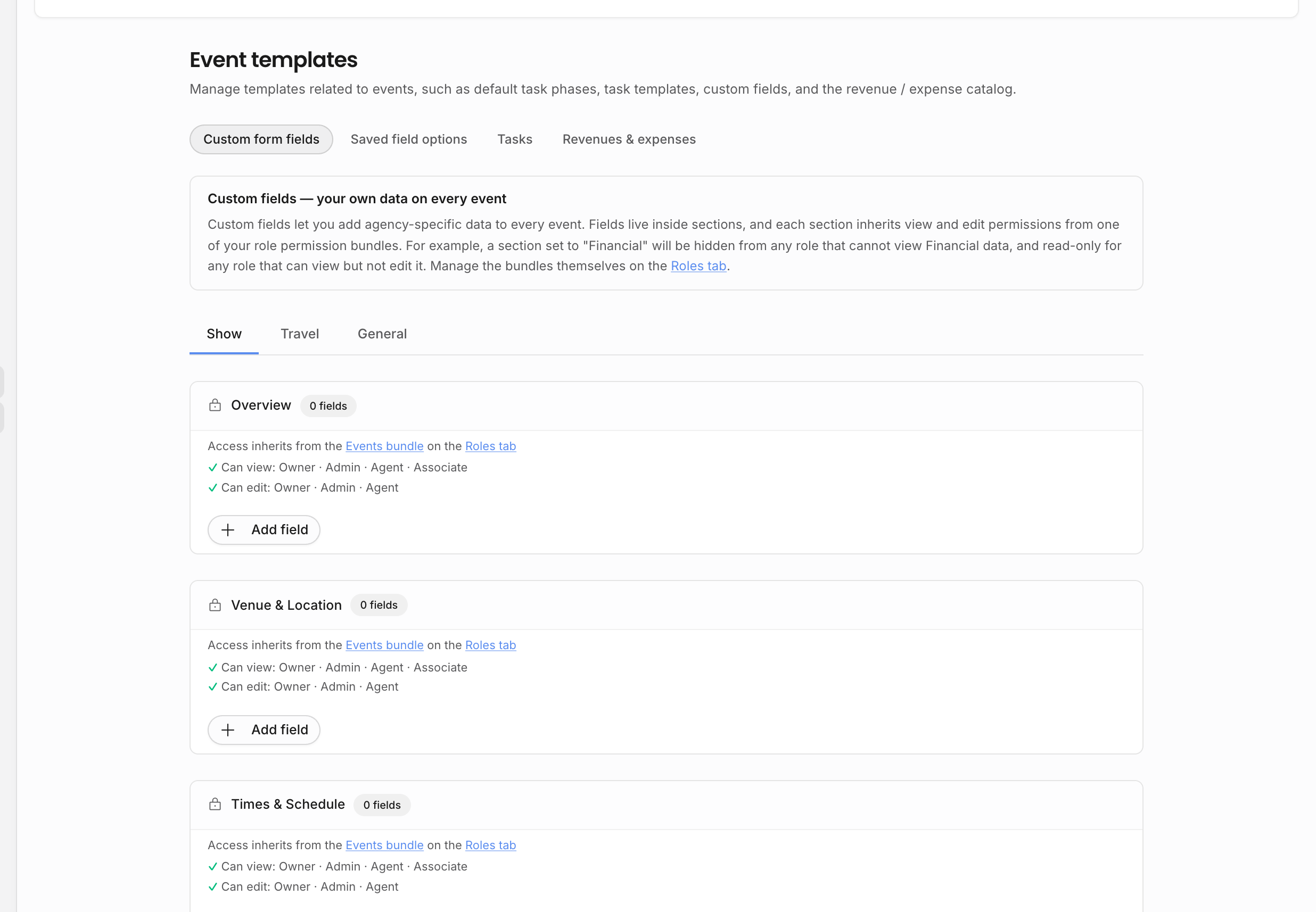
Teammates can view these settings when they have access to the workspace. Creating, editing, deleting, or reordering templates requires the Manage templates permission.
Custom form fields
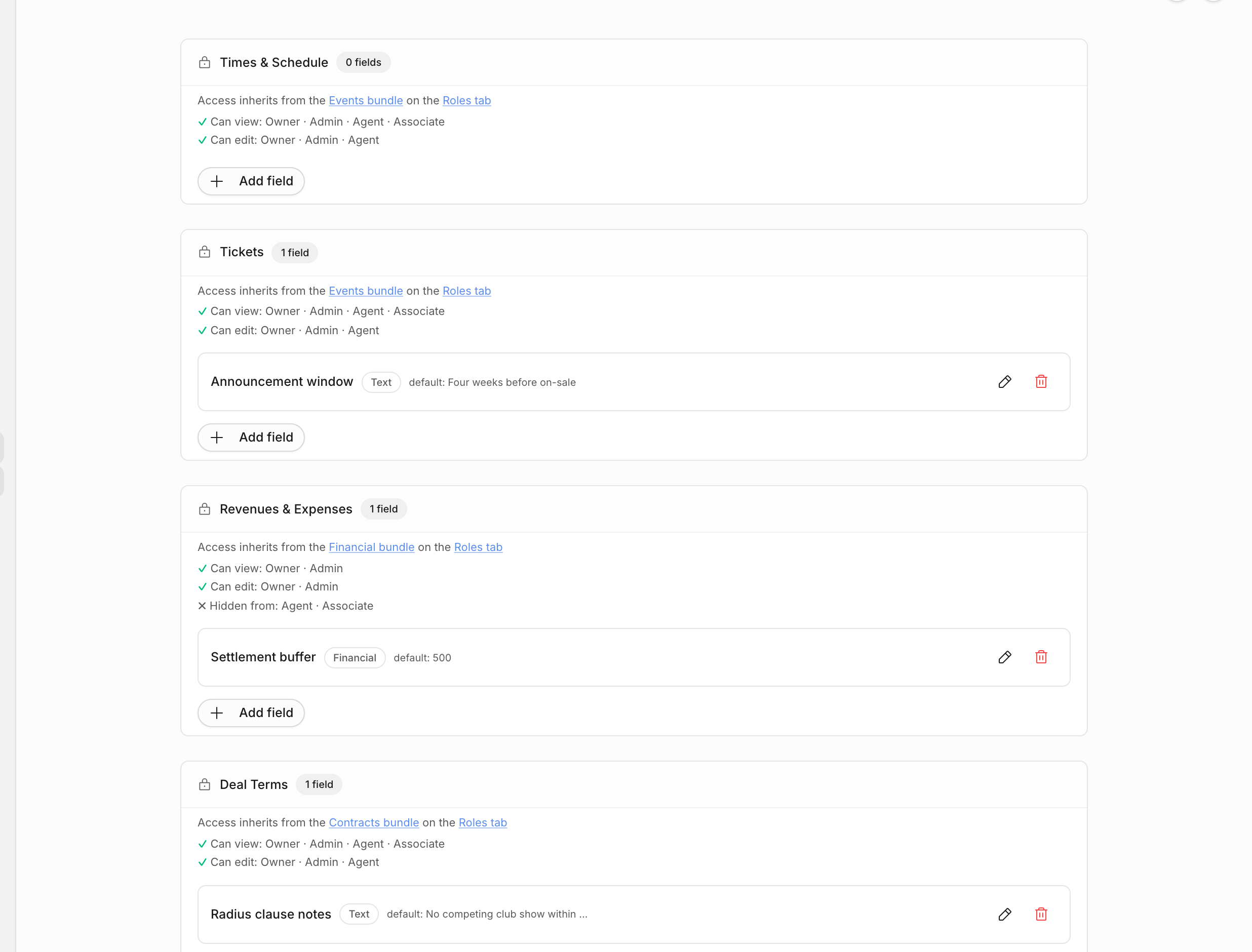
Custom fields let the agency track information that is not part of the default show model. They appear on event detail pages in sections, and the right fields are shown based on the event type.
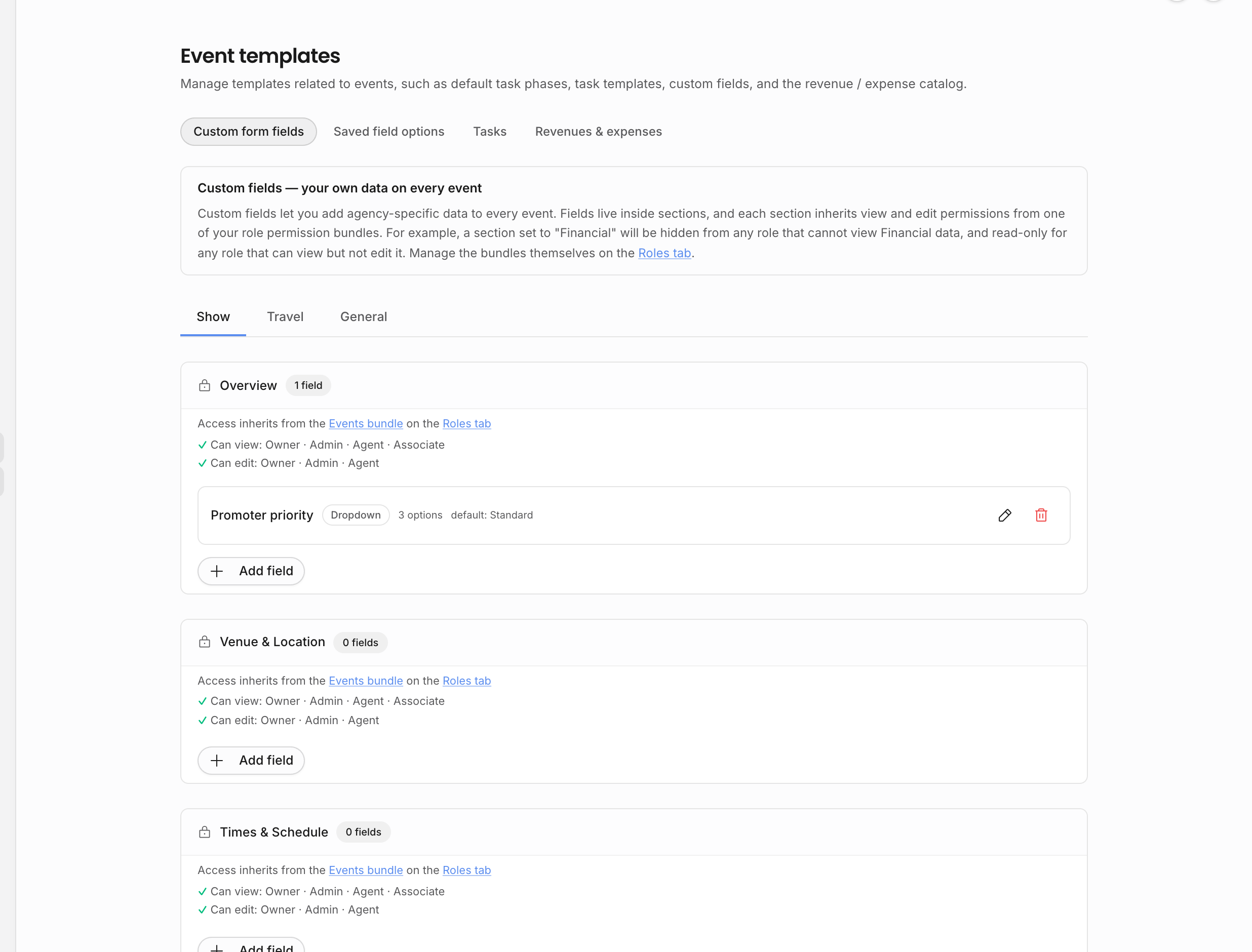
| Part | What it controls |
|---|---|
| Sections | Group fields into areas such as Overview, Venue & Location, Times & Schedule, Tickets, Revenues & Expenses, Deal Terms, Guest List, or a custom section. |
| Event type scope | Decide whether a section applies to all event types or only to specific types such as shows, travel, or general events. |
| Permission group | Decide which permission area governs a custom section, for example event data, financial data, or contract-related data. Standard sections keep their built-in permission group. |
| Field type | Choose text, number, select, boolean, or financial fields. Select fields can carry saved options; fields can also have defaults. |
Standard sections are seeded by Offstage so the core show structure stays predictable. You can adjust their event-type scope, but you cannot rename or delete them. Custom sections can be renamed, permission-scoped, event-type scoped, or removed.
Use care when deleting custom fields or custom sections. The settings screen warns when a field already has values, because deleting the field removes those stored values from events.
Saved field options
Saved options keep repeated free-text choices consistent without forcing the team to retype the same values on every show.
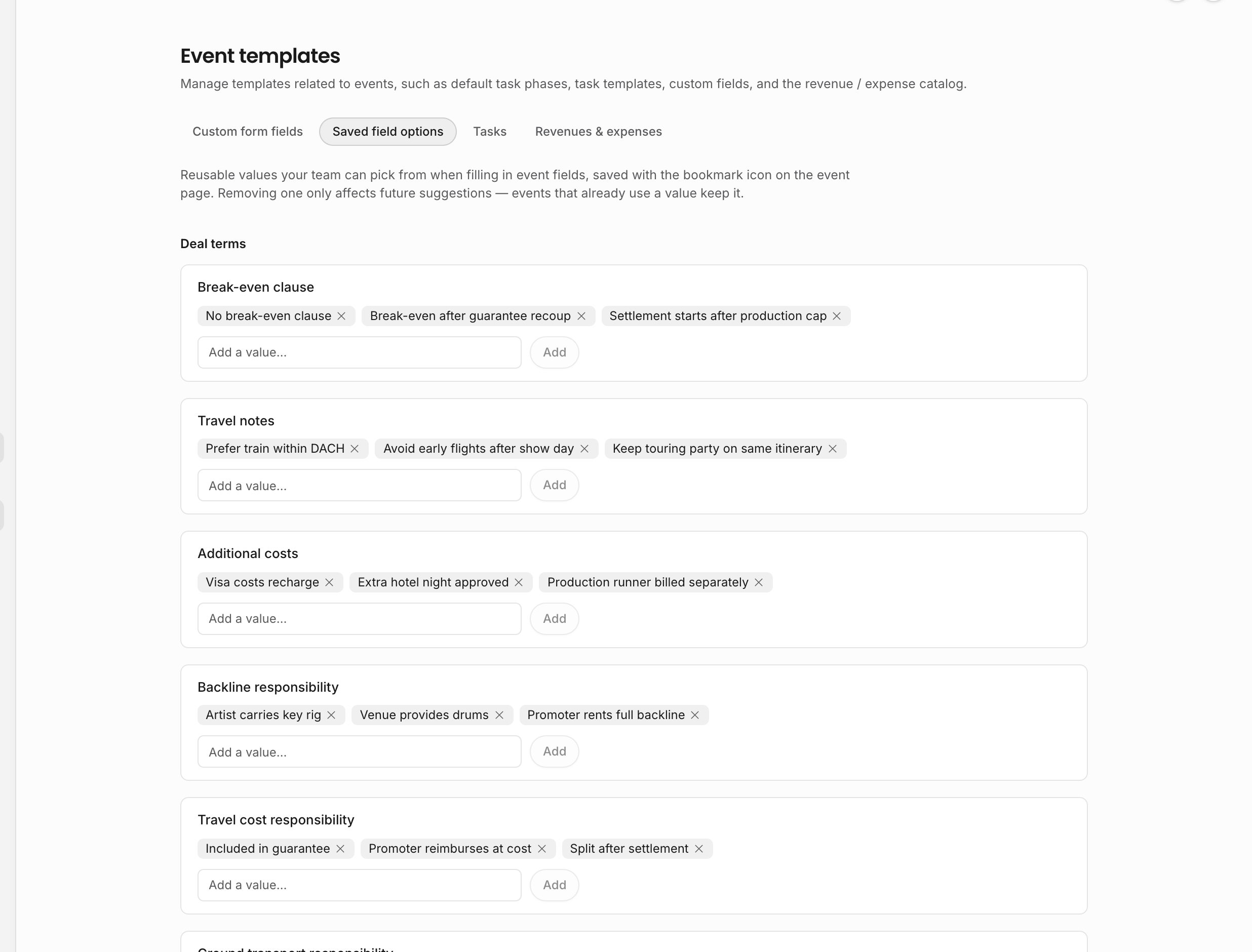
The settings page includes reusable options for performance type, backline responsibility, travel cost responsibility, ground transport responsibility, break-even clauses, specific arrangements, travel notes, and additional costs. Text custom fields with saved values also appear here, so admins can prune or add reusable suggestions for those fields.
Removing an option only removes it from future suggestions. It does not rewrite values that are already saved on existing events.
Task phases and templates
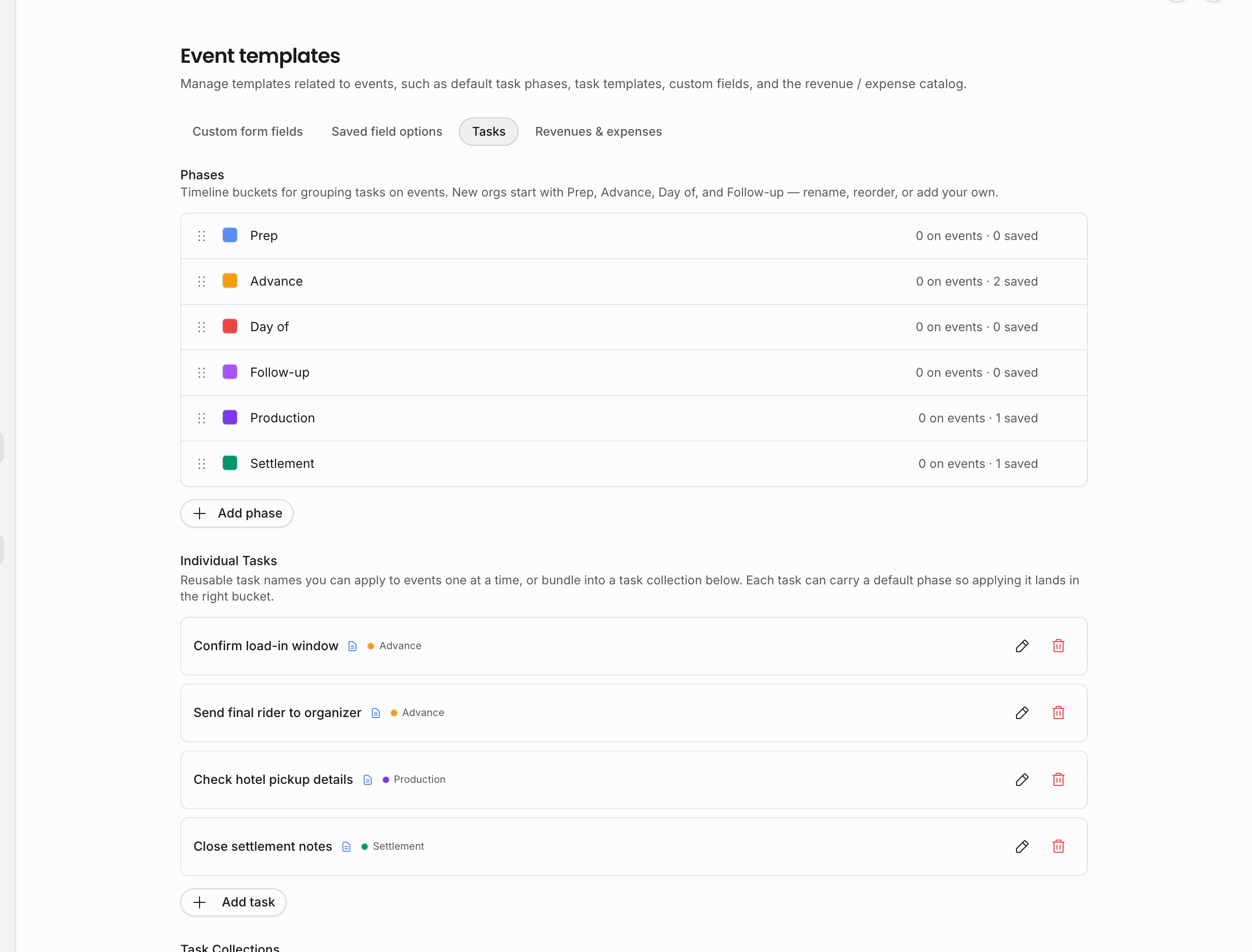
Task phases organize event work into stages. They are the buckets the team sees when tasks are grouped on an event, and each phase can have a color. If a phase is deleted, existing tasks and templates can be moved to another phase or left without a phase.
Task templates are reusable task names with optional notes and an optional default phase. They are useful for recurring work such as confirming travel, collecting assets, sending contract drafts, preparing settlements, or checking day-of logistics.
Task collections bundle multiple task templates together. When a collection is applied to an event, each task keeps the default phase defined on its template, so a standard workflow can land in the right buckets without rebuilding the checklist manually.
Revenues and expenses
The revenues and expenses tab is the catalog for reusable financial line items. Items are split into revenue and expense types and can define a default unit, tax rate, and price. They are used when adding structured money lines on events, so common fees, guarantees, commissions, production costs, travel costs, and other recurring lines stay consistent.
The catalog fills from two directions. Manage it here in settings, or grow it from real work: when a teammate adds a custom line on a show's Financials card, the add dialog offers Save to catalog for future use (requires Manage templates), which stores the line as a catalog item for the whole team. See Revenues and expenses on the show page.
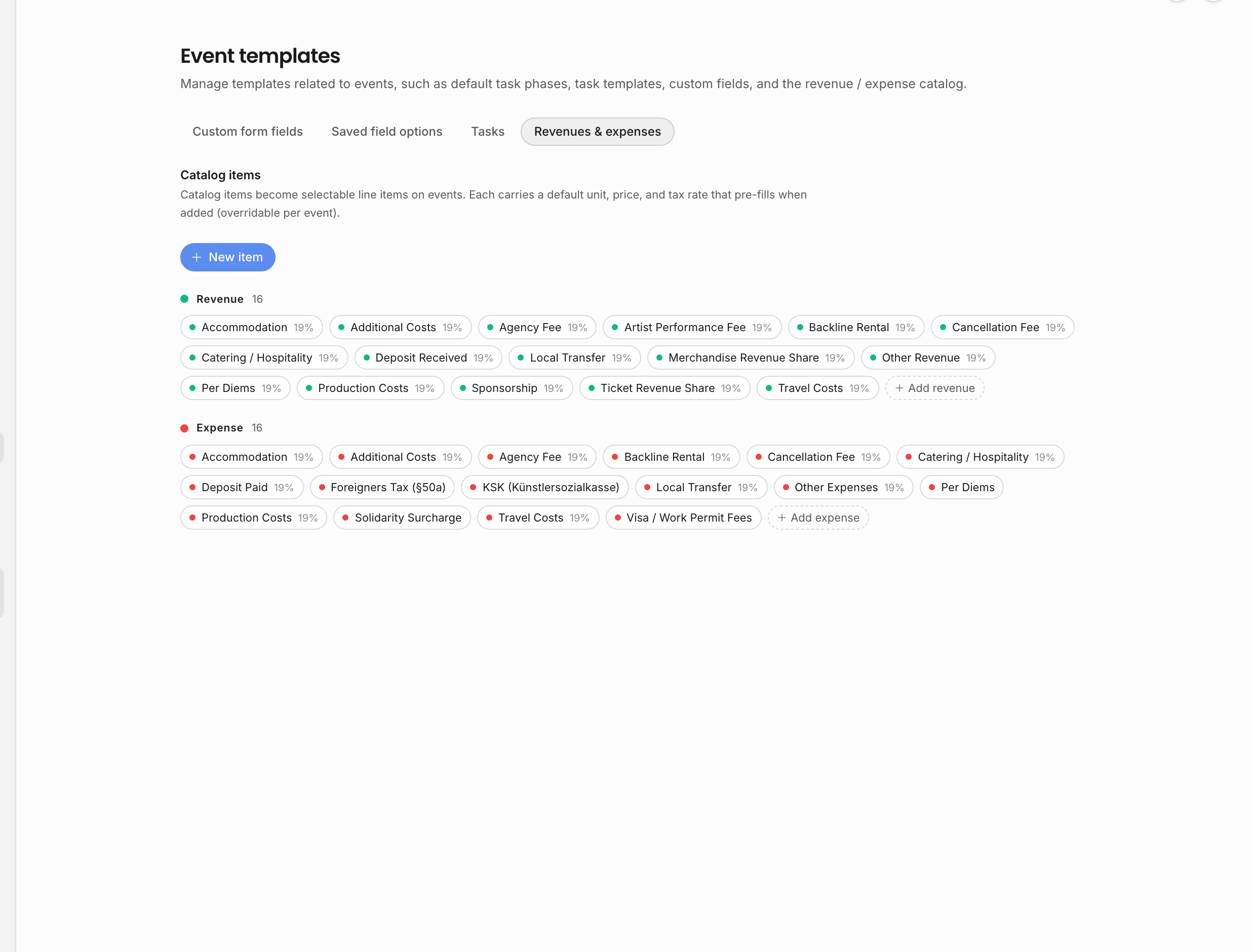
If a catalog item has never been used, deleting it removes it. If it has already been used by event line items, Offstage deactivates it instead, preserving historical event data while hiding the item from the active picker.
When to create a template
Use these settings when a value repeats across shows or affects downstream work:
| Repeating need | Best place to model it |
|---|---|
| A field the agency wants on event detail pages | Custom form field |
| A set of allowed or suggested answers | Select field options or saved field options |
| A recurring task | Task template |
| A recurring group of tasks | Task collection |
| A recurring financial line item | Revenue or expense catalog item |
| A field set for external calendar audiences | Tour calendar templates |
Connection to documents
Custom fields and structured event values can feed Live pills. This is why template design should happen before building contract, invoice, and itinerary templates. A document template is more reliable when the event data it expects has a stable field, option, permission group, and owner.
Revenue and expense catalog items also affect documents indirectly because event financials can feed contracts, invoices, settlement documents, and analytics.
Connection to tour calendars
Custom fields are internal event data. Do not use custom fields as the control surface for public or external calendar visibility. Use tour calendar templates to decide which event fields appear in public links, external-user views, and calendar feeds.
Related: Show fields, Live pills, Source of truth.