
Shared schedules
Shared schedules let you publish selected calendar information without giving someone full workspace access.
What you can share
You can create a schedule, add eligible events to it, and share it as a web page or calendar feed. Use this for artist itineraries, tour routing, production handoffs, and people who need schedule context without workspace navigation.
Only events marked Internal + External can be added to a shared schedule. Draft events are excluded. This matters because the schedule is not a second permission layer that makes an internal event safe after the fact; the event itself must be intended for external visibility.
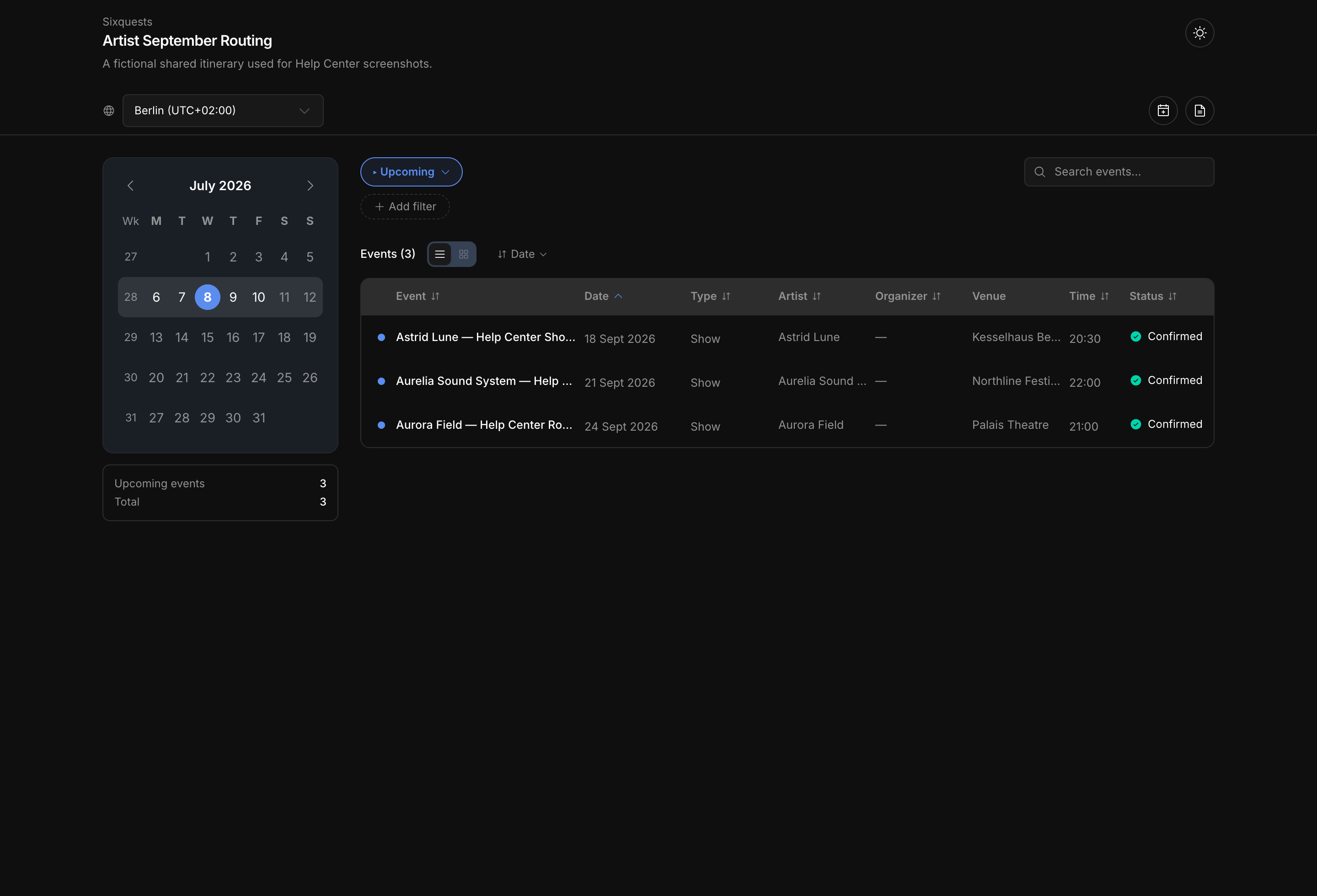
A shared schedule can show calendar records in a public-style view with compact rows, expanded rows, table-style detail, month context, and map context when location data is visible. Recipients can search, filter, inspect event detail, switch timezone display, download event files, and subscribe to a calendar feed when those controls are available for the share.
Sharing control
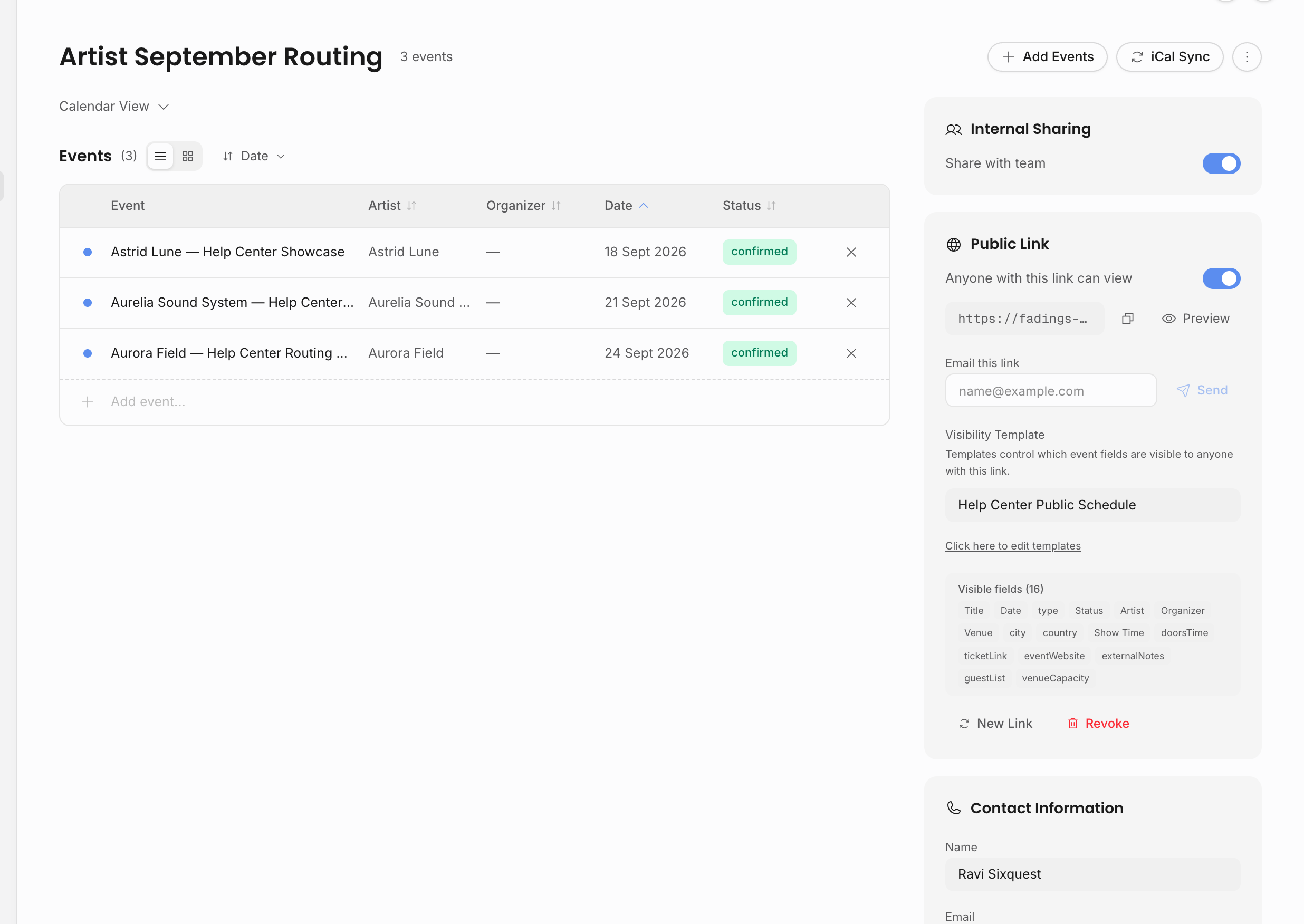
Shared schedules are separate from workspace membership. Creating schedules, adding or removing events, changing team/public sharing, regenerating links, revoking links, and emailing a share link all require the Share calendars permission.
There are three different access ideas that are easy to confuse:
| Access path | Use it for | What controls access |
|---|---|---|
| Internal team sharing | Let other signed-in workspace members see the schedule inside Calendar. | The schedule's private/team setting. Only the schedule creator can change this setting. |
| Public link | Let anyone with the link open the schedule web page. | The schedule share token plus an Anyone with link access rule and its visibility template. |
| Calendar subscription | Let a recipient add the schedule to Apple Calendar, Google Calendar, Outlook, or another calendar app. | A subscription token. Regenerating or clearing the share token revokes existing subscriptions for that schedule. |
Named external users are related, but they are managed separately in External users. They have an external session, a template, and optional artist scope. Use that model when you need a named outside collaborator instead of a bearer link.
Visible fields
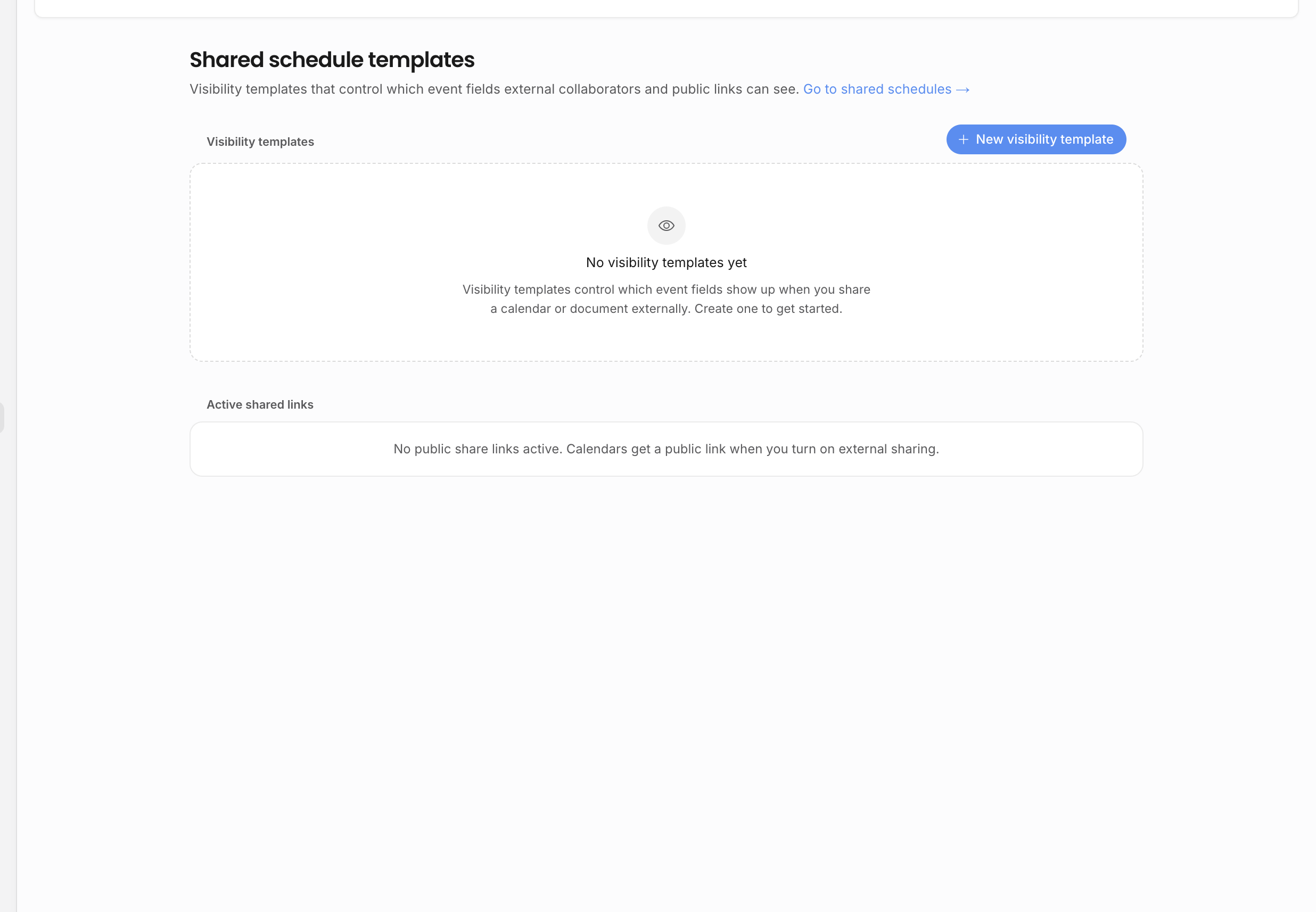
Shared schedules use visibility templates so you can choose what an outside person sees. For example, one audience might need dates, cities, venues, and public notes; another might also need travel fields, ticket links, or contact details.
The core fields are always included: title, date, event type, status, category, and performance type. Optional fields can add artists and organizers, agency contacts, venue and location, times and schedule, tickets and links, travel logistics, contract and invoice status, guest list, and external notes.
Some internal data should never be treated as public schedule content. Internal notes, deal terms, financial line items, private tasks, private updates, and workspace-only context belong in Offstage, not in broad schedule links. Use Visibility and sharing when deciding which layer should carry a detail.
Offstage treats the visibility template as an access rule, not just a display preference. Hidden fields stay out of the public schedule and feed, internal notes stay internal, and financial line items are not included in public calendar views.
Recipient view
The recipient schedule is built for people who need to understand the itinerary without seeing the internal workspace. Depending on the template and event data, a recipient can:
- switch between compact and expanded event views;
- use search across visible event text;
- filter by time range, date or week from the month context, event type, status, artist, organizer, or venue;
- use map context when coordinates are visible;
- open an event detail panel for venue, times, tickets, travel, accommodation, return travel, guest list, and external notes;
- download one event as an
.icsfile; - subscribe to the full feed or download all shared events as
.ics; - change timezone display for their own reading context.
If a field is hidden by the template or missing on the event, it should not appear in the recipient detail panel. This is why template design matters: a public schedule can feel rich without exposing internal deal data.
Calendar feeds
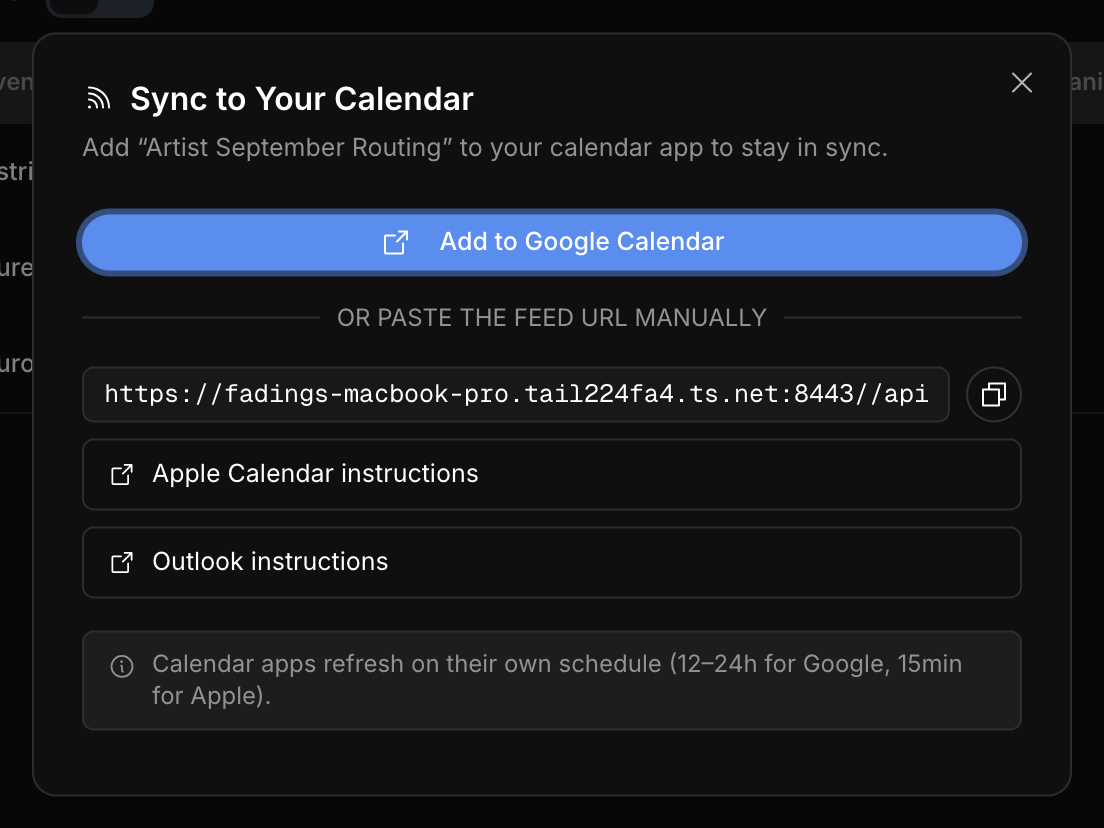
Calendar feeds are useful when someone wants events to appear in their own calendar app. A feed should contain only the event detail that is appropriate for that audience, and it is intentionally less detailed than the web schedule.
Feeds include the event title, date, visible timing, visible artist or organizer names, visible venue/address context, and a link back to the shared schedule when those fields are allowed. If show time is hidden, the feed does not leak the time through DTSTART; the event appears as date-only. Travel events can create separate calendar entries for outbound travel, accommodation, and return travel.
Use the web schedule when the recipient needs to filter, inspect details, browse the map, switch timezone display, or download individual event files. Use a feed when the recipient mainly wants the dates to stay synced in Apple Calendar, Google Calendar, Outlook, or another calendar app.
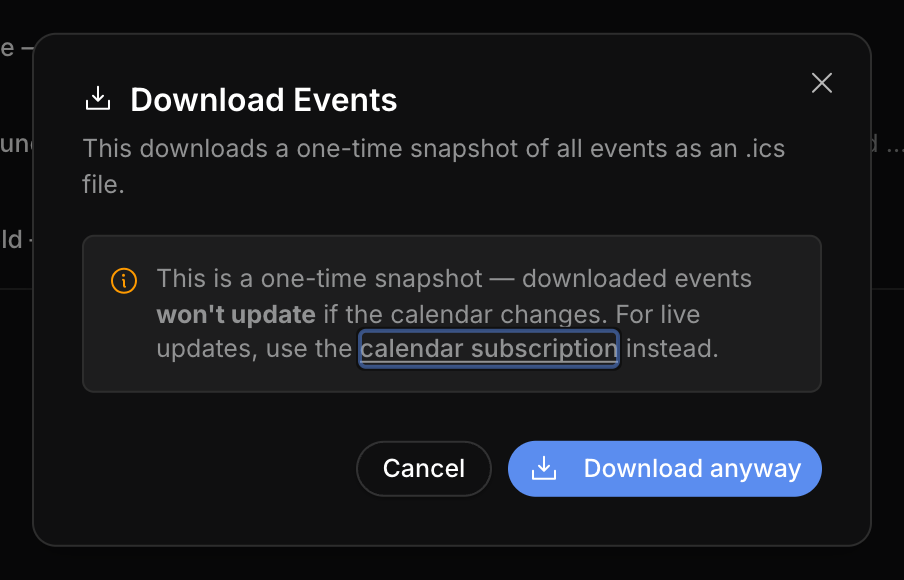
The direct download option is a snapshot; it will not update when the schedule changes. Subscription is the better option when the recipient needs updates. Regenerate or clear the share token when old links and subscribed feeds should stop working.
Operational checklist
Before sending a shared schedule:
- Check that each event is marked Internal + External.
- Confirm the schedule contains the right events and no stale routing holds.
- Choose a visibility template that matches the audience.
- Open the public link yourself and inspect the recipient view.
- Use the feed only when the recipient needs calendar-app syncing; use the web page when they need the richer itinerary.
- Review old active links in Settings when the schedule or audience changes.
Relationship to events
Shared schedules do not replace the internal show detail page. The event remains the source of truth for staff: tasks, documents, contracts, invoices, updates, and private notes stay on the internal record. The schedule is the outward-facing view of selected calendar information.
Related: Visibility and sharing, External users, Calendar overview.